The Driver Portal
The Driver Portal allows you to check in and check out of your appointment using your phone or tablet—no physical check-in required. This helps the facility know when you arrive and when you leave, while keeping your visit moving smoothly.
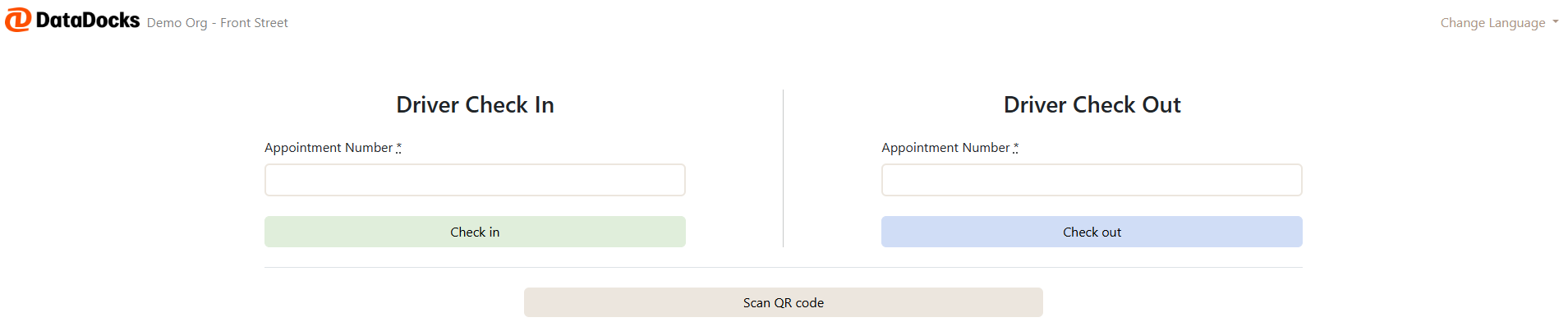
Accessing the Driver Portal
Drivers can access the Driver Portal in one of two ways:
-
Scan a QR Code at the facility: Upon arrival, scan the facility’s QR code using the camera on your mobile device. This will automatically open the Driver Portal in your browser.
-
Visit a provided URL: Navigate to the Driver Portal by entering the URL provided by the facility into your mobile browser.
Step 1: Validate Your Appointment
Once the portal opens, you’ll be asked to identify your appointment. Enter one of the following (based on what the facility provides):
- Appointment Number
- Access Token
- Purchase Order (PO) Number
- QR Code
If the information matches an existing appointment, you’ll move to the next step. If not, you’ll see an error message and can try again.
Step 2: Enter Required Information
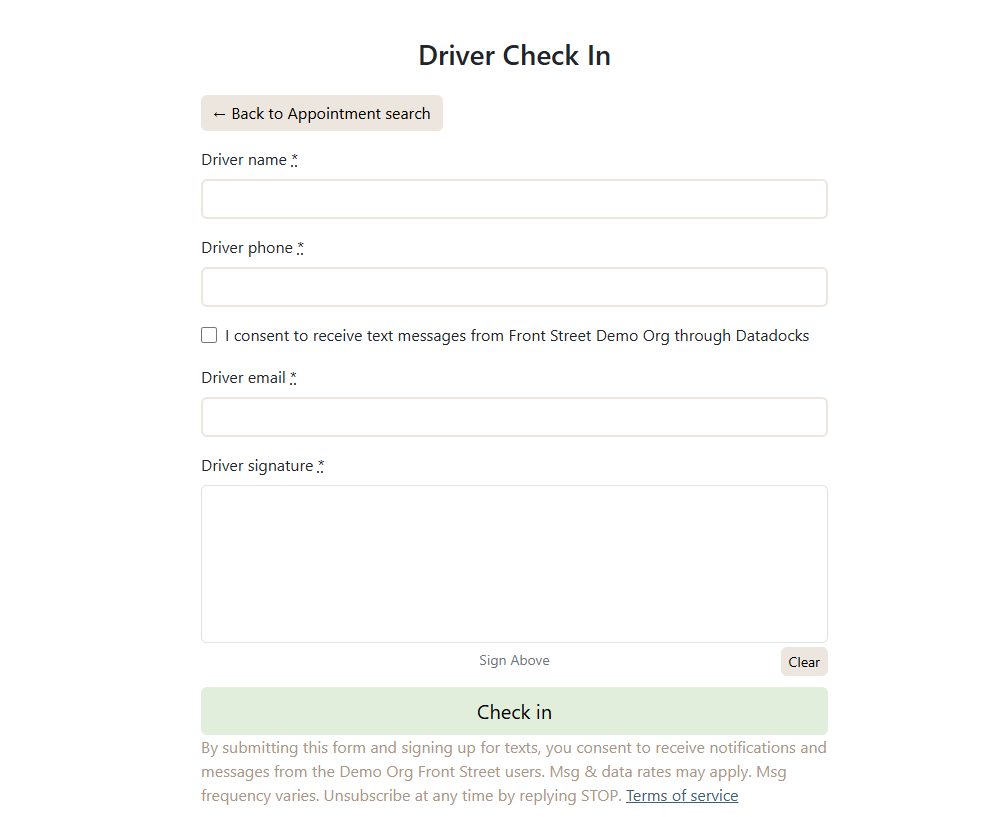
After your appointment is validated, you’ll be asked to fill in a short form. This may include details such as:
- Driver name
- Phone number
- Trailer or reference information
Anything marked with an asterisk (*) is a mandatory field.
Tip! If you enter a phone number, you’ll be asked to consent to receiving text messages. This allows the facility to contact you if needed during your visit, and you can respond to them via text message.
Step 3: Check-In Confirmation
Once the form is complete:
- Your appointment is officially marked as Arrived
- The facility team is notified
- You’ll see a confirmation screen letting you know you’re checked in
You’re all set—please follow any on-site instructions while you wait.
Messaging During Your Visit
If you provided a phone number and gave consent, the facility may send you text messages with updates or instructions (for example, dock assignment or next steps).
- You can reply directly to these text messages
- All communication is tied to your appointment to avoid confusion
Driver Check-Out
When you’re ready to leave the facility, return to the same Driver Portal link and complete the check-out process.
How Check-Out Works
- Open the Driver Portal
- Validate your appointment (same process as check-in)
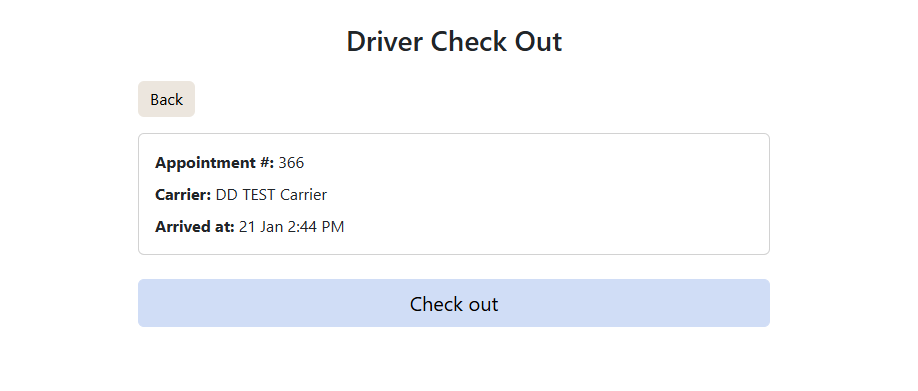
- If your appointment is eligible for check-out, you’ll be prompted to confirm
- If your appointment is not eligible for check-out, you'll receive an error message.
Why Use the Driver Portal?
Using the Driver Portal helps ensure:
- Faster entry and exit
- Less waiting at gates or offices
- Accurate arrival and departure times
- Clear communication with the facility
It’s a simple, self-service way to keep your visit efficient and on track.