Why am I receiving the over booking warning or why can't my customer/carrier see appointment times to book?
Both of these are caused by the software registering there is no availabilty for that particular appointment at that time slot. There could be one, or a few reasons why this is the case and to see these reasons, you can use the "Check Capacity" function within the appointment builder.
If you are receiving the overbooking warning when trying to save your appointment as an internal user, simply close the dialogue box warning you of the overbooking. If your customer/carrier is saying they cannot see a timeslot to book, begin to create a new appointment and replicate the details. Be sure to include all relevant information, PO number, Quantity, Customer name, Carrier name etc.
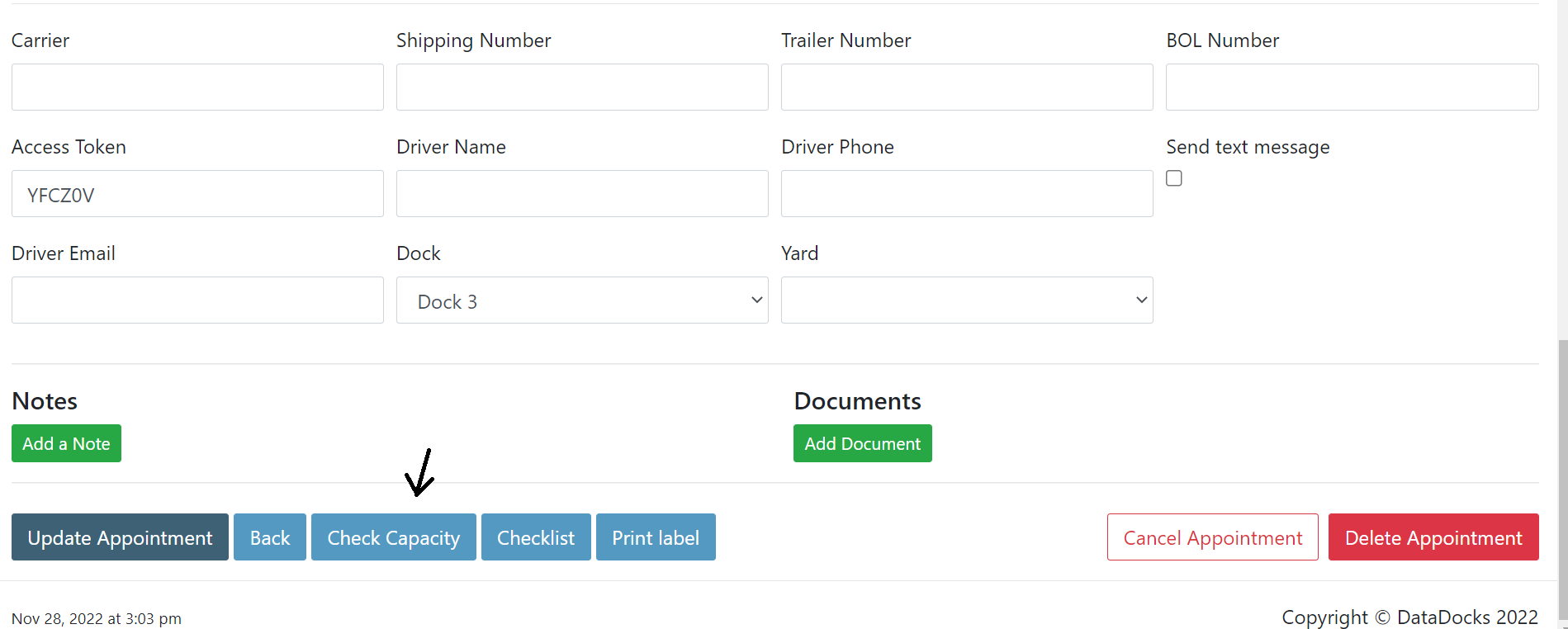
Once these steps are complete, scroll to the bottom of the appointment builder and click "Check Capacity" - shown below.
Upon clicking "Check Capacity" the software will run all the appointment details to tell you the capacity available for that particular appointment. You will be greeted with the below page:
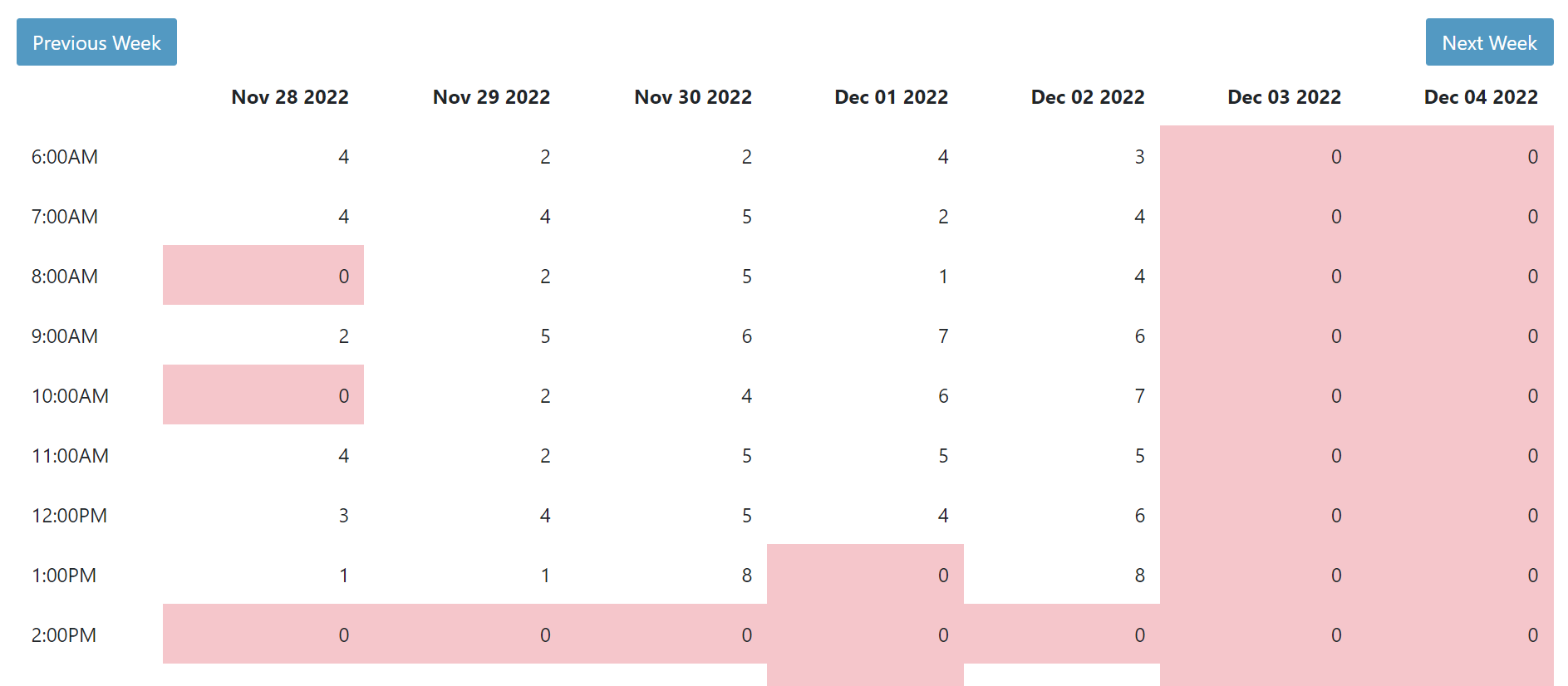
In the above image you can see varying numbers, each representing how much capacity you have at that particular date and time for the appointment in question. You can click on the numbers to see why your capacity might be affected, allowing you to see why you are receiving the overbooking warning or why your customers are unable to book a particular time slot.
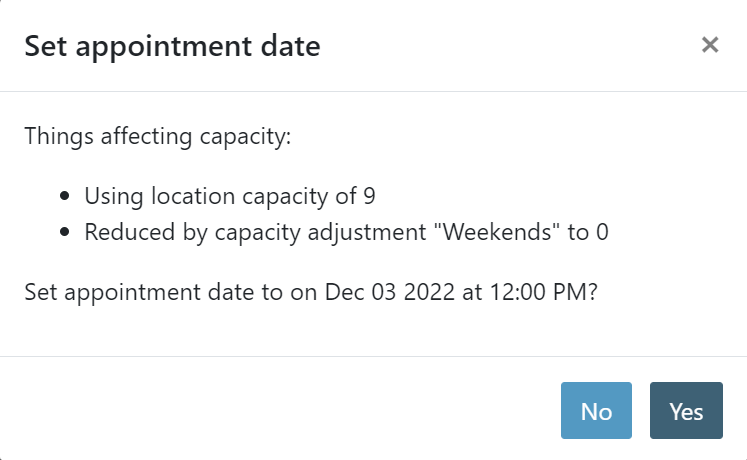
Here you can see that my overall capacity limit for my facility is 9 appointments per time slot however, for this time slot in question, it has been reduced to "0" because of a capacity adjustment named "Weekends".