Understanding the Customer/Carrier Portal
Maximizing Efficiency with the DataDocks Booking Portal
The DataDocks Booking Portal empowers your customers and carriers to manage their own appointments within the parameters you set, reducing the need for manual scheduling and improving operational efficiency. By enforcing rules like capacity adjustments, product limits, appointment limits, and dock closures, you ensure that all bookings align with your facility’s needs while streamlining the process for your team.
How the Booking Portal Benefits Your Team
-
Reduced Manual Work: Customers and carriers book their own appointments through the portal, eliminating the need for you to manually schedule or reschedule on their behalf.
-
Enforced Rules and Limits: You set the rules — capacity adjustments, product limits, and dock availability — and the portal ensures customers and carriers can only book within those parameters.
-
Real-Time Updates: Once customers enter all required information, they can only see valid, available time slots, reducing booking errors.
-
Improved Communication: Features like Driver Check-In and Messaging keep your team connected with drivers and carriers, automating updates and enhancing efficiency.
-
Improved Planning: You control how much notice you need for new appointments, or existing appointments to be edited, rescheduled or cancelled avoiding last minute, disruptive changes.
How It Works
Setting Your Rules in DataDocks
| Feature | What It Does |
|---|---|
| Location Settings | Set your default appointments per time slot and durations. |
| Capacity Adjustments | Control when your facility is open or adjust capacity for specific periods like lunch breaks or skeleton crews. |
| Product Limits | Cap the number of specific products that can be booked in a day or week. |
| Appointment Limits | Limit the total number of appointments allowed per day or week. |
| Product Categories | Assign certain product groups to specific docks or set unique processing durations. |
| Dock Closures | Block off docks to certain customers or for maintenance, downtime, or operational needs. |
Once these rules are in place:
- Customers and carriers must follow them when booking.
- The portal dynamically adjusts availability based on your settings.
Accessing the Portal
Your customers and carriers can gain access to the Booking Portal in a few simple ways:
- Email Invitation:
- Customers receive an invite email with a link to create their account and password.
- Passwords are unique to each user for security.
- Click here for more details
Tip! If you'd like to set up a test account for yourself to see the booking portal, follow the steps above. We'd suggest using something other than your work email, such as your gmail account.
- Request Access via URL:
- Customers and Carriers can head to your unique URL, found in the address bar at the top of the web browser and use the "Request Access as Carrier/Customer" button

- Once they request access, you will receive an email notification and an alert in your advanced menu that a new customer/carrier is requesting access. Click here for more details
- Once approved, they will receive an email confirmation and login details.
Tip! If you'd like these Access Requests to be approved automatically, let our support team know!
Booking Appointments
- All mandatory fields, marked with an asterisk (*), must be filled before they can proceed. Any required field missed will be met with an error message.
Required details could include Carrier, Purchase Order (PO) Number, and other relevant fields. You can customize this page to capture the information you need from your customers and carriers. Please reach out to the support team for setup.
Tip! It’s best if this page is kept as simple as possible to ensure that customers and carriers fill out the information required.
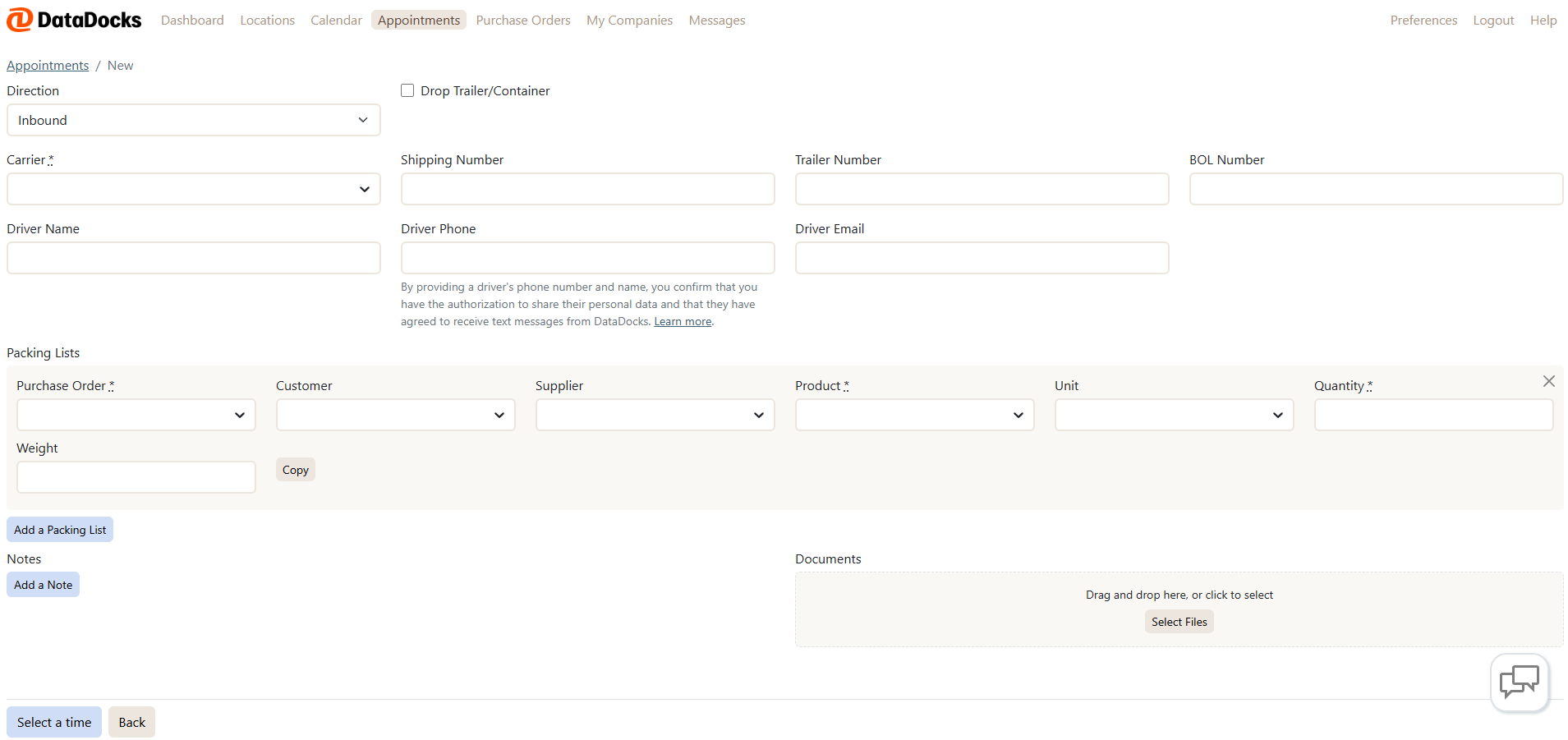
- Attach Notes or Documents:
- Customers can upload relevant files, such as BOLs or other documentation, directly to the appointment for your team to access.
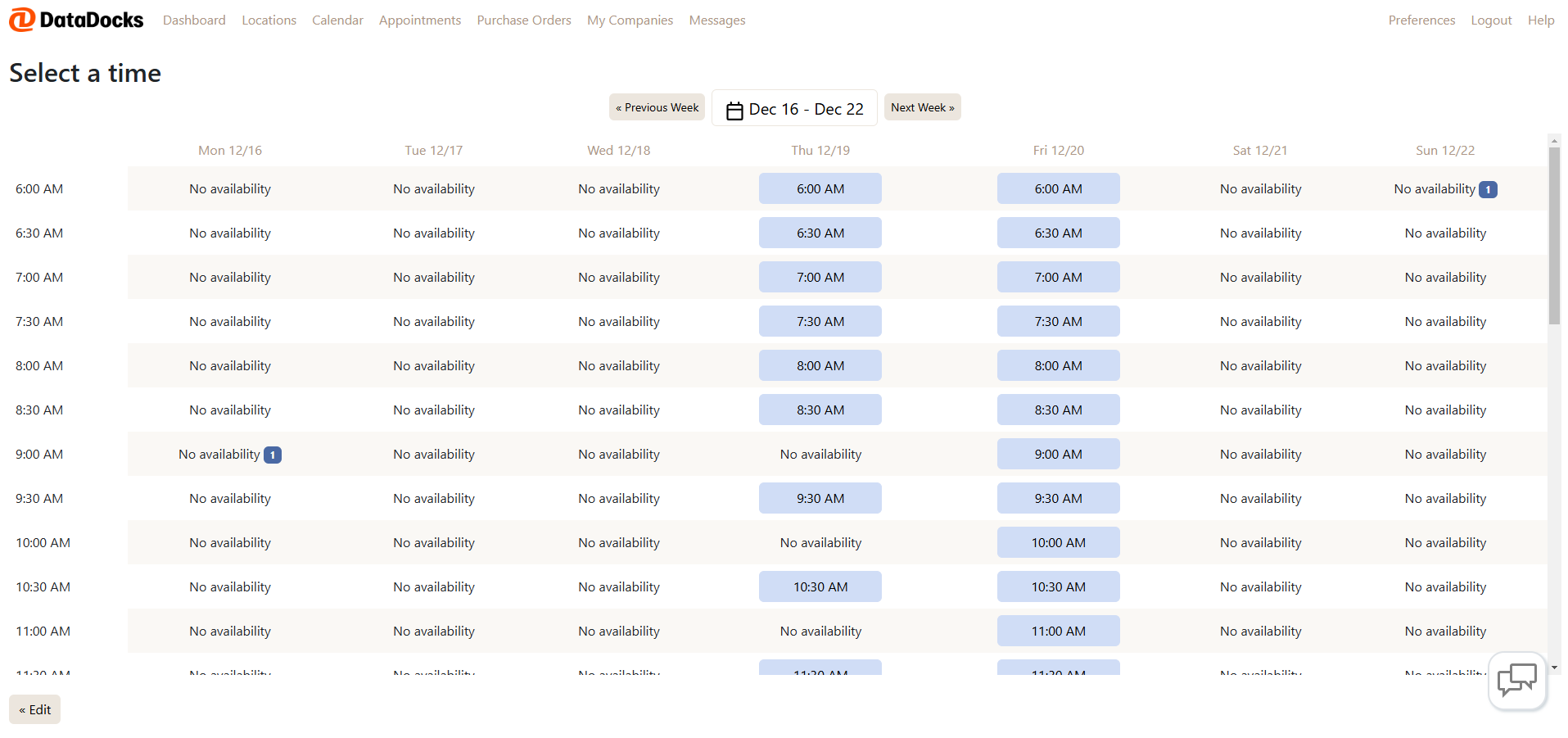
- Select a Time:
- Once fields are complete, the customer/carrier will click "Select a Time". The portal will display only the available time slots based on your rules.
- For Example:
- If a product limit has been exceed, no slots will appear for that day.
- If your facility only begins shipping/receiving at 6am, they will not see any slots prior to 6am.
- Confirmation
- Once scheduled, both the customer and your team receive notifications.
Managing Appointments
Customers and carriers can easily manage their appointments.
| Feature | What It Does |
|---|---|
| Reschedule Appointments | Customers can reschedule to a new time if available, subject to your rules. |
| Running Late Notifications | Customers can notify your team when they’re running behind schedule. |
| Edit Appointments | Allow customers to update details before the appointment time. |
| Cancel Appointments | Customers can cancel their appointments if plans have changed and will have an opportunity to provide a cancellation reason. When they do, this will be stored as a note on your appointment. While cancellation reasons are optional, you can make them mandatory via Location Settings. |
| Messages | Allows customers to message you in relation to their appointment. |
Tip! The Edit, Cancel and Reschedule buttons will be disabled once they are within the timeframe where this is no longer allowed. Click here for more details
Managing Companies and Users
Through the My Companies section, or directly on their Dashboard, customers and carriers can provide access to teammates or other carriers they work with.
| Feature | What It Does |
|---|---|
| Invite Teammates | Add users by entering their email addresses and sending invites. |
| Add Carriers (if enabled) | Allow carriers to book appointments on their behalf, creating a direct link between the two organizations. This can be enabled in your Advanced - Company Settings. |
Other Available Settings
| Setting | Default | What It Does |
|---|---|---|
| Company cannot schedule within hours | 24 hours | Prevents companies from scheduling appointments within the specified time frame. For example, if set to 24 hours, appointments must be scheduled at least 24 hours in advance. |
| Company cannot reschedule within hours | 24 hours | Disables the option to reschedule their appointment once it is within the specified timeframe. |
| Company cannot edit within hours | 24 hours | Disables the option to edit their appointment once it is within the specified timeframe. Editing an appointment is changing any of the appointment fields, it does not include the date or time of the appointment. |
| Company cannot cancel within hours | 24 hours | Disables the option to cancel their appointment once it is within the specified timeframe. |
| Disable same day appointment creation | Disabled | Prevents companies from scheduling appointments within the same calendar day. Use this rule if you do not want to use "Company Cannot Schedule within hours" |
| Disable same day appointment editing | Disabled | Prevents companies from editing appointments scheduled within the same calendar day. Use this rule if you do not want to use "Company Cannot edit within hours" |
| Running Late Button | Enabled | Allows companies to let you know they are running late. |