Product Categories
Product Categories are groups of products. You can group them based on your facility’s operation, for instance, frozen vs. dry. These groups allow your facility to allocate certain rules to these groups. As we saw in Advanced - Product Limits, we can limit specific categories in quantities, but you can go further and allow different durations for processing, or even assign to specific docks.

Creating a Product Category
Click "New Product Category"
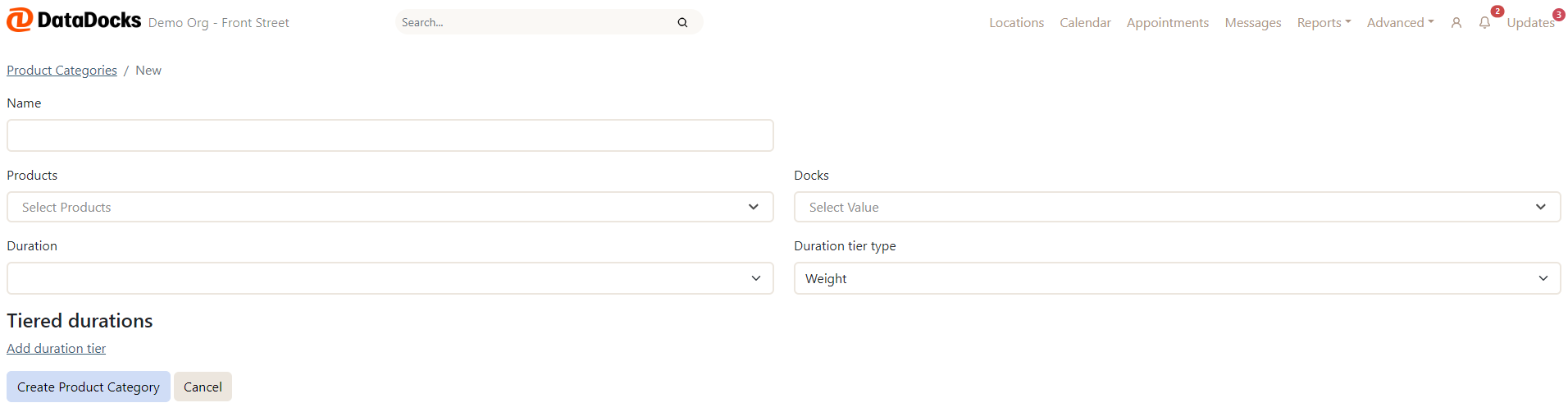
| Field | Option | What it Does |
|---|---|---|
| Name | Create a name to identify the group | This makes it easier to identify in lists where the categories populate, for example, Advanced Product Limits |
| Products | Select the products to add to the group | This can be one item or multiple to create the product category. |
| Docks | Select the docks you want to assign the Product category to | You can assign specific categories to specific docks, this is not mandatory. |
| Duration | How long it takes to process this category | If this category will take a different appointment duration than your default, you can set that here. |
| Duration Tier Type | Either Weight or Quantity | These durations can be filtered into tiers, based on either quantity or weight. See further for information on Tiered durations. |
Utilizing set categories allows your facility to allocate a few different things:
-
When Appointments are booked with specific items allocated in your categories
a) Docks can be allocated based on product categories assigned with the above filters
i) For instance, if we have frozen items allocated to docks 1-3, any appointment with frozen items within the frozen category will be assigned to only docks 1-3 based on availability and durationb) Appointment durations can be adjusted based on the amount of product within an appointment - see tiered durations below
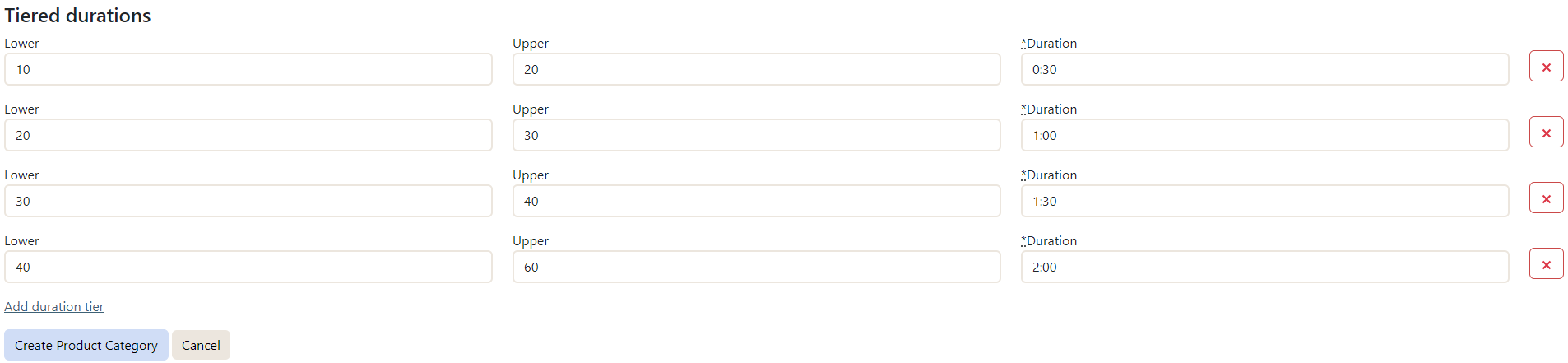
If we go further into Product Categories and add tiered durations, appointment durations can change when Customers and Carriers book appointments with specific quantities or weights of products assigned to that category. If a product in this category has unit conversions set up, enter quantity- or weight-based tier ranges using the product’s smallest unit. Larger booked units will be converted automatically when DataDocks applies the duration tier.
For example, if an appointment includes between 10–20 units, the appointment may be 30 minutes, while 20–30 units may require 1 hour.
Tip! These amounts in the upper and lower must be whole numbers. 0–10, 10–20, or 0–7, 7–12 etc. They cannot be decimal numbers. Be sure that the previous “upper” number is the same as the next “lower” number, or DataDocks will reset the duration to the default set in your location.
This will create less stress and better scheduling for your team when processing shipments.
Ensuring that these categories are created will make booking streamlined for your customers and carriers when carrying specific amounts of product.