Product Limits
About Product limits
Product Limits allow your organization to set limits on specific products within a particular timeline, and even within companies. This allows your facilities to control and manage product to suit the needs of the location and your teams.

Within the All Limits Page you can view all current Product limit and make edits or delete.
New Product Limit
To create a new product limit, click “New Product Limit”
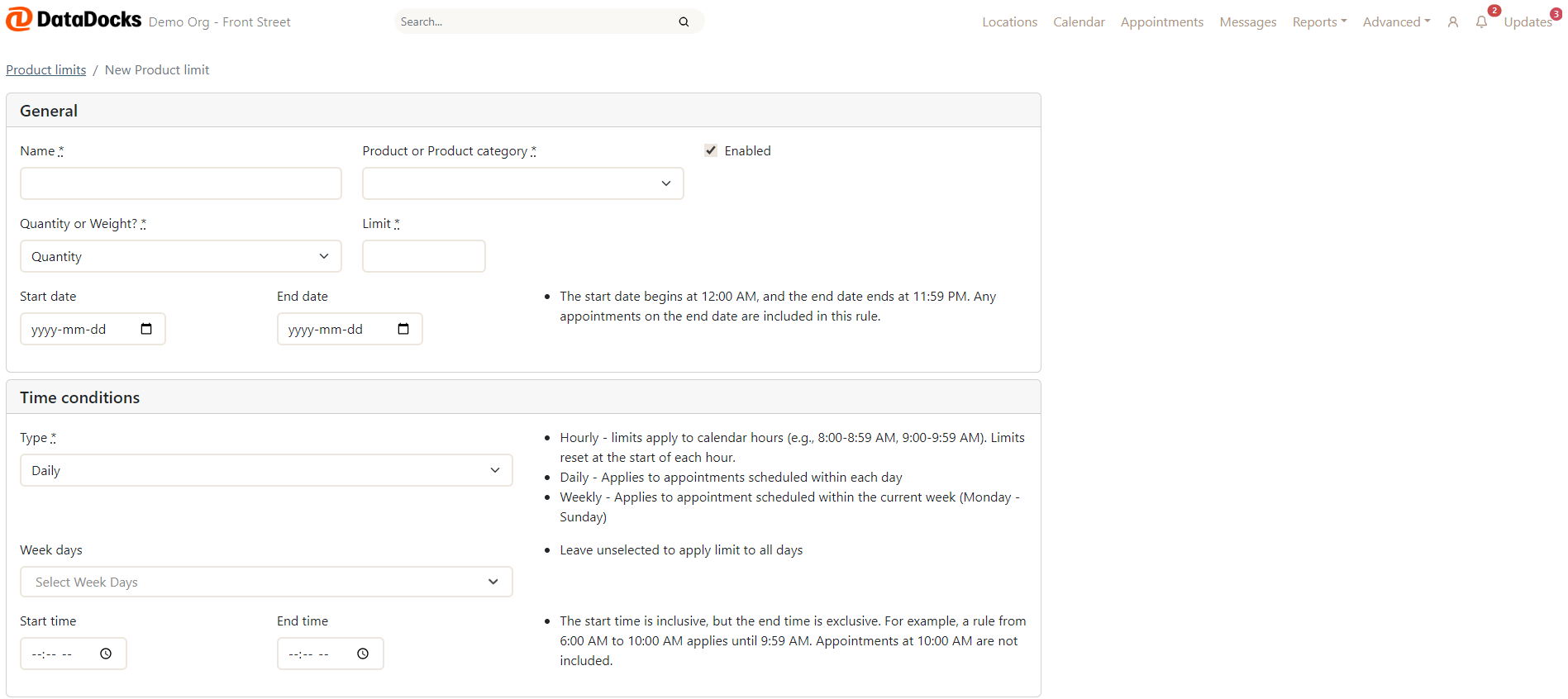
There are many ways to customize your limit using the fields.
Under General:
Tip! Only fields marked with an asterisk (*) are required. All other fields are optional!
| Field | Option | What it Does |
|---|---|---|
| Name | Enter the name of the limit | Create an identifying title in the product limit list |
| Product or Product Category | A dropdown list of all your products and product categories | This is the specific products or groups of products (categories) your limit will apply to. These products can be set in your Location Settings |
| Quantity or Weight | The measurement of the limit | This limit will either be applied on the quantity or the weight of the selected product/product category |
| Limit | The max number of the product you can receive | Enter the maximum quantity or weight allowed for this product or product category. If the product has unit conversions set up, enter this value using the product’s smallest unit. DataDocks will convert larger booked units automatically when applying the limit. Once the limit is reached, there will not be availability based on the timeframes you set within the time conditions below. |
| Start date and End date | Set specific dates to start and end the limit | Note that these days start at 12:00 am and end at 11:59 PM. All appointments within this time frame are included in the limit. |
| Enabled | Checkbox on or off | If unchecked, the limit will become inactive |
Note: If a product has unit conversions set up, enter the limit using the product’s smallest unit. DataDocks will automatically convert larger booked units when checking the limit. For example, if 1 Case = 25 Pieces and 1 Pallet = 10 Cases, a limit of 250 Pieces could be reached by booking 250 Pieces, 10 Cases, 1 Pallet, or a combination of those units.
Under Time Conditions:
Tip! Only fields marked with an asterisk (*) are required. All other fields are optional!
| Field | Option | What it Does |
|---|---|---|
| Type | Select the duration of your limit | Hourly Limits apply to calendar hours and reset at the start of each hour - for instance, if a limit is scheduled for 8:00 am, it will reset at 9:00 am. Daily Limits apply to appointments within one specific day. Weekly Limits apply to appointments scheduled within the current week from Monday to Sunday. |
| Week Days | Select the days to apply the limit | If you want the limit to apply to all days, leave this field blank. |
| Start time and End time | Set specific times to start and end the limit | The start time is inclusive of the minute and the end time is exclusive of the minute |
Under Appointment Conditions:
| Field | Option | What it Does |
|---|---|---|
| Outbound | Select the direction of the appointment the limit applies to | You can select inbound, outbound or both |
| Drop Trailer | Select the type of load the limit applies to | You can select live load, drop trailer or both. Drop trailer also includes LTL appointments. |
| Companies | Select the specific companies to apply the limit to | Select specific companies carrying the product to limit |
To utilize these limits, we can use combinations of these options to set specific limit on products.
Limits on Specific Items
To set a limit on a specific item, you can enter the product within the Product field under General, and set the parameters you are looking to limit. For instance:
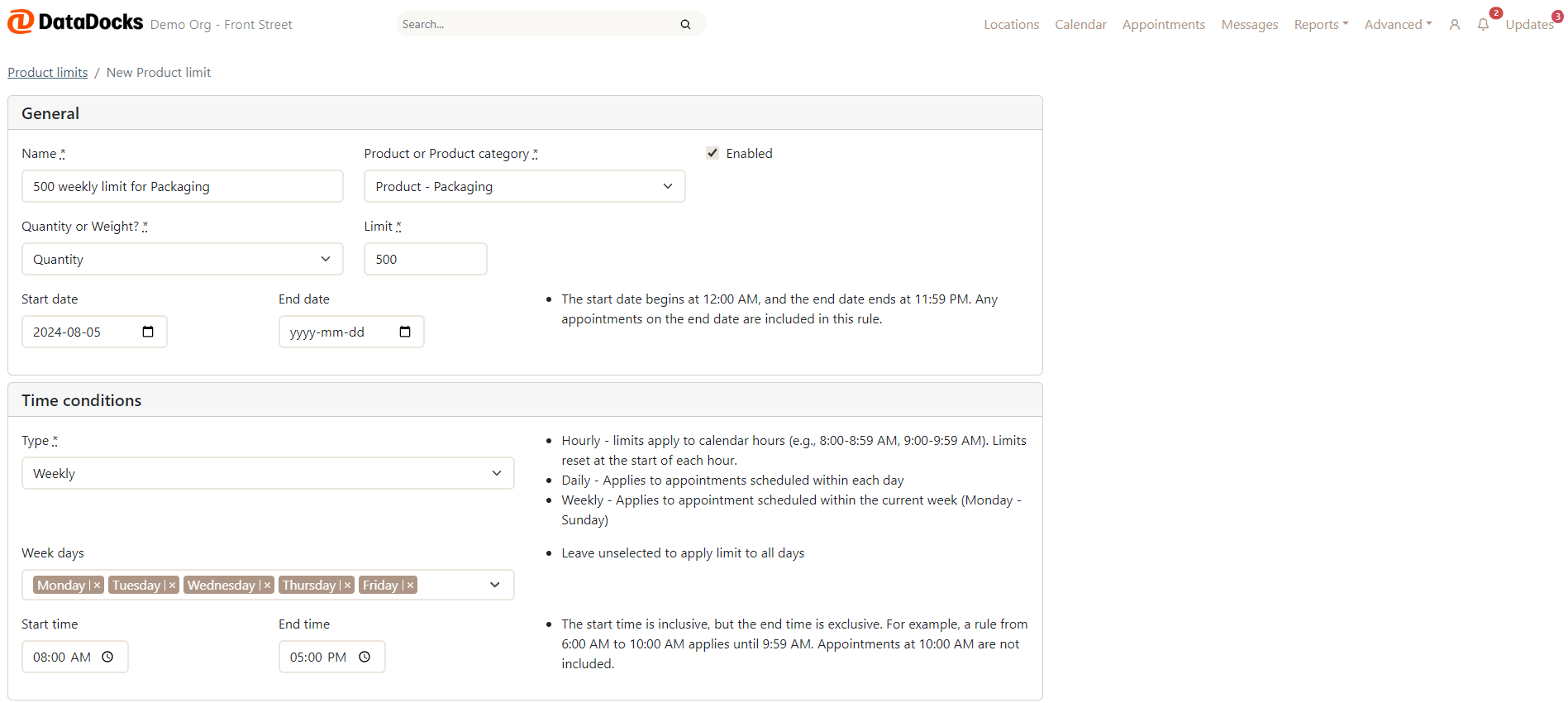
We have:
-
Set the name of the limit to make it easy to identify
-
Assigned a product to limit
-
Assigned the amount - in this case, 500 units starting on August 5th, 2024
-
And the limit is weekly - we can receive no more than 500 units per week from Monday - Friday within the hours of 8-5
This means that when a company goes to book an appointment with 600 units of the test product in one day, DataDocks will read through the appointment information for any applicable product information. Once the algorithm reads this information, there will not be any availability shown in the booking portal based on this rule that we have created.
Tip! If you have a capacity adjustment set for a specific day as the same time as a product limit, Datadocks will take the most restrictive rule first. So a holiday closure, as an example, will be taken first before a limit of 500 units for the week.
Daily Limit Overrides
If you need to reduce or increase your daily limit for a particular date you can set overrides for your daily limits. To set an override, click on the "Daily Limit Overrides" tab to begin.
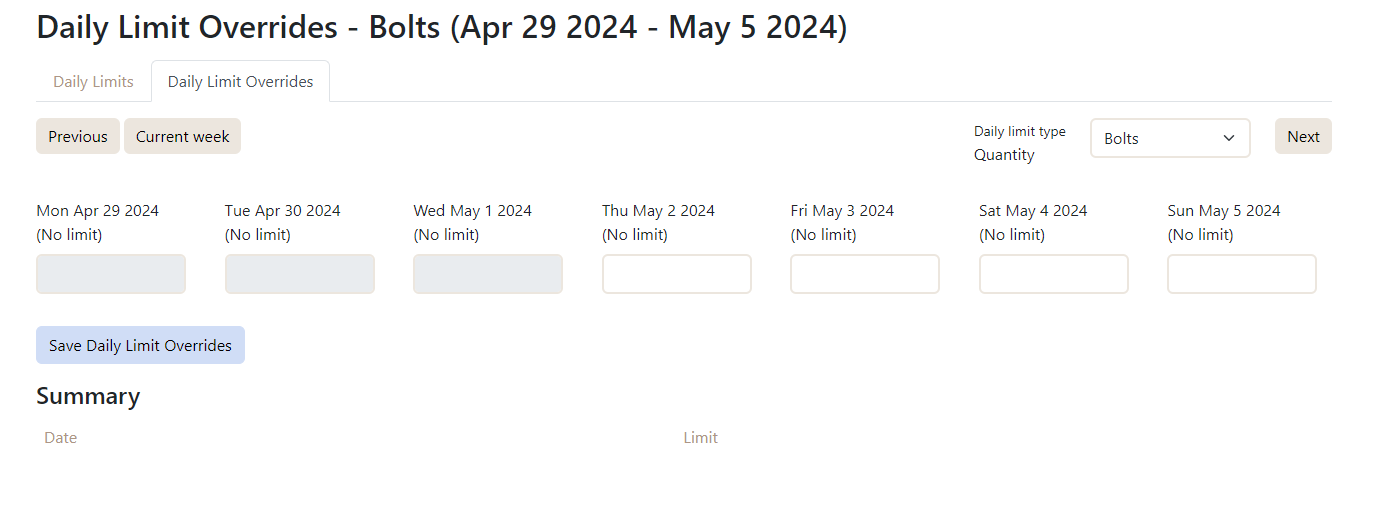
From here you will select the product type you are looking to override via the dropdown on the right and under the applicable date(s) enter your new limit. Note - the override will either be on weight or quantity, based on what your daily limit is set to on the main page. Once complete, hit "Save Daily Limit Overrides" and you will see any you have created for that week listed in the "summary". Please toggle through the weeks as needed.
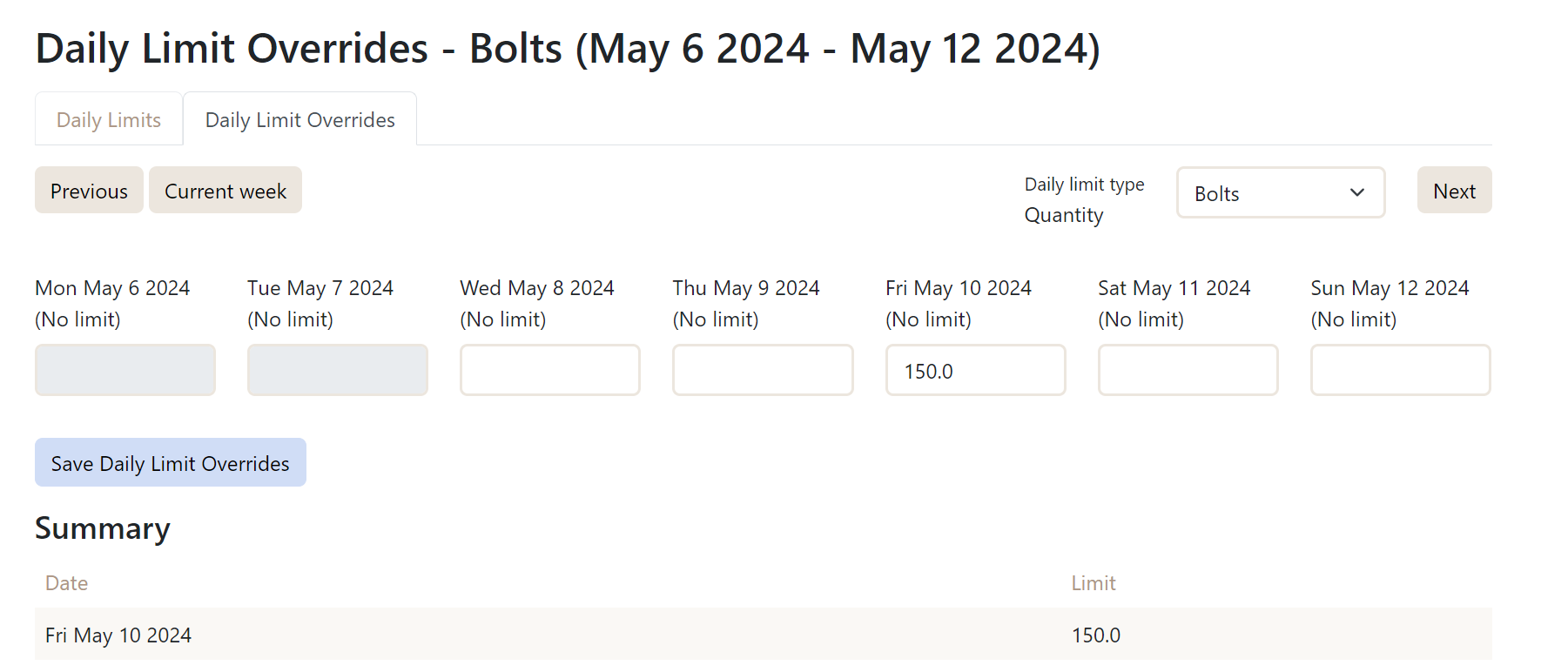
In the above example, I typically have a daily quantity limit of 75 Bolts however, on May 10th I need to receive up to 150 to restock inventory. This limit increase is only applicable for May 10th.