Capacity Adjustments
Capacity adjustments are an easy way to reduce the number of appointments within a timeslot you want to receive on a specific day or part of the day. These adjustments are used most often during holidays and to set hours of operation.
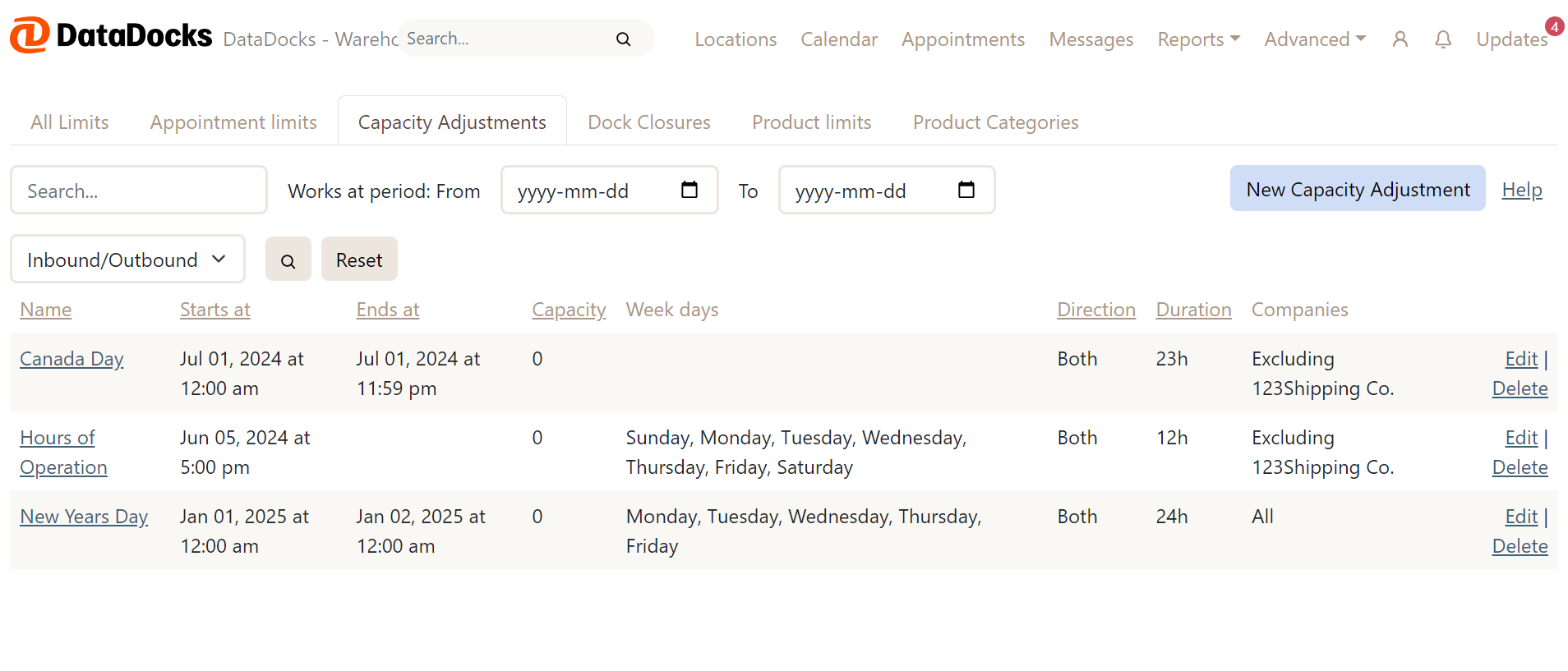
Creating Capacity Adjustments
To create a Capacity Adjustment, click “New Capacity Adjustment”
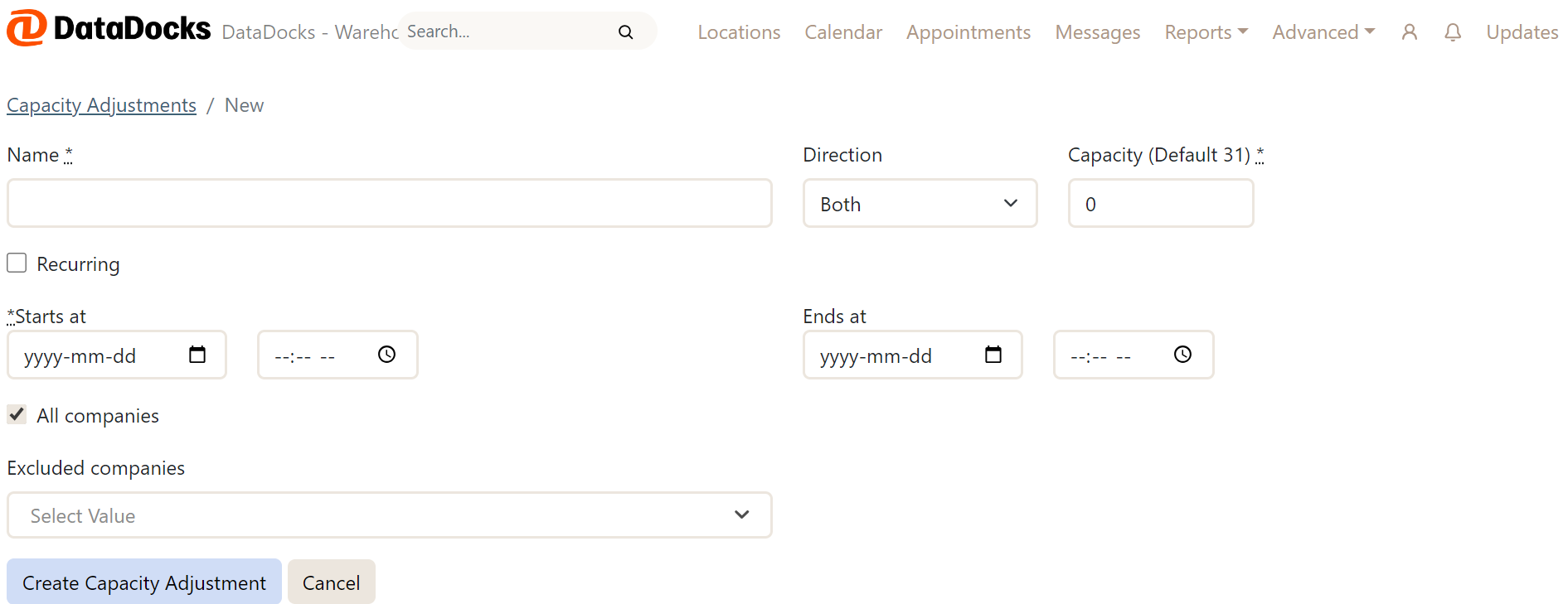
This page will have the following fields:
| Field Name | Option | What it does |
|---|---|---|
| Name | Enter the name of your adjustment | This makes it easy to identify - like “Hours of Operation” or “Weekend Closure” |
| Direction | Utilize this dropdown to select the direction of the limit | Limit either inbound, outbound, or both directions |
| Capacity | Enter the number of appointments per time slot you would like to have | Limits the appointments per time slot, this must be less than the current default |
| Starts At/Ends At | Drop down and select the date and time | Select when you would like the start and end time of this adjustments to occur |
To close for one day, we can stop here, and choose the date and times to limit your appointments. This is great for holidays and any specific time you would need to close your warehouse, or receive less than your default for a day - for instance, a day with a skeleton team where you can accept half the load.
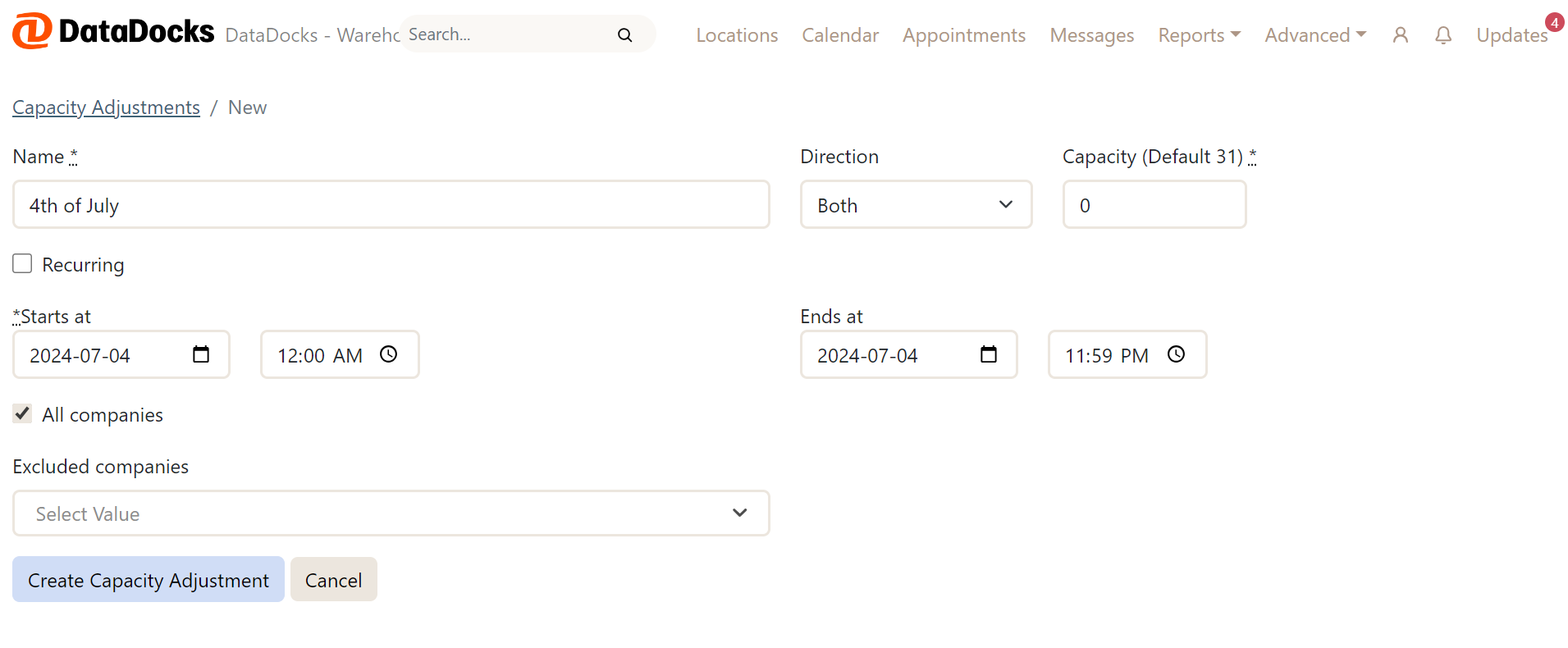
In this example, we have closed the day for the entirety of the day, from 12:00 am until 11:59 the same day. This means the calendar will open at 12:00 am the following day, barring your hours of operations or any other limits you may have.
If we continue with the options:
| Field Name | Option | What it does |
|---|---|---|
| Recurring | Check this off if you want the capacity adjustment to repeat | You can select the days of the week you want the limit to apply. Once this is clicked, you can select when the series begins and the adjustment durations. |
| Series Start/End On | Select the start and end dates of your adjustment | Series Start must be populated, "Ends on" can be left blank if you want the series to continue, like hours of operation, for instance. Note: If you do leave "Ends on" blank, capacity adjustments will only appear on the calendar up to 4 months from the current date on a rolling basis. The Adjustment is still active beyond that timeframe - it just wont be visually generated. |
| Adjustment Start At | Select the time you would like your adjustment to begin | This will set the start time of your adjustment. |
| Adjustment Duration | Select the length of the duration | Remember, this is how long you want the duration to last. For instance, if you want your facility to close between 5 pm and midnight, you would select 5:00 pm as the start, and the duration to 7 hours. |
We can click the recurring check box to make it recurring - this is best for your hours of operation
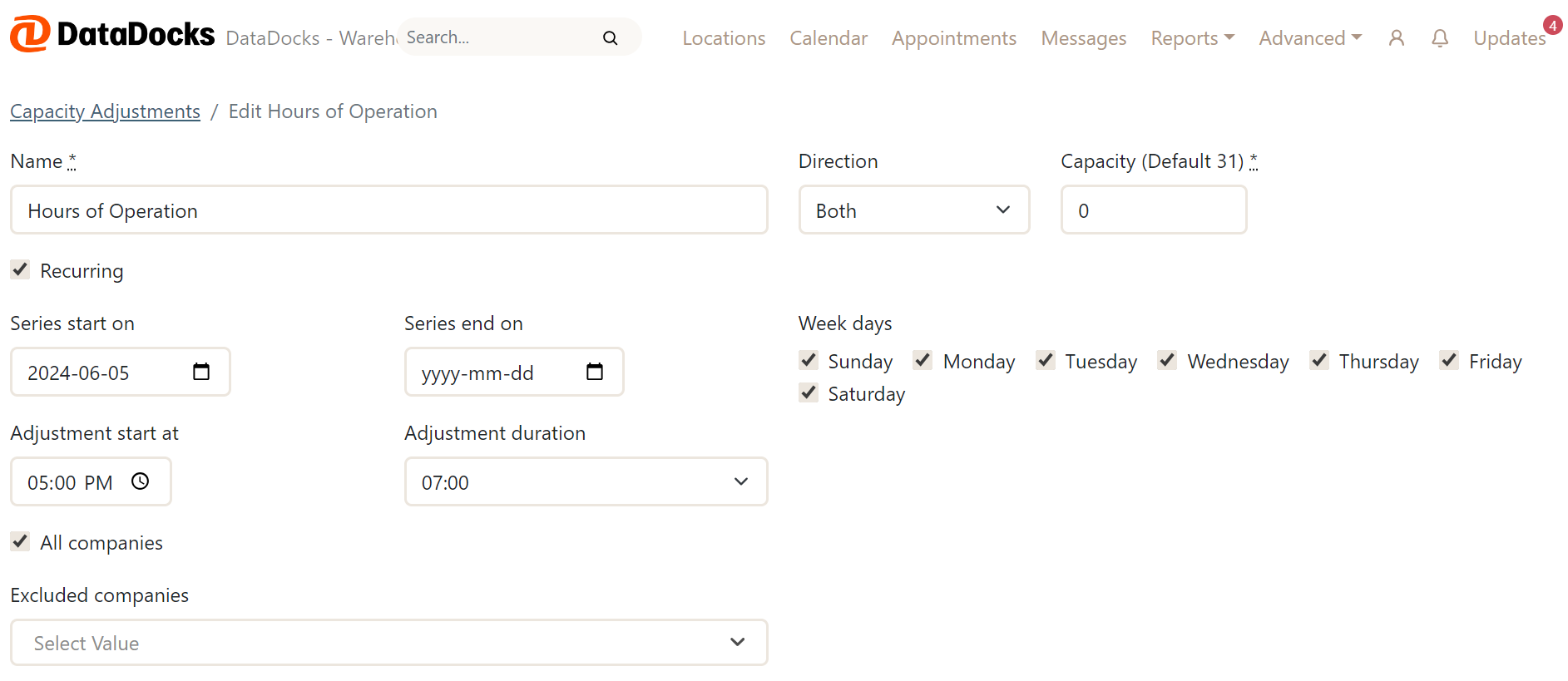
In this example, if my facility closes at 5pm and reopens again at 12am each day, I would set the closure duration for 7 hours (the difference between 5 pm and midnight, and set it for each day of the week.)
We can go further and customize companies the limit can affect:
| Field Name | Option | What it does |
|---|---|---|
| All Companies | Checking this will include all companies in the limit. | By unchecking, the selection box changes to “Included Companies” |
| Excluded/Included Companies | A selection box of either companies to excluded or include within your limit | For instance, if you select “All Companies” you can exclude companies from the rule, and vice versa if you uncheck All Companies and select the included companies |
Utilizing this section means you can create limitations for specific companies and carriers when booking appointments. For instance, if you have a company that you know carries an important product, you can exclude them from your hours of operation to ensure they can book whenever they can.
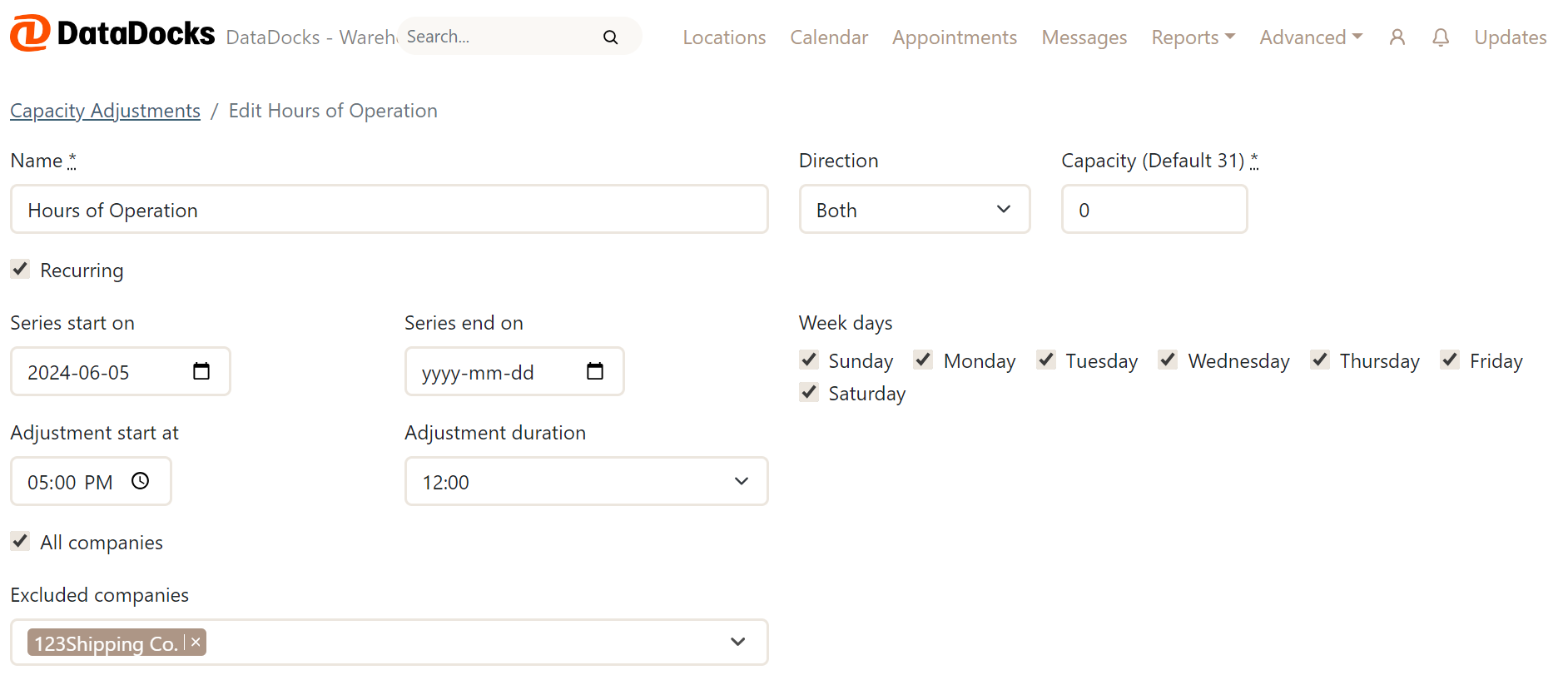
In the above case, 123Shipping Co. is excluded from the hours of operation, meaning when they go to book appointments, they will be able to book from 5:00 pm to 12:00 am while the rest of your companies will not.
By setting these limits, you can set specific parameters for your customers and carriers to adhere to when booking appointments with your organization. You can set further limits on Products and Docks to create even more control.