Appointment Limits
About Appointment Limits
Appointment limits can be used to set restrictions and rules on the number of appointments you can receive within a specific timeline and/or set of parameters. These settings can be found in Advanced Settings → Appointment Limits

For instance, in the above example, you can set a limit of 15 appointments a day, and 4 on weekends.
This means that booking, based on these parameters, will limit appointment availability to customers/carriers and your internal teams based on these two times.
Once the capacity is reached - for instance, if you book 4 appointments on a Saturday, on the 5th appointment - you receive a warning if booking these appointments internally.
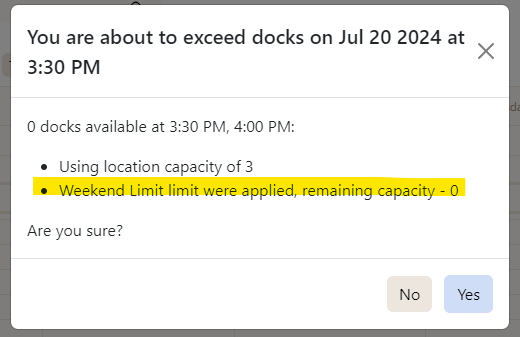
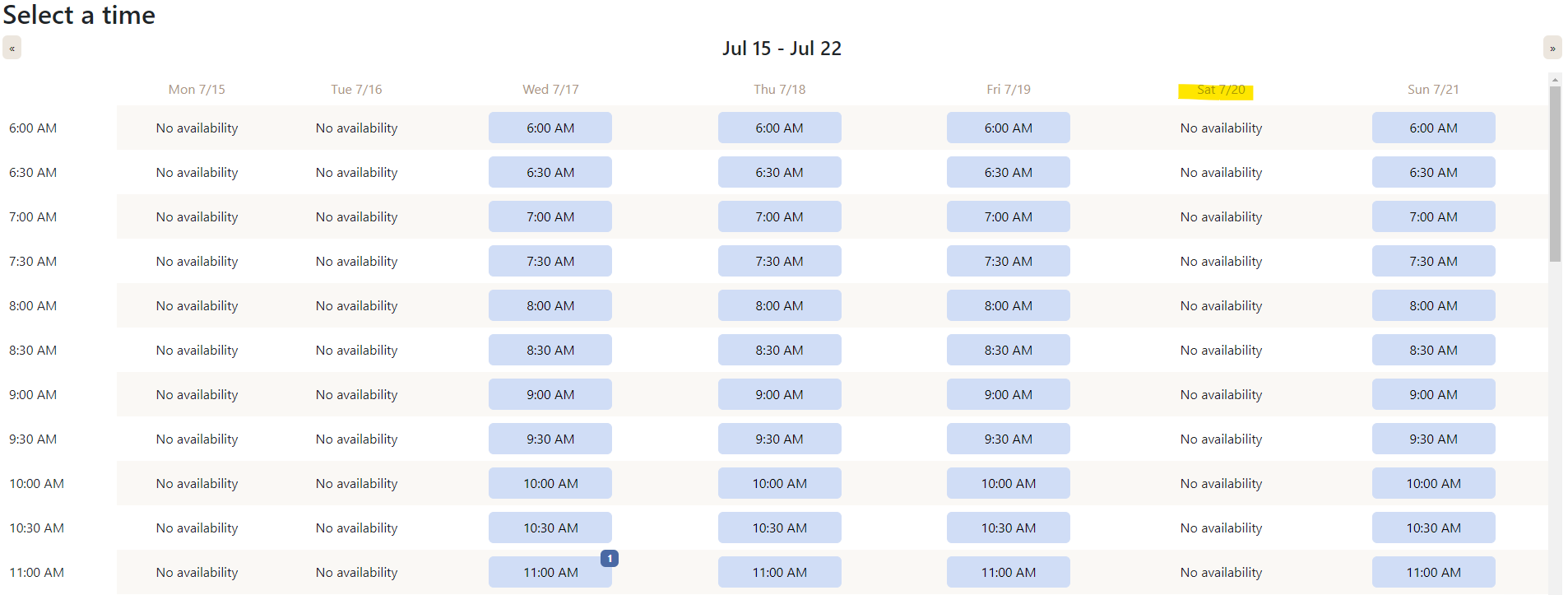
External customers/carriers via the booking portal will not see any available times to book an appointment.
Utilizing and Setting Up Limits
Click "New" on the main screen to bring you to the following page:
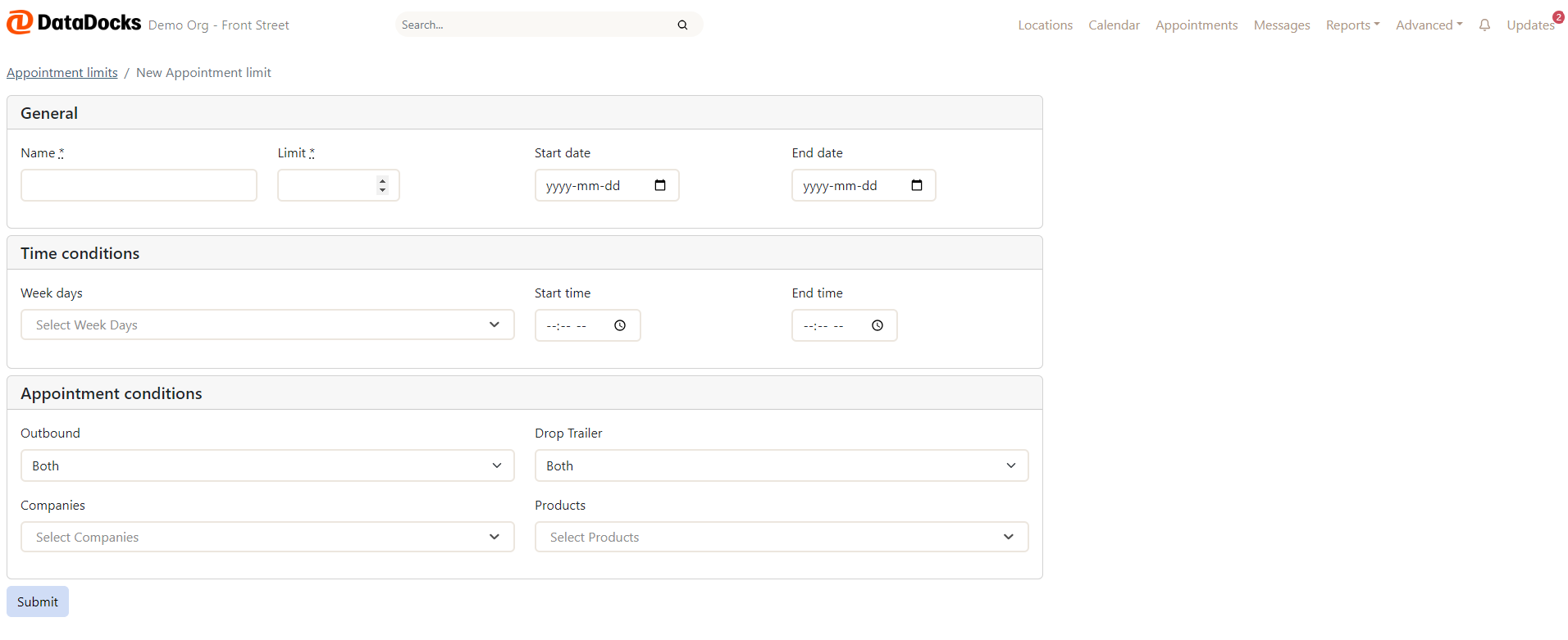
Under General:
- Name the limit
- Under “Limit” enter the maximum amount of appointments you wish to schedule.
- You can enter dates you would like the limit to start or end, if applicable. Keep in mind that these fields are optional!
There are a few different parameters to choose from:
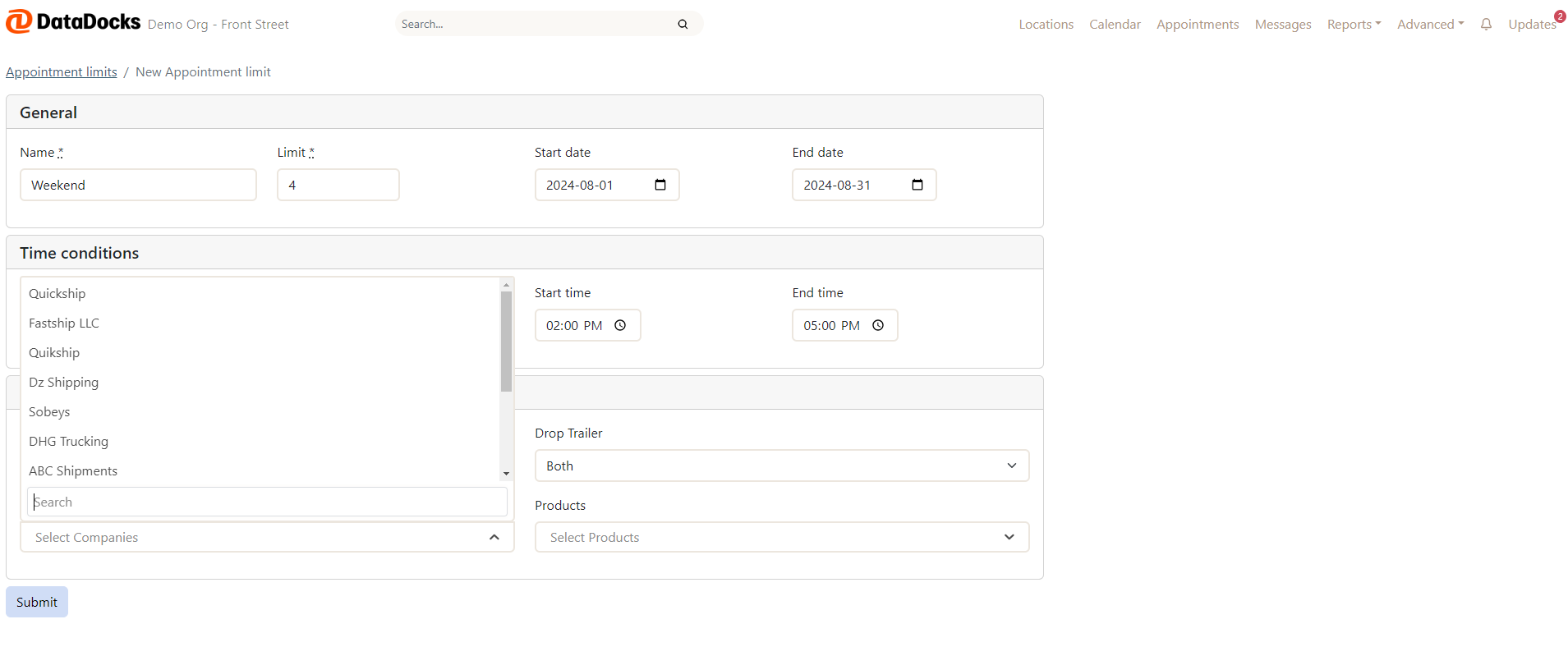
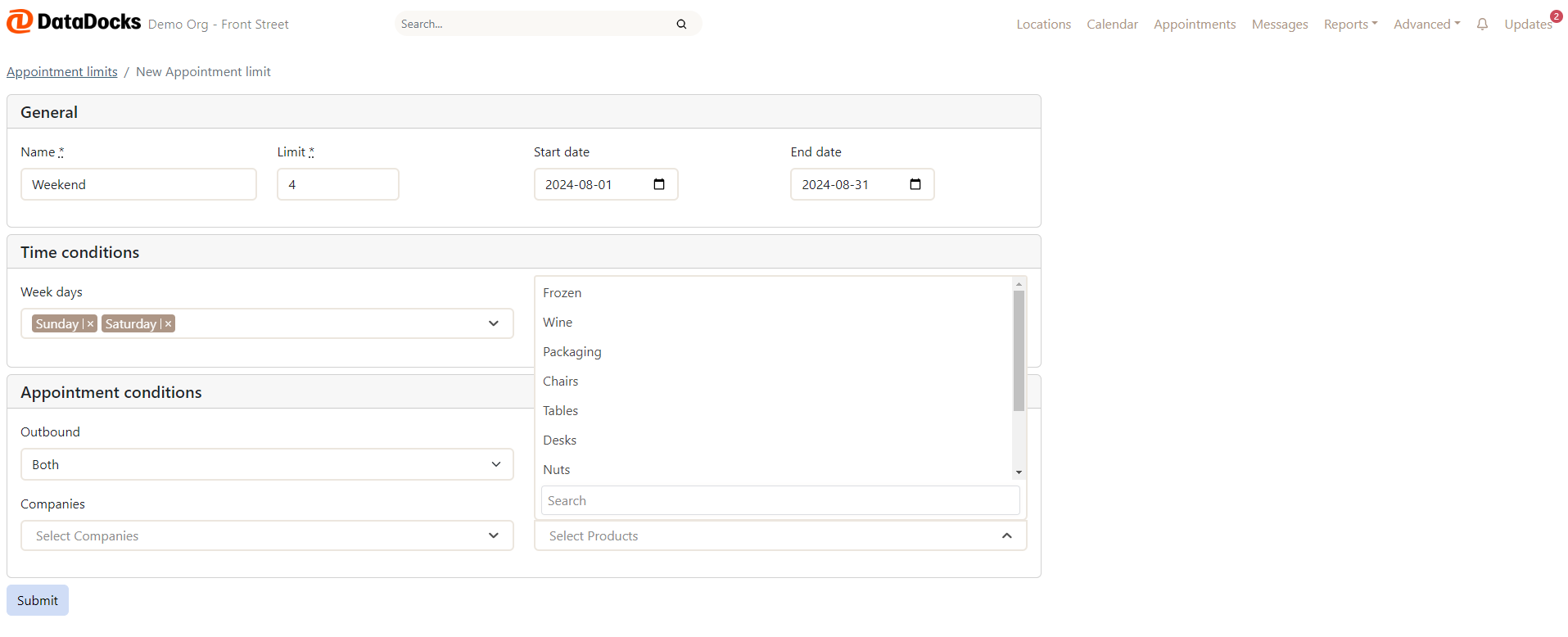
- In the case of the weekend example below, you can choose the specific dates you would like to apply the limits to, as well as a start or end time if you want to limit to specific hours. So here this would only apply to the month of August, between the hours of 2pm-5pm on Saturdays and Sundays.
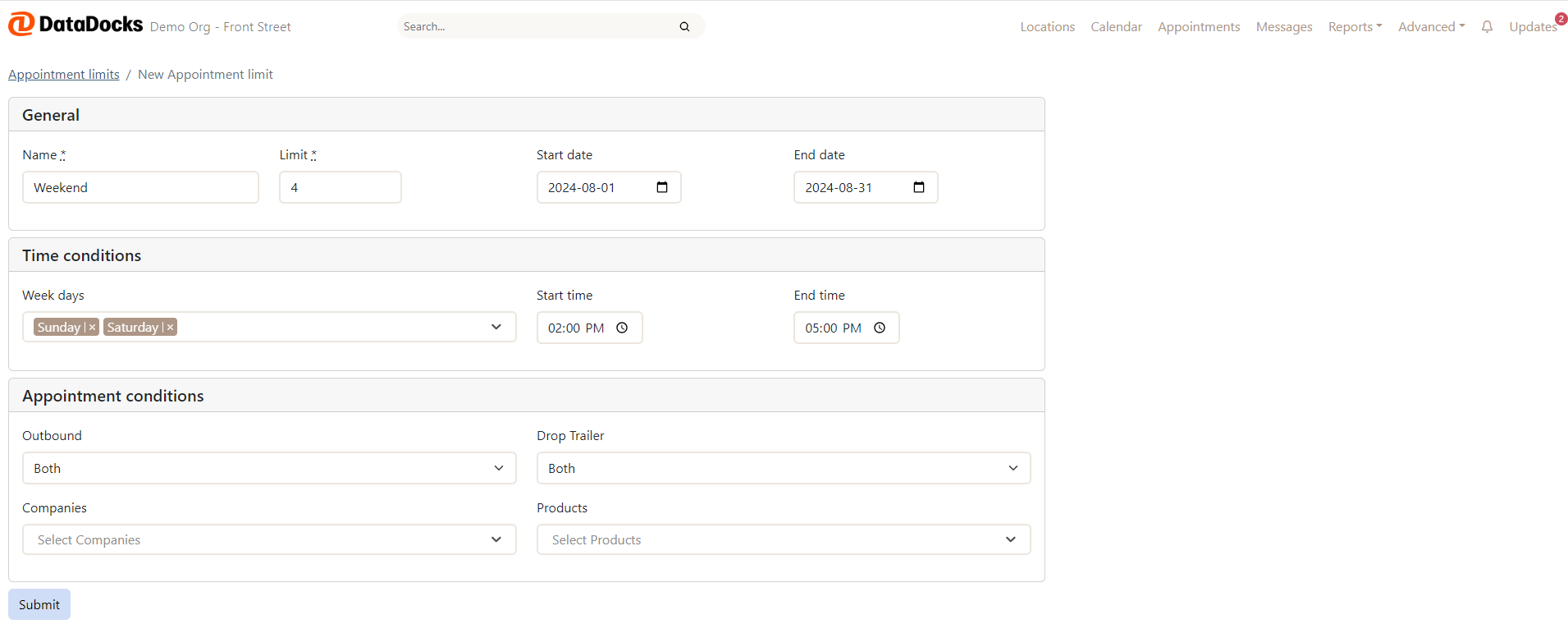
Under Conditions, you can be more granular and choose:
- Direction of condition - inbound/outbound/both
- Drop trailers or live loads (drop trailers include LTL appointments)
- Specific companies to apply the limit to - populated from your company list
- Which products to apply limits to - populated from your product list
With these conditions, you can be very specific about controlling what comes in and out of your locations.
You can combine these conditions to limit appointments specific companies can have during times of the week, or even when these companies carrying specific products can book during the week.
For example:
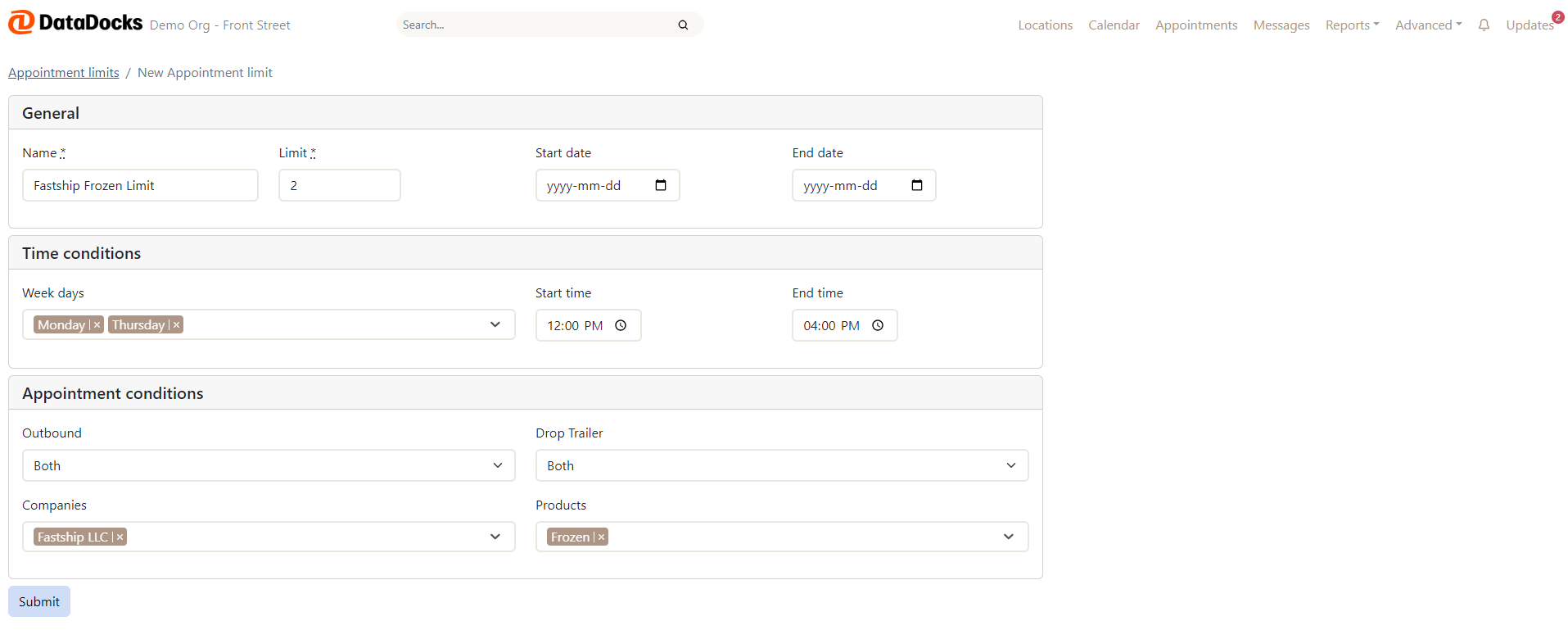
In this example, Fastship LLC, when carrying "Frozen" product, will only be able to book 2 appointments on Monday and Thursday from 12-4, and the rest of the week will be unaffected.
If you wanted Fastship LLC to book only these days during the week, you can set a second limit under the same appointment conditions - this time for Tuesday, Wednesday, and Friday, at 0. This will ensure that Fastship, when carrying "Frozen" products, can only book 2 appointments on Monday and Thursday if you want to limit conditions for a shipper.
By utilizing one or more conditions, DataDocks will take these parameters and automate the available timeslots to your carriers to ensure that your location has complete control over your calendar.