Dock Closures
When a dock needs to be physically marked as inaccessible, for instance, during hours of operation, or any specific incidents of maintenance issues, DataDocks can give you the visibility and capability to create and manage these closures.
Tip! As a default, DataDocks doesn’t manage your appointments per timeslot by dock availability, and closing a dock does not reduce your appointments per time slot. There is a setting that can adjust this, if you’re interested in turning it on, reach out to support!

Creating a Dock Closure
To create a Dock Closure, click “New Dock Closure”
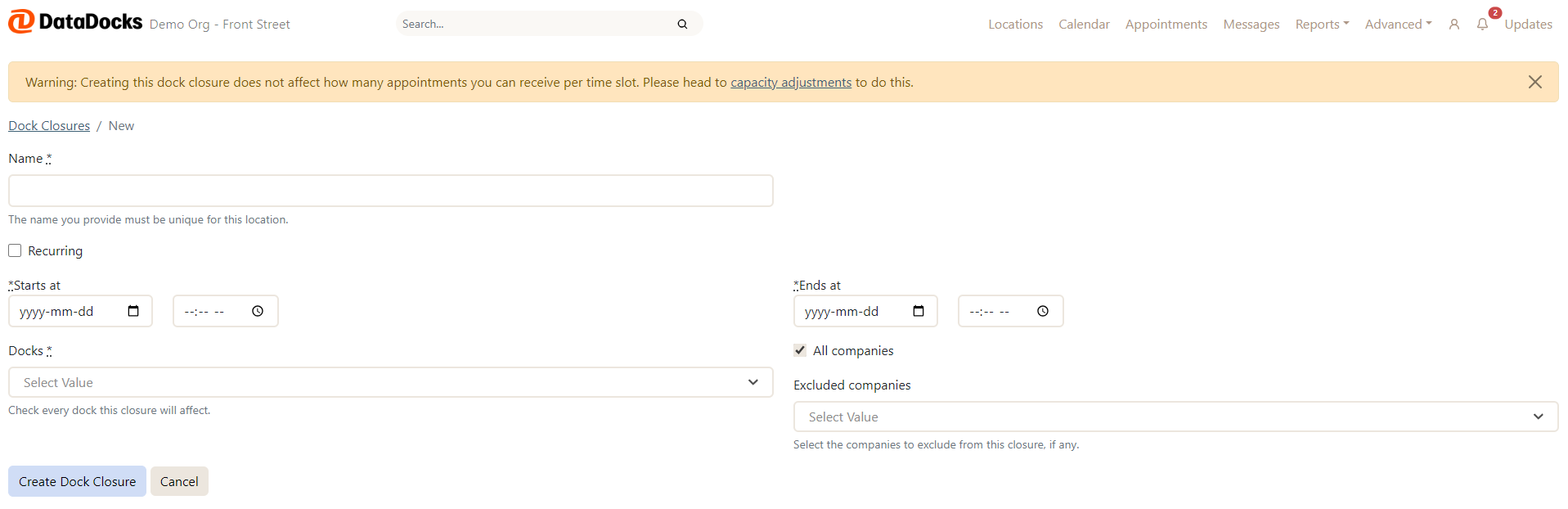
Here, we have a few options to choose from:
| Field | Option | What it Does |
|---|---|---|
| Name | Create a name for your closure | Create a clear name for the closure, not only will it appear in the Dock Closure List, but it will also appear in the All Limits list as well as on the calendar. |
| Recurring | CheckBox | If checked, this will create a standing closure, skip ahead to “Creating Standing Dock Closures” for further instructions |
| Starts at/Ends at | Select date and time | Choose the dates and times the closure takes place |
| Docks | Select the docks listed | Choose your docks to close. This list populates from your Docks created in your Location Settings, you can modify them there. |
| All Companies | Checkbox | If checked, this will close the dock to all companies. If unchecked, you will choose which companies to include. |
| Excluded Companies | Select any companies to be excluded from this closure | Exclude companies from the closure you have created. Can be used if you want to allow a specific company to be assigned to a dock door at a specific time. You can get granular with this customization and ensure that only particular companies can book a dock at a specific time. This will switch to "Included Companies" if "All Companies" is unchecked |
Once you create a Dock Closure, you will see it appear on your calendar: Tip! Via the settings cog in your calendar, you can disable "dock closures" from appearing on your calendar.
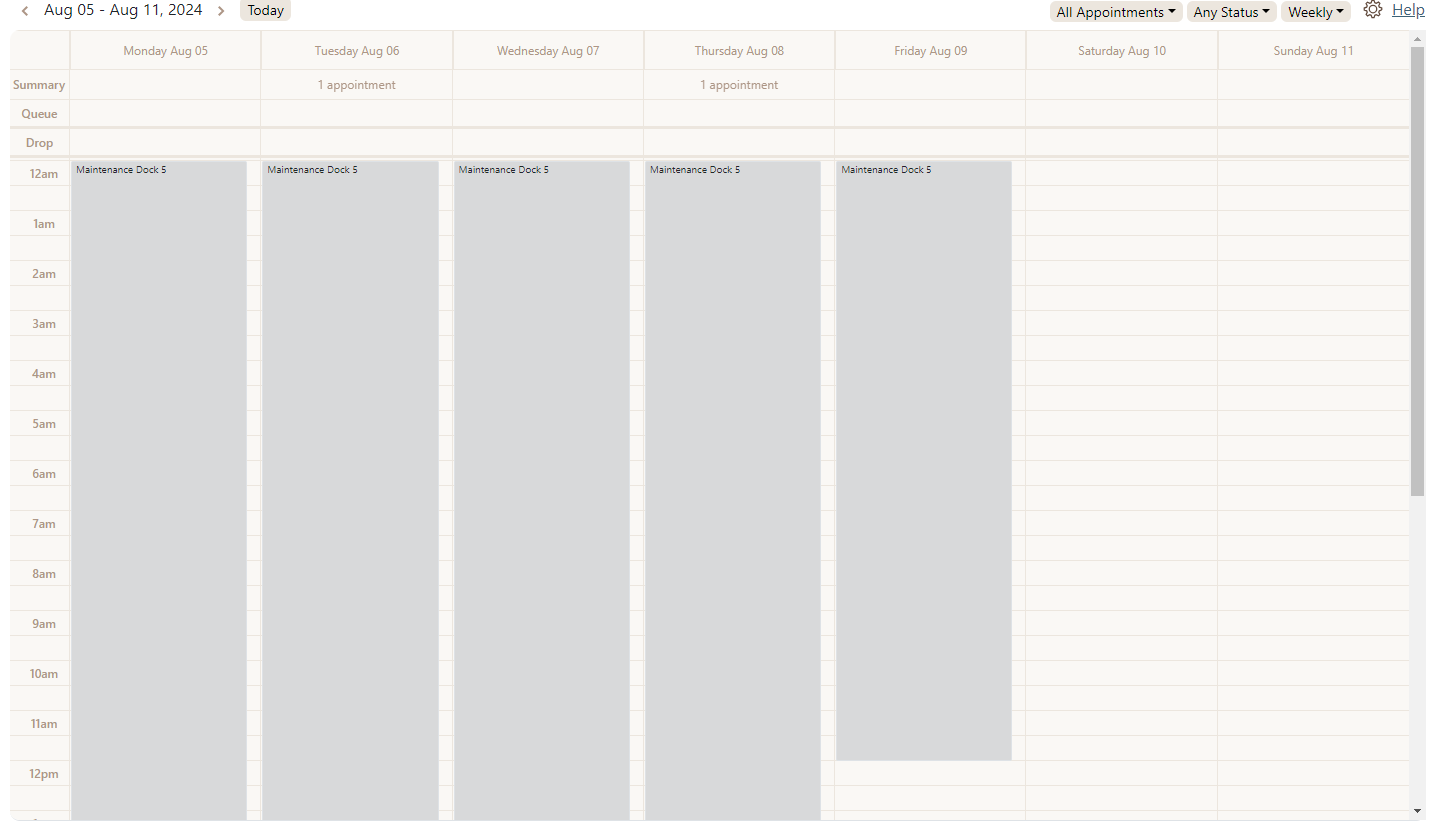
Clicking the Closure on the calendar brings you back to the edit page:

From here, you can either edit the template if recurring or update the dock closure for this specific instance.
Utilizing these fields, you can become granular about how you manage your docks. You can use them to close off staging or overflow docks, close for maintenance, etc.
We can get even more granular with these settings. For instance, if you wish to have only one company deliver on docks 1-3, you can create the dock closure to ensure that when that company delivers, they only see the availability of docks 1-3 by closing these docks to all other customers/carriers. This is handy if you know you have one Customer or Carrier that needs to go to a series of docks specifically.
Creating Standing Dock Closures
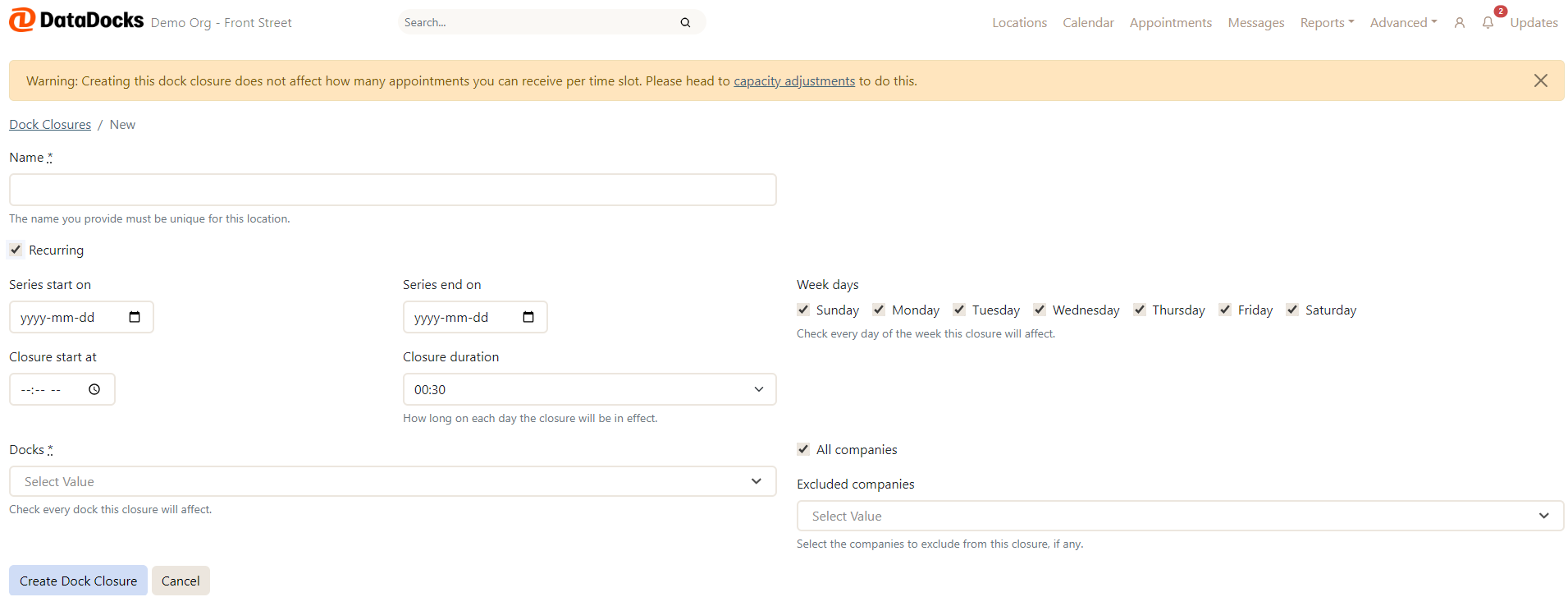
When creating a standing dock closure, click the checkbox for “Recurring”. This then opens “Weekdays” for you to select when the dock closure is applied.
Then we have a few other fields:
| Field | Option | What it Does |
|---|---|---|
| Series Start/End On | Choose when the series begins and finishes | The end date is optional, you can leave this if the closure is standing. Note: If you do leave "Ends on" blank, dock closuress will only appear on the calendar up to 4 months from the current date on a rolling basis. The closure is still active beyond that timeframe - it just wont be visually generated. |
| Closure Start at | Select a time | Choose when the closure starts. |
| Closure duration | Select a time duration | Select how long the closure will last. |
Once we create this closure, it will be set up at the same time each week on the selected days until the selected Series end date, if applicable. This is great for keeping a certain dock closed for overflow or staging so that customers cannot book appointments on to it, as an example.
When used together, we can limit the specific days a customer and carrier can utilize specific docks . Letting DataDocks take care of the allocation means more efficiency for you and your team.