Appointment Audit Logs
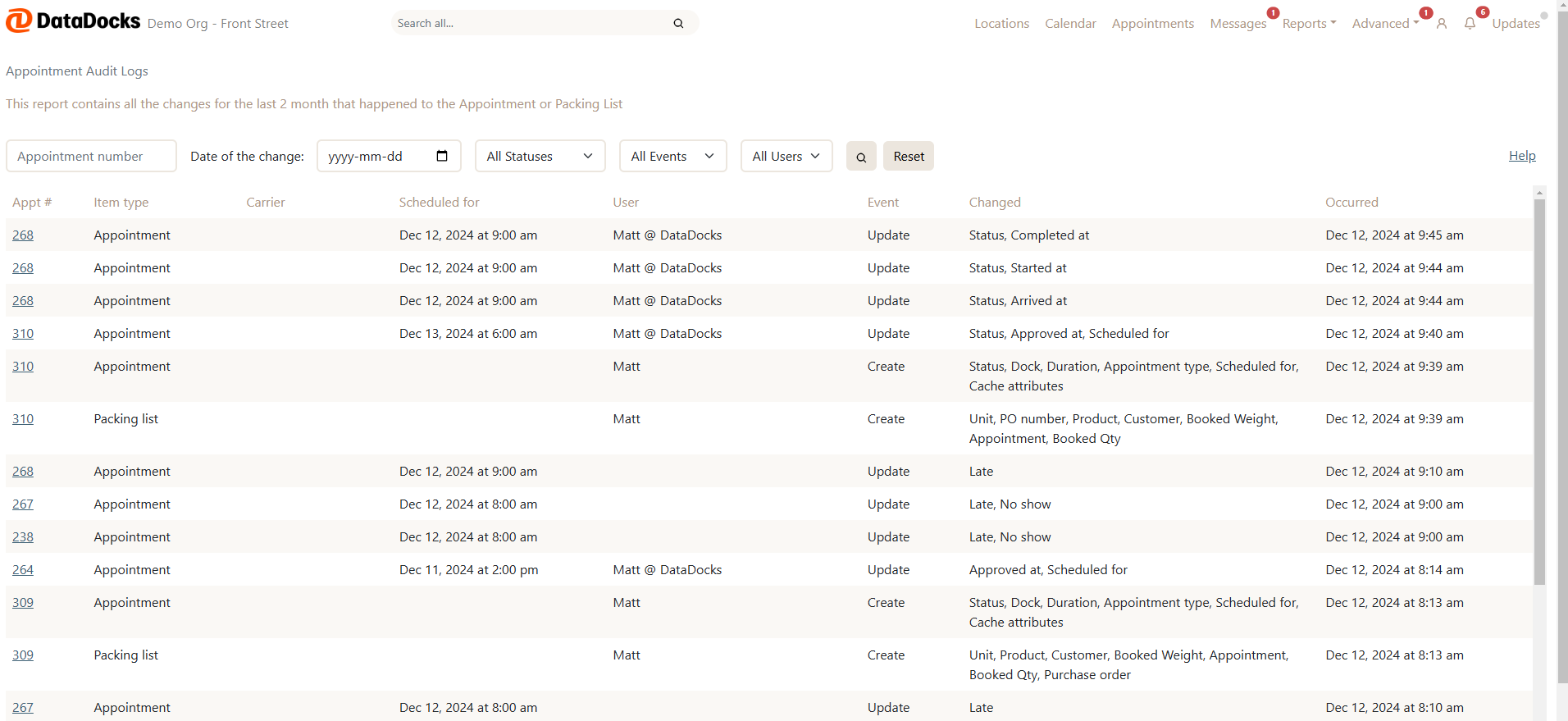
The Appointment Audit Logs provide a detailed record of all created, edited, and completed appointments. This serves as your full appointment history, showing when changes were made and by whom.
Key Features
- Complete History:
- Tracks all actions performed on appointments, including edits, updates, cancellations, and reschedules.
- Search and Filter Options:
- Appointment Number: Search by a specific appointment number to view all related audit logs.
- Date of the Change: Narrow results to a particular day to see all actions that occurred.
- All Statuses: Filter by appointment status (e.g., canceled, completed) to find specific logs.
- All Events: Filter by event type, such as Update, Create, Destroy, or Reschedule.
- All Users: Filter actions by internal users, external users (customers/carriers), or both.
Tip! If the user space is blank, this is a system update. For example, the appointment was created via a bulk upload or updated to a no show status automatically based on your time parameters.
Reviewing Appointments
- Selecting an Appointment:
- Click on the desired appointment number from the list to open the full audit page.
- Viewing Changes:
- The audit page displays all changes made to the appointment, including timestamps and the users involved.
- Restoring an Appointment:
- If needed, you can restore an appointment to its previous version.
- Note: Only use the restore option to correct errors, as this action reverts the appointment to its last saved status.
- Confirmation Message:
- After a successful restore, a notification will appear at the top of your screen confirming the change.
Why Use Appointment Audit Logs?
- Track Changes:
- Gain visibility into who made changes and when, ensuring accountability.
- Error Correction:
- Quickly fix mistakes by restoring an appointment to its previous state.
- Detailed Oversight:
- Use the search and filter options to find specific logs and review appointment history as needed.
The Appointment Audit Logs are an essential tool for maintaining transparency and accuracy in your appointment management process. Use this feature to stay on top of changes and keep your operations running smoothly.
Check-in Logs
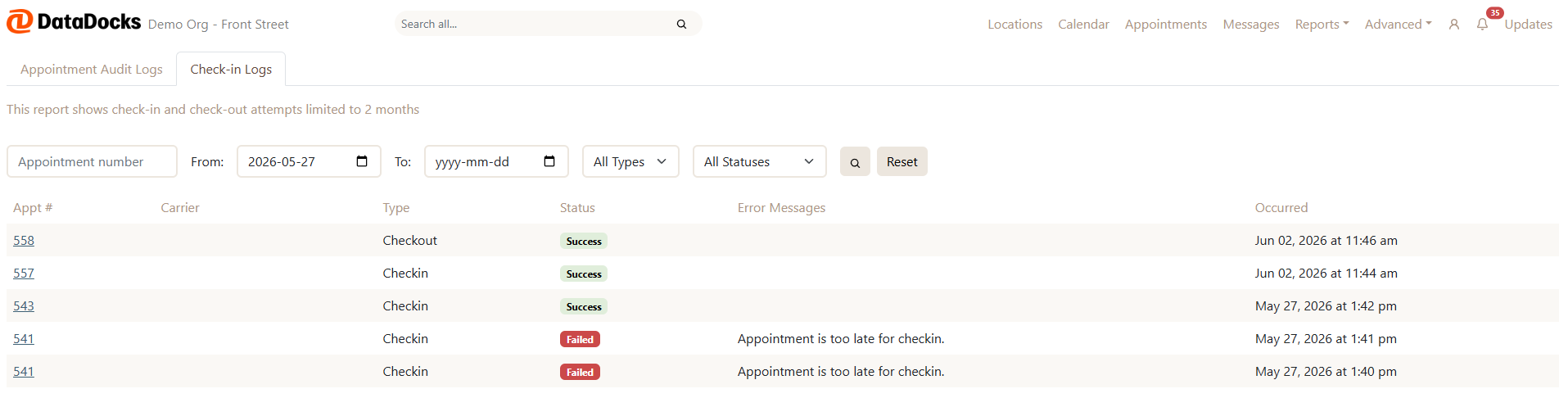
The Check-In Logs provide a detailed record of all driver check-in attempts made through the Driver Portal. This includes both successful and failed check-ins, giving your team visibility into when drivers attempted to check in, the outcome, and any errors encountered during the process.
Key Features
Complete Check-In History: Tracks every driver check-in attempt made through the Driver Portal, including successful check-ins and failed attempts.
Search and Filter Options:
- Appointment Number: Search for a specific appointment to view all related check-in activity.
- Date of Attempt: Filter results to a particular day to review driver check-in activity.
- All Types: Filter between Check-in and Check-out attempts.
- Status: View successful check-ins, failed check-ins, or SMS Verifications.
Failure Details: For failed check-in attempts, the system records the reason the check-in was rejected, helping your team quickly identify and resolve issues.
Timestamp Tracking: Each log entry includes the exact date and time the check-in attempt occurred.
Understanding Failed Check-Ins
Common reasons a check-in may fail include:
- Driver arrived outside the allowed check-in window
- Appointment could not be found
- Appointment was cancelled or completed
- Required information was missing or invalid
Reviewing failure details can help identify trends and reduce delays at your facility.