Scorecard Report
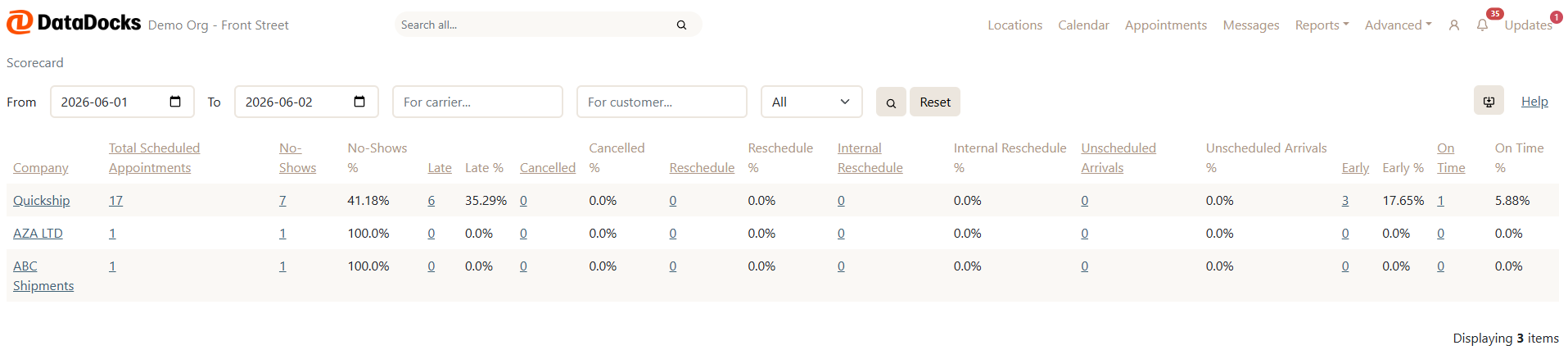
The Scorecard Report provides a summary of appointment performance for each customer or carrier, highlighting categories such as No Show, Late, Cancelled, Rescheduled and Unscheduled appointments. Results can be displayed as totals or percentages and filtered by date range, customer, or carrier for a more focused analysis.
Key Features
- Appointment Categories Tracked:
- No Show: Appointments that are not marked as Arrived, Started, Completed, or Left within 24 hours of the scheduled time (default setting).
- Late: Appointments marked as Arrived, Started, Completed, or Left after your "Late appointment cut-off" setting.
- Cancelled: Appointments that were actively canceled.
- Rescheduled: Appointments that were moved to a new time.
- Internal Reschedule: Appointments that were moved to a new time by an internal user.
- Unscheduled Appointments that arrived at your facility without a scheduled date and time.
- Early: Appointments marked as Arrived, Started, Completed, or Left before your "Early appointment cut-off" setting.
- On Time Appointments marked as Arrived, Started, Completed, or Left after your "Early appointment cut-off" setting but before your "Late appointment cut-off".
- Customizable Parameters:
- You can adjust the criteria for Late and No Show designations under Advanced > Location Settings, tailoring them to your operational needs.
- Filtering Options:
- Date Range: Select a specific timeframe to review.
- Customer/Carrier:
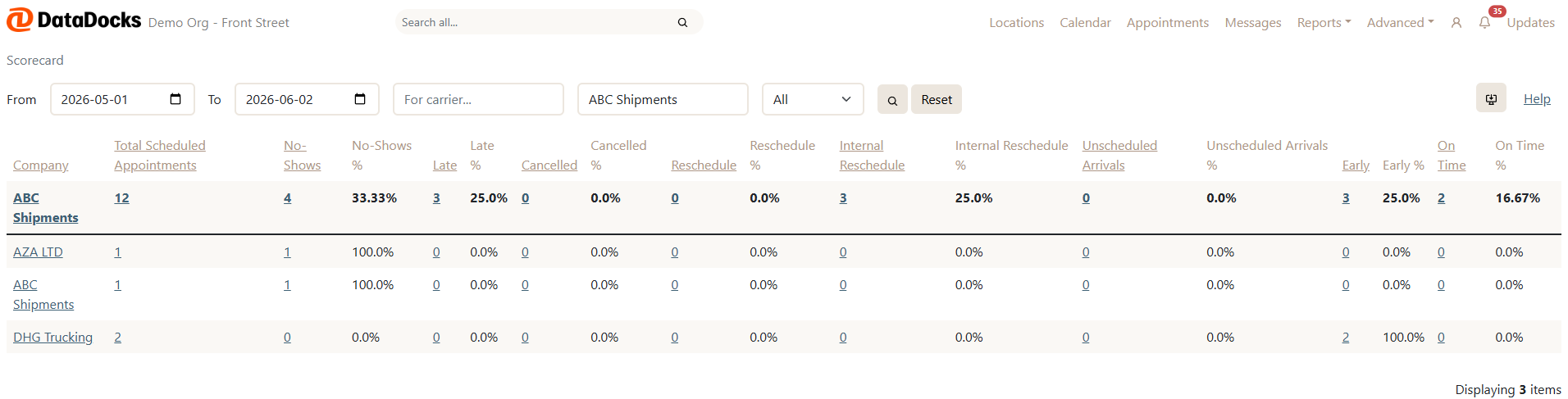
- Filter by Customer: Displays the appointment information for that particular customer in the first row, then broken down by each carriers performance for that customer in the 2nd section.
- Filter by Carrier: Displays the appointment information for that particular carrier in the first row, then broken down by how that carrier performed across different customers in the 2nd section.
- Filter by Customer and Carrier: Produces results for just those two companies.
- Inbound vs Outbound: Choose whether to view the statistics on Inbound Appointments, Outbounds Appointments or both.
How to Use the Scorecard Report
- Generating the Report:
- Navigate to the Scorecard Report section and select your desired filters.
- Click Search to generate the report.
- Reviewing Results:
- The report will display the total number of appointments for each company, along with how many fell under each category.
- Results can be shown as raw numbers or percentages.
- Click any number in the report to open a filtered Appointment Report with detailed information for that statistic.
Why Use the Scorecard Report?
- Track Carrier and Customer Performance:
- Gain insights into appointment trends for each company, identifying reliable partners and areas for improvement.
- Proactive Problem-Solving:
- Use data on late or no-show appointments to address recurring issues with specific carriers or customers.
- Improve Efficiency:
- By identifying patterns in cancellations or reschedules, you can adjust processes to optimize scheduling and reduce disruptions.
The Scorecard Report is a powerful tool for maintaining accountability and ensuring smooth operations. Leverage this report to make data-driven decisions and strengthen relationships with your carriers and customers.