Packing List Reports
The Packing List Report provides a comprehensive summary of all packing lists created in your DataDocks platform. This historical report allows you to search and filter packing lists using various filters to gain valuable insights into your operations.
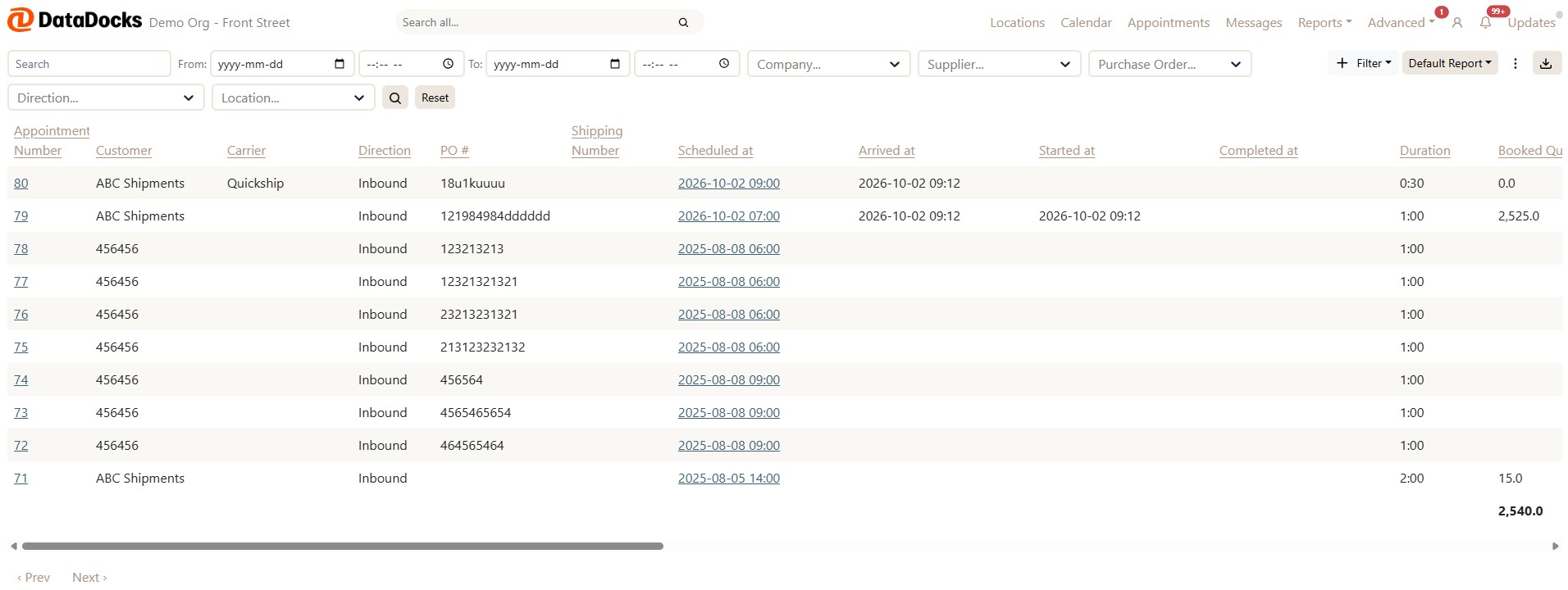
Key Search Filters
- Search: Search for packing lists by name, number, or any other field.
- Scheduled Times: Use the date range picker to select your desired date range. You can also filter by time using the time picker for more specific searches.
- Originally Scheduled Times A secondary date/time range filter, allowing you to filter by the Original Scheduled Time of the appointment.
- Company: Filter via a dropdown list of your customers and carriers.
- Supplier: If you have suppliers enabled, you can filter via a dropdown list of your suppliers.
- Purchase Order: Filter via a dropdown list of your Purchase Orders.
- Direction: Filter by packing lists for inbound or outbound appointments.
- State Choose the status of your appointment the packing list is attached to, such as Booked, Pending and so on.
- On Time: Choose the on-time performance of the appointment your packing list is attached to, such as Early, Late, or Unscheduled.
- Location: If you have access to multiple locations, you can pull all locations into one report. Please note, you cannot edit details from Location B if you are currently in Location A, you will be prompted to switch over.
Once your filters are set, click the search icon to begin your search.
- Generating the Report:
- Once filters are set, click Search to generate the report.
Available Report Fields
The Packing List Report includes the following fields:
- APPT #: The auto-generated appointment number.
- Customer: The name of the customer associated with the packing list.
- Carrier: The name of the carrier for the appointment.
- Direction: Indicates whether the appointment is Inbound or Outbound.
- PO Number: The purchase order number linked to the appointment.
- Shipping #: The shipping number (if available).
- Scheduled For: The date and time the appointment was scheduled.
- Arrived At: The time the appointment was marked as "Arrived" on-site.
- Started At: The time the appointment began processing.
- Completed At: The time the appointment was completed, as logged by the user.
- Duration: The scheduled duration of the appointment.
- Booked Qty: The quantity of items listed in the packing list.
- Booked Weight: The total weight listed in the packing list.
- Actual Qty: The actual quantity of items processed compared to the booked quantity.
- Actual Weight: The actual weight processed compared to the booked weight.
- +/- qty: The difference between the Booked Quantity and Actual Quantity.
- +/- weight: The difference between the Booked Weight and Actual Weight.
- Product: The product(s) listed in the packing list.
- Unit: The unit type associated with the products.
- Custom Fields Any custom fields you may have added to the packing lists.
- Status: The Status of the appointment, such as Booked, Arrived and so on.
- Supplier Names: The name of the supplier associated with the packing list.
- BOL Number: The BOL Number associated to the appointment.
- Approved at: The date/time of when the packing list was approved.
- On Time: The On Time performance of the appointment - Early, Late, No Show.
- Internal Reschedule Count: How many times has the packing list been rescheduled by internal users.
- External Reschedule Count: How many times has the packing list been rescheduled by customers/carriers.
- Originally Scheduled at: Shows the original date/time of the appointment if rescheduled.
- Created At: Shows the date/time of when this packing list was first associated to an appointment.
- Turn around time: The total time the packing list took from "Arrived" to "Left".
- Dock Name: Shows the dock this packing list is associated to.
- Location: If you have access to multiple locations, shows which location this packing list is booked at.
Creating Custom Reports
In addition to the standard Packing List Report, you can create custom reports tailored to your operational needs.
-
Click "Default Report" dropdown and select "Create New Report"
-
Select the columns you want to include.
-
Rearrange the order to fit your workflow.
-
Choose where the report will live:
- Private - Only visible to you
- Public Within Org Available across all locations
- Public Within Location Only visible within one facility
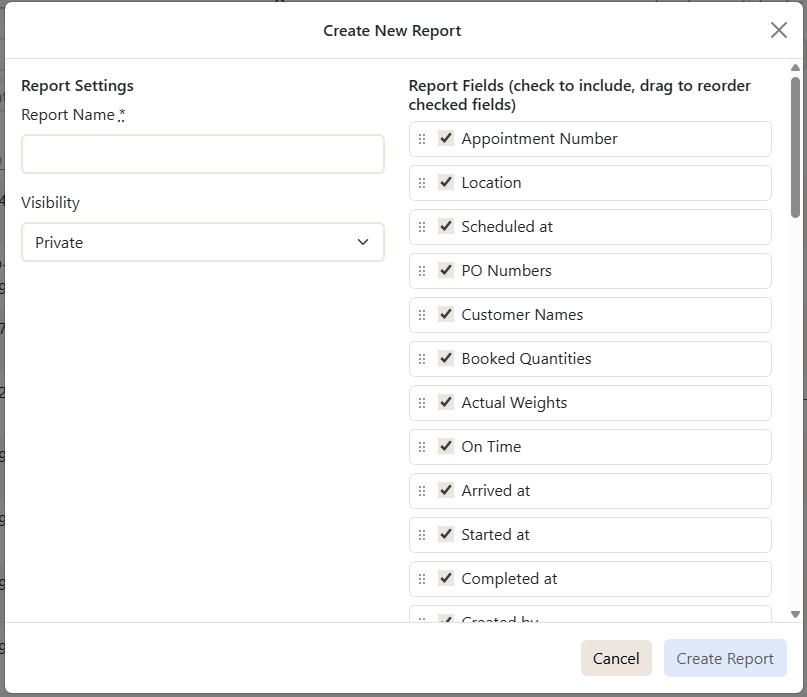
After the report is created, you can apply filters and save changes so those filters are permanently applied to that report.
Note Custom Reports are only available on certain subscription tiers. Please reach out to support to enquire about an upgrade.
Downloading Appointment Reports
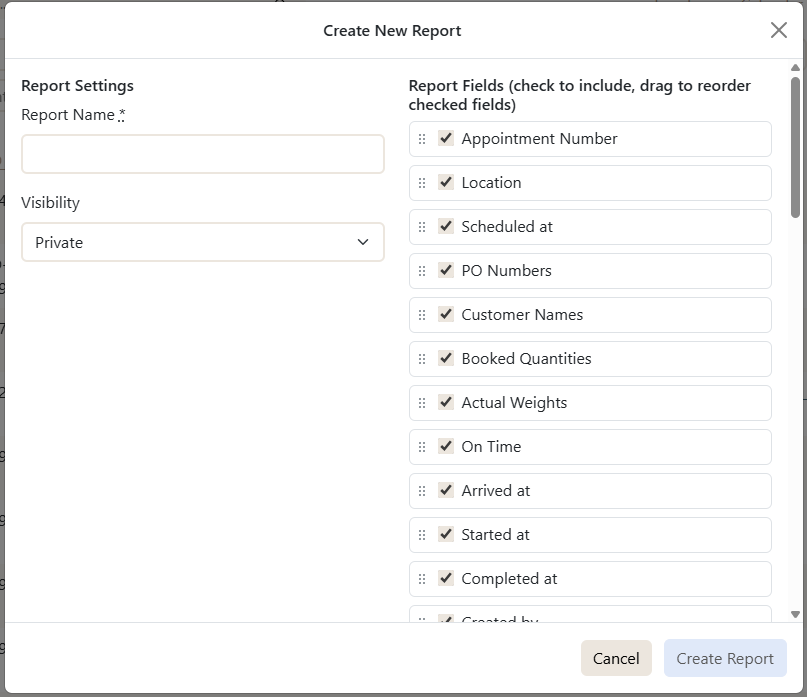
If you wish to download the Packing List Report, simply click the download button on the right side of the screen to get the report in a file format that suits your needs.
Scheduling Appointment Reports
Scheduled Reports allow you to automatically receive the Packing List Report at set intervals, so you can stay informed without having to manually export or run them.
Default Reports
All accounts include the ability to schedule the Default Appointment Report.

You can schedule Default Reports to automatically send to yourself at set intervals (daily, weekly, etc.). Default reports cannot be sent to other team members, or Customers/Carriers. Please Click here for sending reports to other users.
To Schedule a Default Report:
- Go to the Packing List Report tab.
- Click the three dots (⋯) beside your report.
- Select Scheduled Emails.
- Choose your Scheduling Options.
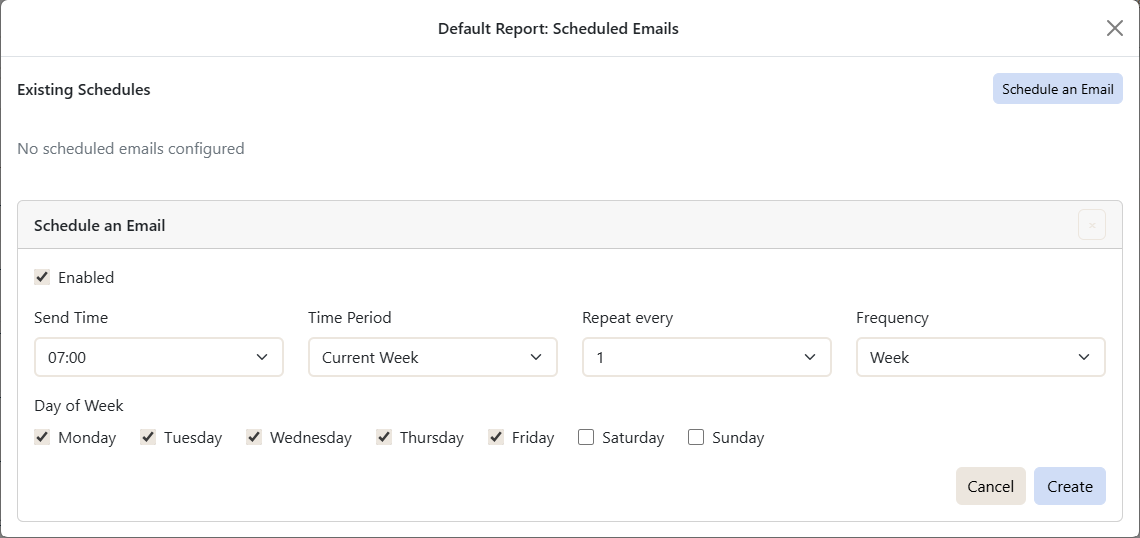
If you no longer want to receive a report, return to the same menu and disable or delete the schedule.
To Schedule a Custom Report:
If your account includes Custom Reports, you can also schedule those to be emailed automatically. If you do not have access to this feature, please reach out to support.
Custom Reports allow you to define which fields and filters appear in your reports, giving you more control over the information displayed.
- Go to the Packing List Report tab.
- Click Default Report and select the report you wish to schedule.
- Click the three dots (⋯) next to the report name.
- Select Scheduled Emails.
- Choose your Scheduling Options.
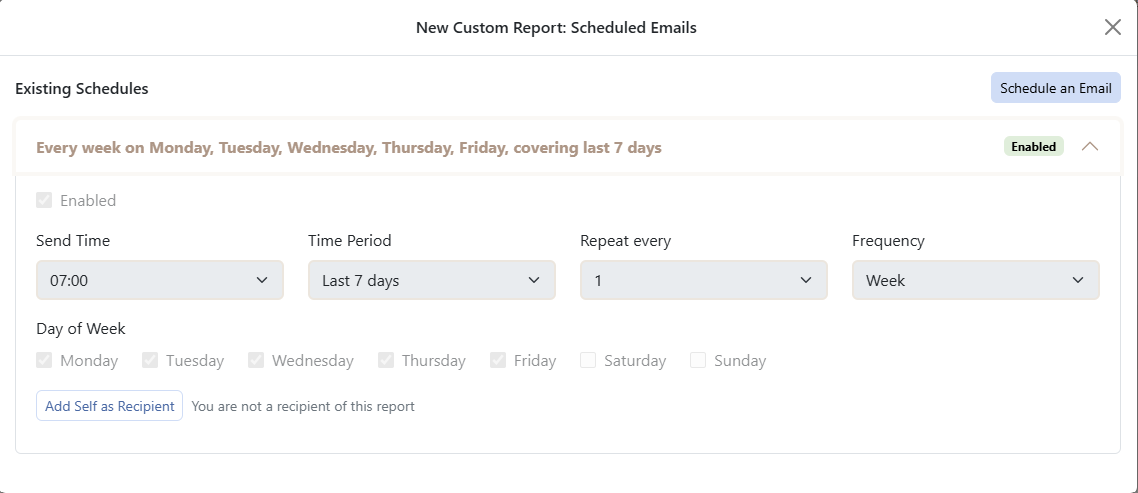
Scheduling Options
-
Send Time – Pick the exact time you’d like the email sent.
-
Time Period – Defines the date range shown in your report, (e.g., Last 7/14/30/60 days, Current Week, Yesterday, Today, Tomorrow or Next 7/14/30/60 days. )
-
Repeat Every - Choose how often the report sends, based on the frequency. (e.g, every 2 weeks)
-
Frequency – Choose how often you want the report delivered (e.g., weekly or monthly).
- If selecting weekly, you will need to chose which days of the week you'd like it to be delivered on.
- If selecting monthly, you can pick it to be delivered on a certain date of the month, (e.g, 1st of the month, 15th of the month) or, on specific weekdays of the Month (e.g., First Monday of the month, Last Friday of the Month)
-
Recipients – Choose who should receive the report. Only available for Custom Reports.
- For private reports, only the report owner can schedule and receive the report.
- For public reports, admins can select internal users and customers/carriers as recipients. Non-admin users can only add or remove themselves as recipients.
Email Delivery
When a scheduled report is ready, all selected recipients will receive an email containing:
- A link to view or download the report.
- The selected date range.
- A timestamp based on the chosen Date Format. Reports are available for 24 hours after delivery.
Why Use the Packing List Report?
- Comprehensive Tracking:
- View detailed information about packing lists, including booked vs. actual quantities and weights.
- Performance Insights:
- Analyze discrepancies between scheduled and actual results to identify trends or areas for improvement.
- Enhanced Record Keeping:
- Maintain an accurate historical record of packing lists for auditing or operational reviews.
The Packing List Report is an essential tool for tracking and optimizing your facility’s packing operations. Use it to ensure accuracy, improve workflows, and enhance customer satisfaction.