On Property Trailers
The On Property Trailers feature helps your organization track and manage trailer locations within your facility, creating a searchable list of all trailers on-site.
Creating New On Property Trailer
This list will automatically populate with trailers that are listed on your appointments that are in an arrived, started or completed status. If you'd like to create a new On Property Trailer that isn't currently associated to an appointment:
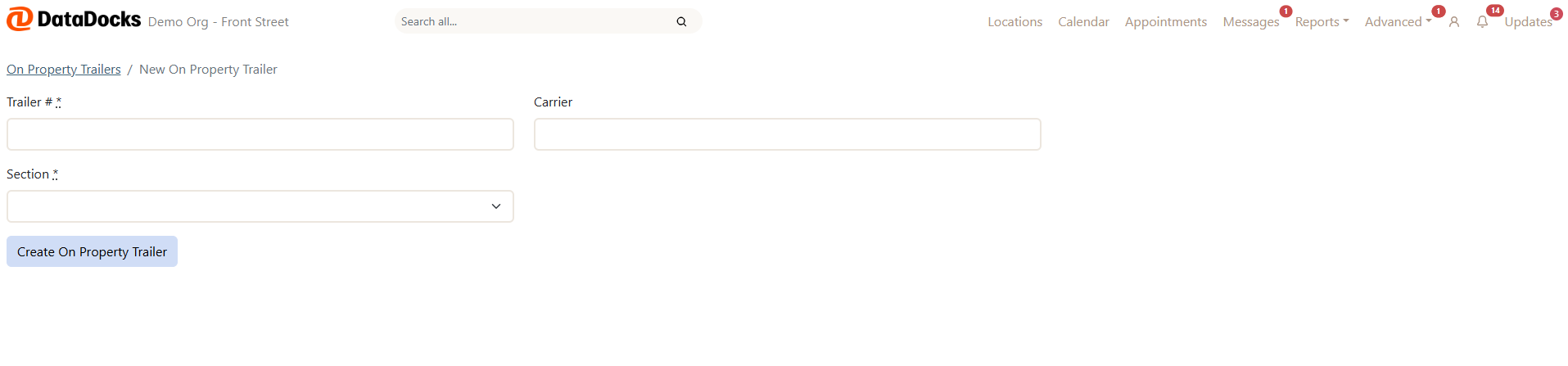
- Navigate to On Property Trailer in your Advanced Settings, and click New On Property Trailer.
- Enter the following details:
| Field | What It Does |
|---|---|
| Trailer number | Mandatory Field - Enter the specific trailer number here. |
| Carrier | Enter the Carrier Name associated with the trailer. |
| Section | Mandatory Field - Select from drop down where this trailer is located on your property. |
Managing Your On Property Trailers
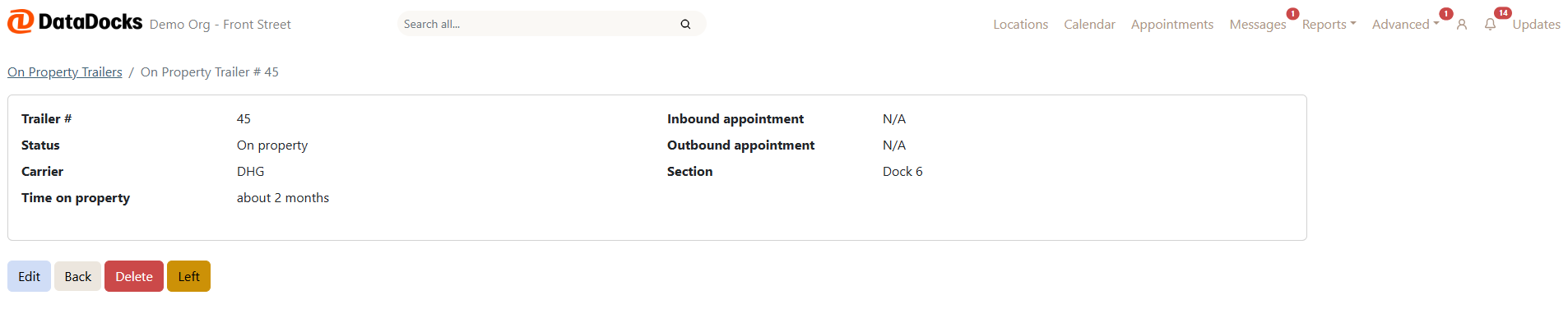
From the On Property Trailer Logs, you can:
- Edit the details of any trailer.
- Delete trailers no longer needed.
- Mark trailers as Left when they leave the property, which removes them from the list.
Using On Property Trailers in Appointments:
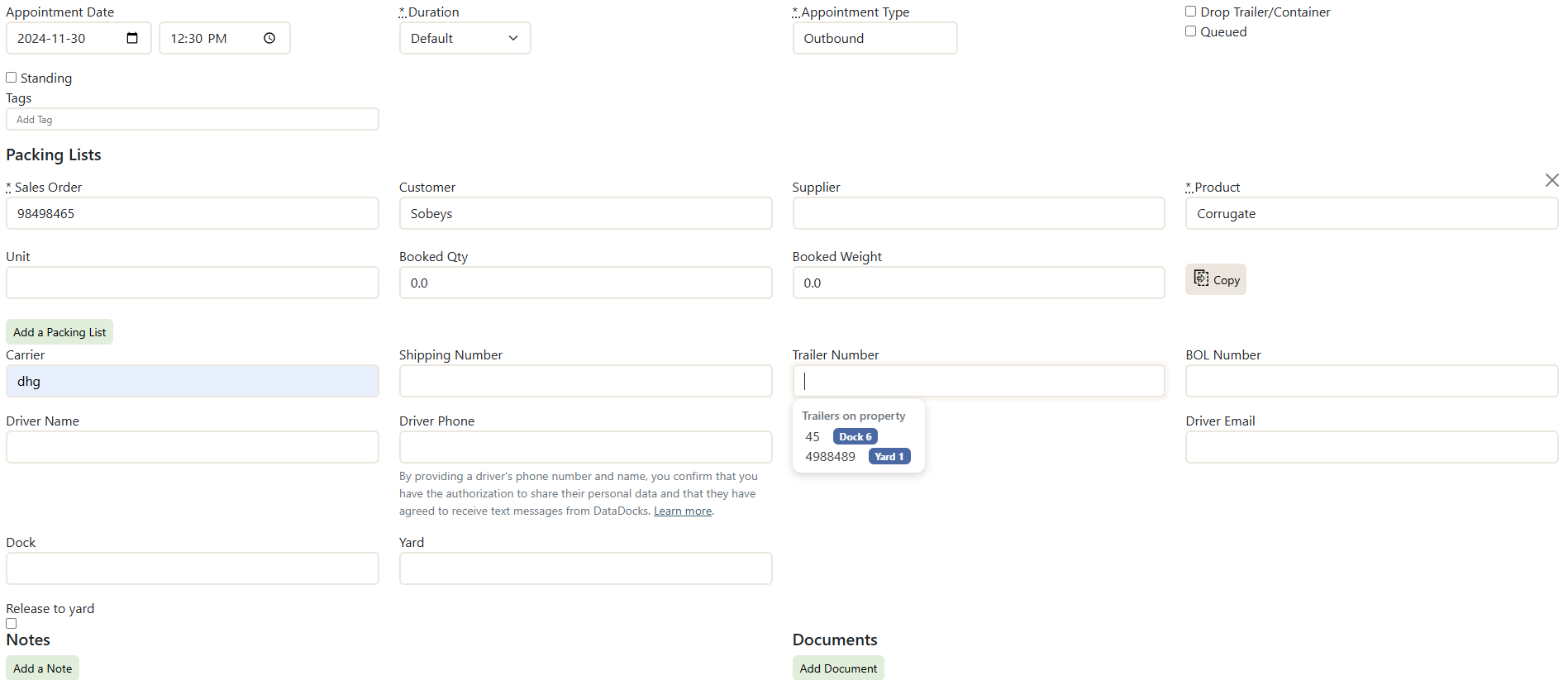
When scheduling an outbound appointment, once all required fields are filled out, you can add the current trailer number. This will populate the trailer list based on the trailers available in your On Property Trailers.
Tip!: If you’ve assigned a carrier, you’ll only see trailers associated with that carrier, simplifying the search process.
Schedule the appointment as normal. When the appointment is marked as Left, the trailer will be cleared from your list as it has now exited the property.
Using this feature allows your team to have a complete overview of all trailers on-site, ensuring you keep track of which trailers are on the property and avaialable to use, and which ones have left. This helps streamline trailer management and improves overall operational visibility.