User Preferences
User preferences is found next to the advanced section, under the personal icon and this section lets you customize how you use DataDocks. It includes sections: personal details, notify me when, customize calendar, and customize reports.
Personal Details

NAME: Your user name
PHONE NUMBER: Your phone number, so we are able to reach you for support.
LANGUAGE: Select the language for the software.
HOMEPAGE: Select from Calendar, Appointments, Shunt Movements Queue or Appointments on Property as your homepage when you login.
Notify me when
This section allows you to subscribe or unsubscribe from notifications for your DataDocks platform.
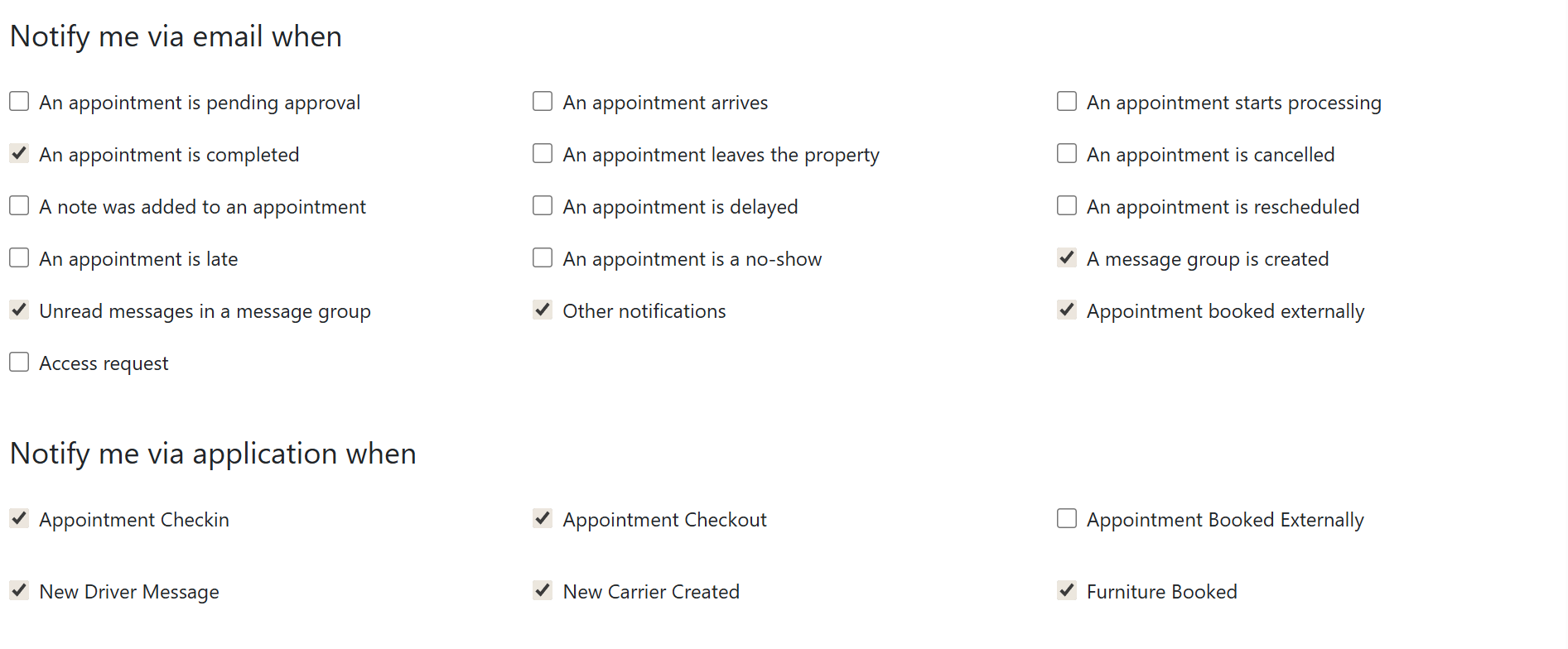
You may check or uncheck any of these items if you prefer not to receive email notifications or in-app notifications. By default, the notifications for late and no show appointments are turned off, please turn these on should you want to begin receiving these.
Note If you are utilizing Triggers to send In App Notifications, those will appear here and can be selected/unselected. For example, "Furniture Booked" is a Trigger Notification.
Application and Browser Notifications
This section lets you choose which notifications you would like to receive in DataDocks. For each event, you can turn on an In-App Alert, which saves the notification in the bell icon notification center, and/or an In-App Push Notification, which shows the notification as a temporary pop-up in the application.
Some notification types are available by default, including Appointment Checkin, Appointment Checkout, Appointment Booked Externally, New Driver Message, and New Carrier Created. You may also see additional notification options here if your organization has set up Triggers to send in-app notifications.
If browser notifications are turned off on your device, you may see a message at the top of this section asking you to enable them. If notifications are not appearing as expected, make sure your browser allows notifications for DataDocks and that no pop-up or notification blockers are stopping them from showing.
Customize Calendar
Calendar settings are on the calendar page (gear icon). See Calendar Settings.
Customize Reports
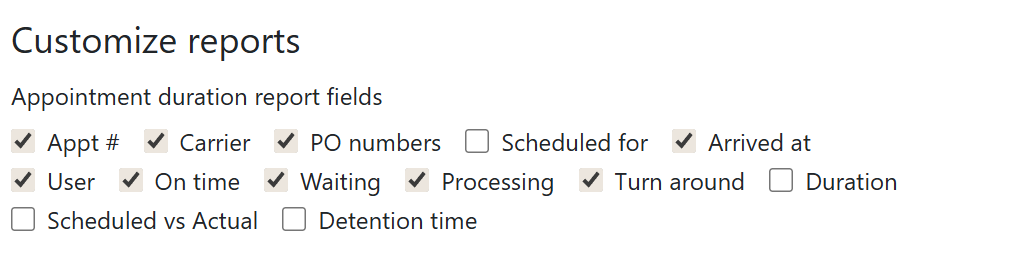
The customize reports section allows you to select which information you include on your Appointment Duration report. You can select, or deselect any field type to build this report as you need it. Other reports, such as "Appointments" or "Packing List" reports can be customized directly in those reports.
Appointment Duration Report Fields - Checkboxes to select or deselect
NOTE: Defaults are pre-selected for the most common fields and structures.