All Limits
About All Limits
This section of your Advanced Settings allows you to limit and set specific parameters around product, time, and place.
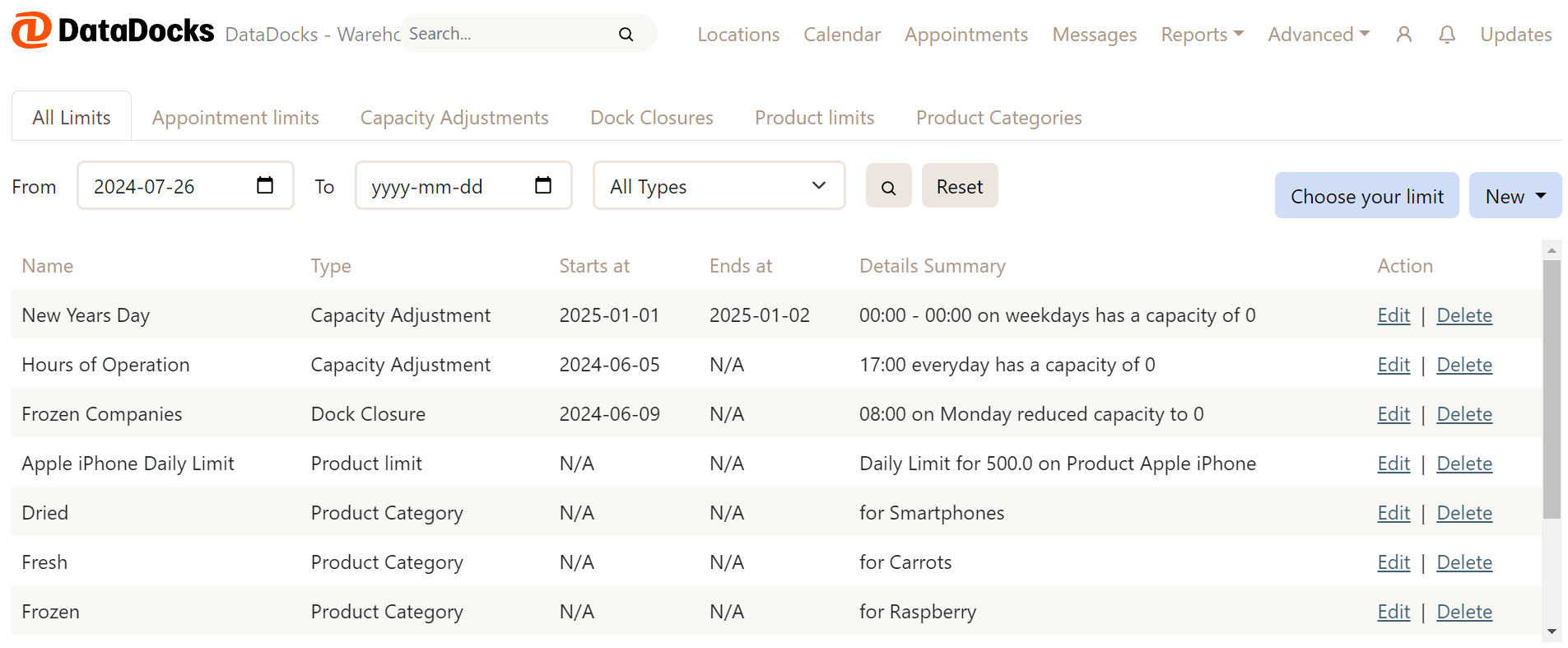
You can view all of your limits set for your facility, filter by date and type, and edit or delete from this page.
On this page, you can find
| Limit Type | What it does |
|---|---|
| Appointment Limits | Limit the number of appointments you wish to receive based on a set of specific parameters |
| Capacity Adjustments | Allows you to reduce the number of appointments per timeslot |
| Dock Closures | Close specific docks at specific times and even apply to certain companies |
| Product Limits | Cap quantities of products by weight or quantity |
| Product Categories | Assign specific dock doors, and durations for products within a specific category |
Kyle - Your AI Limits and Capacity Assistant
Kyle is your built-in Limits Assistant designed to help you understand and manage booking restrictions across your operation. Whether you're troubleshooting capacity issues, managing product limits, or setting up closures, Kyle helps you find out what’s going on—and how to fix it.
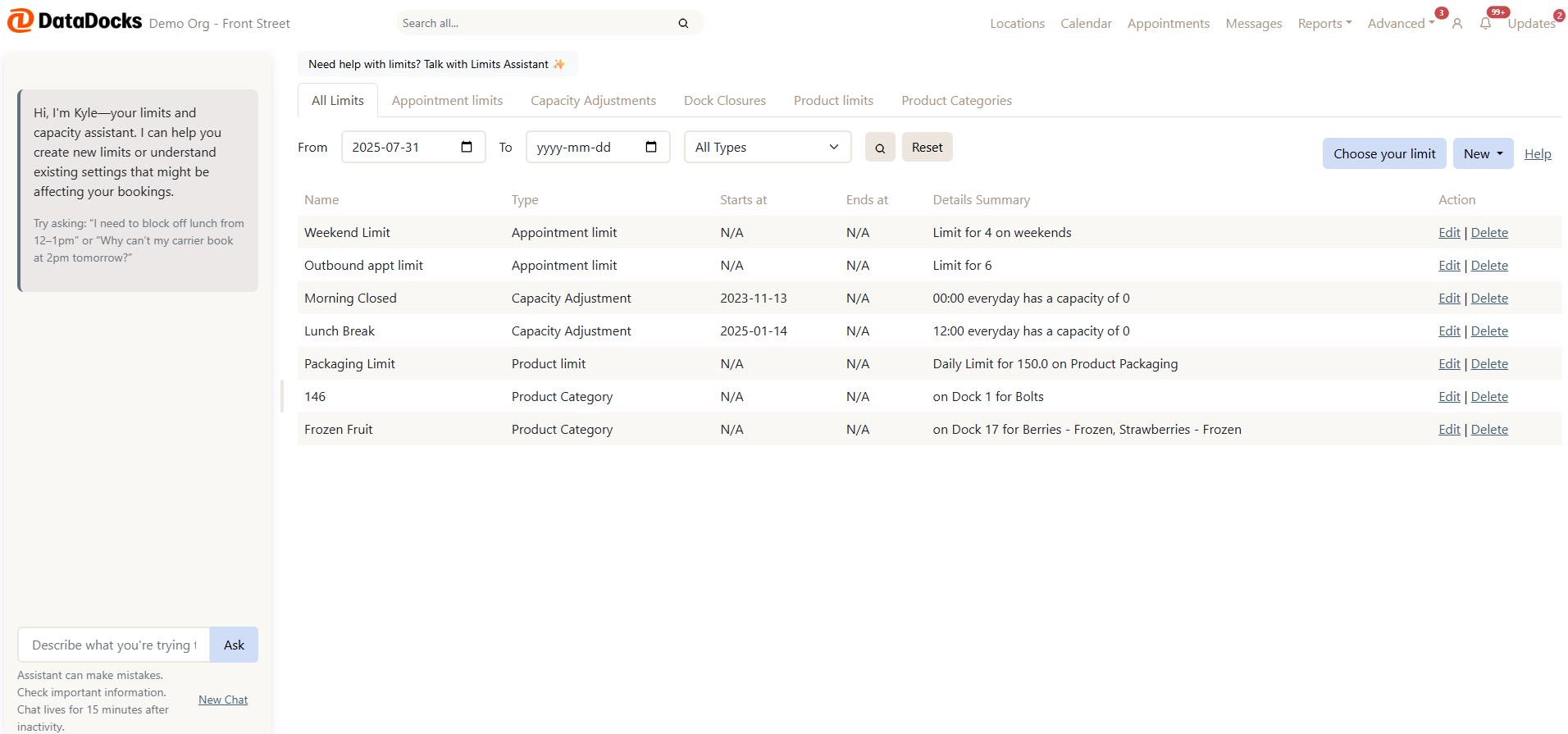
Where to Find Kyle
Kyle appears at the top of the All Limits page, ready to assist, as well as the individual limits pages such as Product Limits, Product Categories, Dock Closures and so on.
How It Works
Kyle pulls together data from:
- Capacity Adjustments
- Product Limits
- Appointment Limits
- Product Categories
- Dock Closures
- Booking rules and restrictions
By combining this information, Kyle gives you a complete picture of what limits are active, how they interact, and what’s affecting appointment availability.
Kyle is especially helpful if customers or carriers are asking why certain times are unavailable—you’ll have the answers fast, without digging through settings.
How to Use Kyle
- Kyle is built to help you answer questions, such as:
- Why can’t I book at 3PM today?
- How many of a specific product can still be booked today?
- How do I block time for a holiday?
- What’s preventing a specific customer or carrier from booking?
- How do I stop (insert carrier name here) from booking on Fridays?
- Review Kyle's Answer
- Review all settings and information pertaining to your question
- Ask for further clarification if needed
- Provide next steps for you to take. Kyle will not automatically create a capacity adjustment for you, he will set everything up for you to click and confirm upon review.
- Take Action
- Kyle will provide clear explanations of whats happening and prefilled links to take you directly to the setting you need to adjust - like editing a Product Limit or adding a Dock Closure. These links will be prefilled with the information you provided to Kyle.
Tips & Best Practices
- Use Kyle first When troubleshooting blocked bookings—it’s faster than manually checking each limit.
- Create a new chat when changing subject When changing topics, or asking Kyle to do something different, its best to start a new chat.
- Be Clear with what you are looking for The more info you give Kyle, the better and more specific your results will be.
- Great for customer or carrier questions: Quickly explain why a time is unavailable.
- Regularly check with Kyle to ensure your limits are still aligned with your daily operations.
- Pair with Reports to compare what’s booked vs. what’s restricted.
Alternatively, our “Choose your limit” Wizard offers a handy tutorial including video instructions about how to use and set up limits.
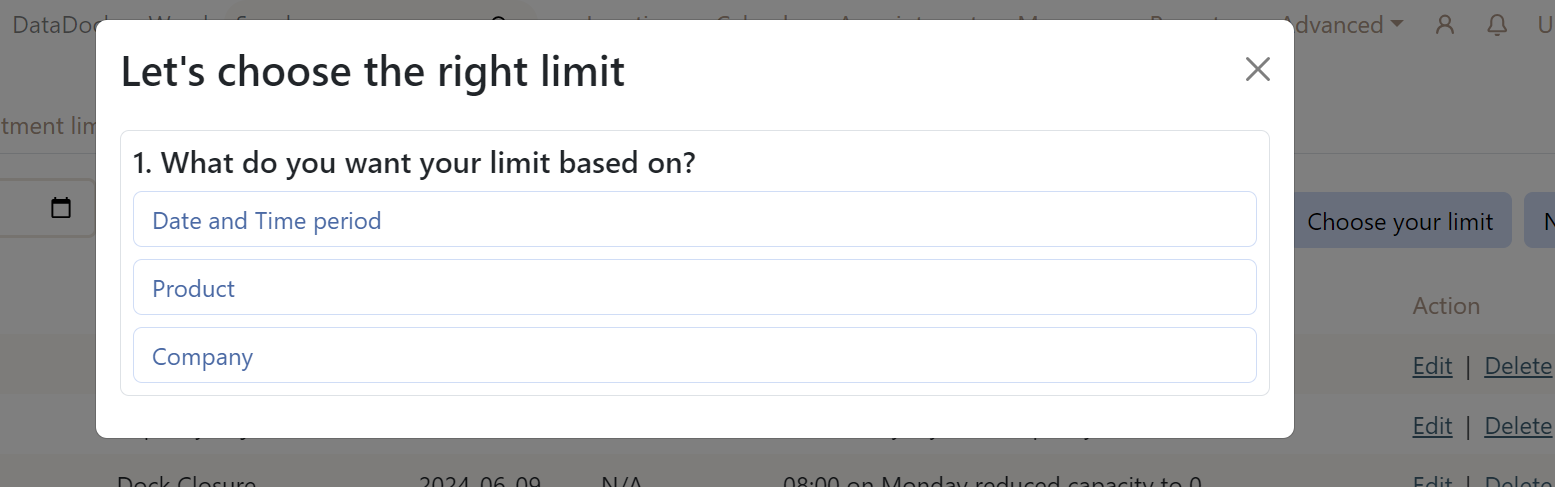
Follow the question prompts to find your limit and a direct link to the setting.
Creating a New Limit
To create a new Limit, you can click “New”, and then select from the dropdown.
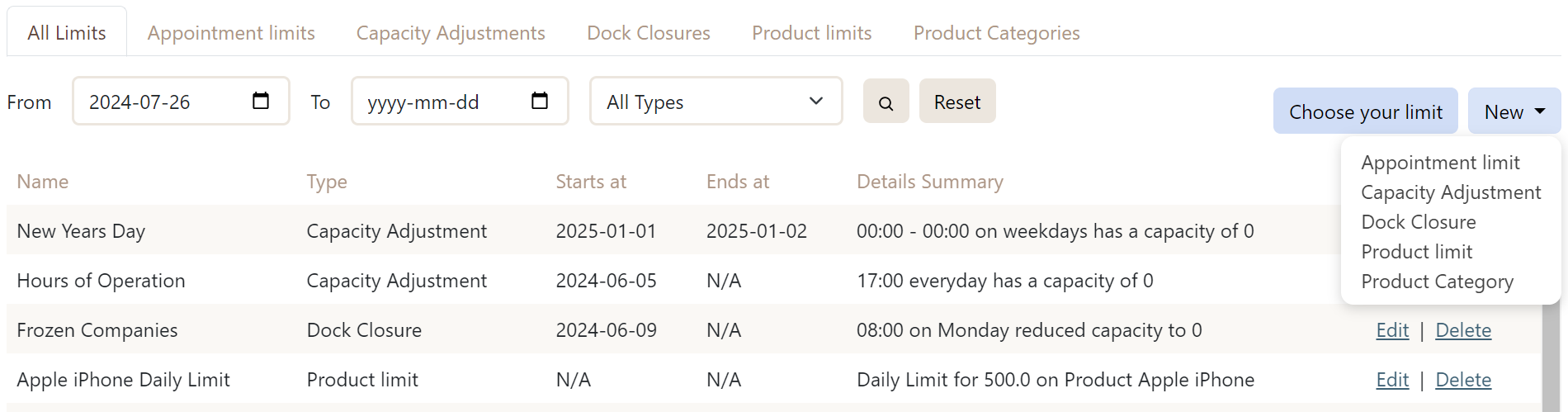
From here, you can select the type of limit to create, which will open the individual workflows. Learn about them below: