Triggers
Triggers can be set up to perform actions automatically once specific conditions are met. These actions can range from applying tags to appointments, sending custom notifications, or even updating appointment statuses. Below, we’ll outline the available conditions and corresponding actions.
Creating Triggers
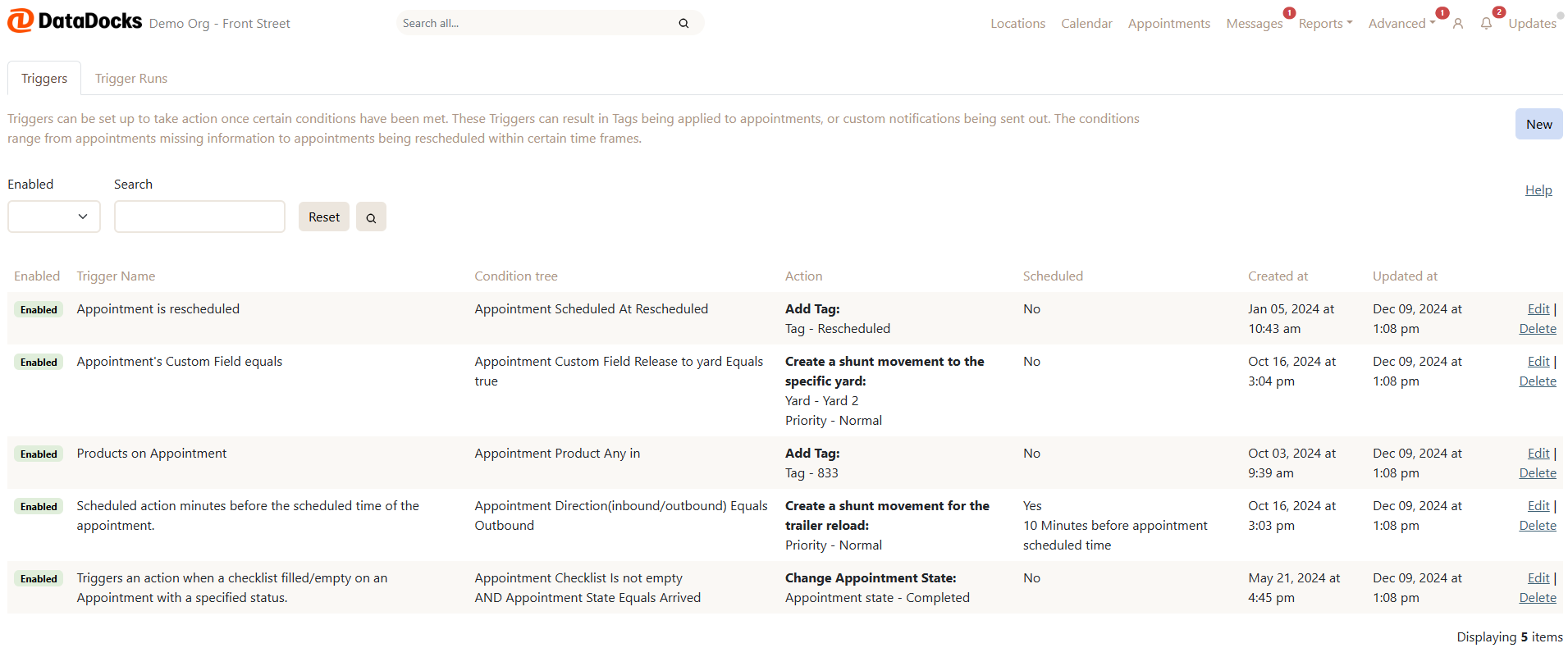
To create or manage Triggers, go to the Triggers page in your advanced menu. You can view existing Triggers, a history of Trigger runs, or click the New button to create a new one.
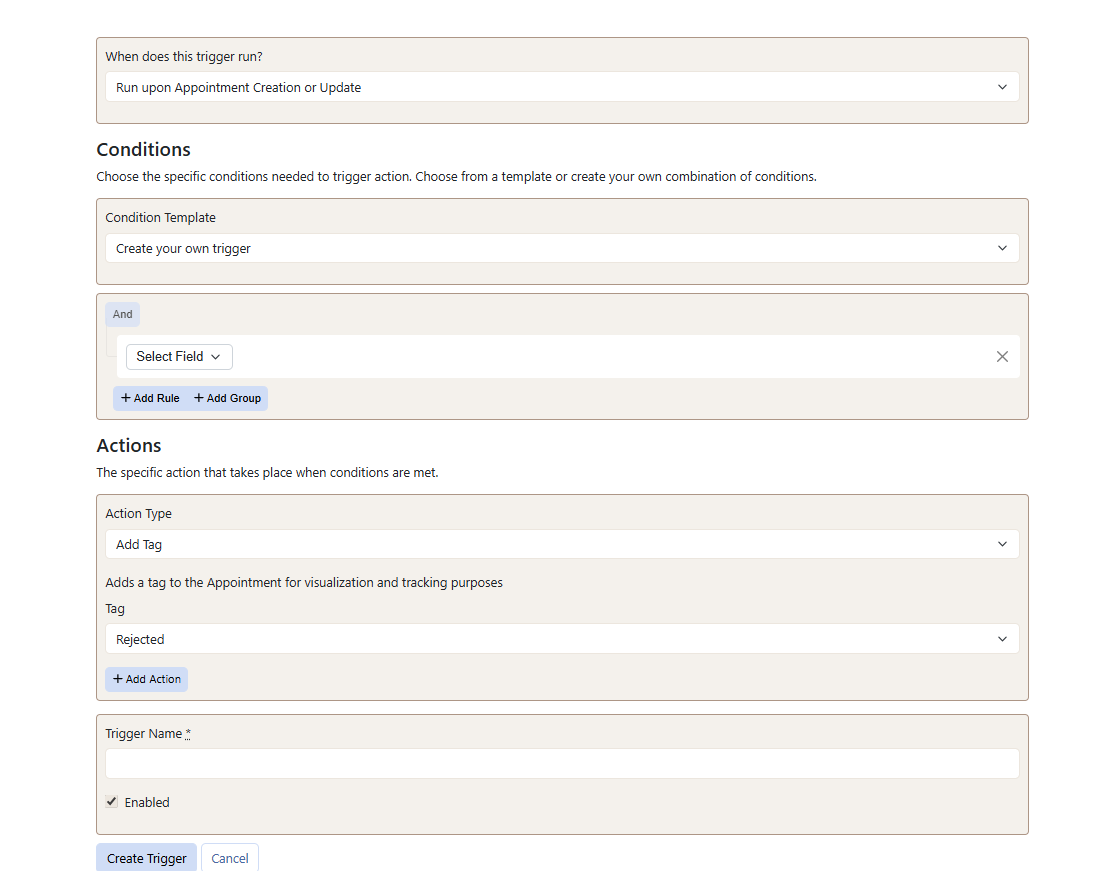
- When Trigger Runs - Choose from three options for when your trigger is activated:
| Schedule Type | What it Does |
|---|---|
| Run Upon Appointment Creation or Updates | Runs when an appointment is created or when an existing appointment is updated. |
| Schedule relative to appointment time | Lets you schedule the trigger to run in relation to an appointment event or timestamp. For example, you can run it minutes, hours, or days before or after the scheduled appointment time, or after the appointment has been approved, marked as arrived, started, completed or left. |
| Run at Schedule Times for the next business day | Lets you schedule the trigger to run at a specified time on the next business day after the condition is met. Setup includes selecting the run time for each day of the week, if days are left blank, the trigger does not run that day. |

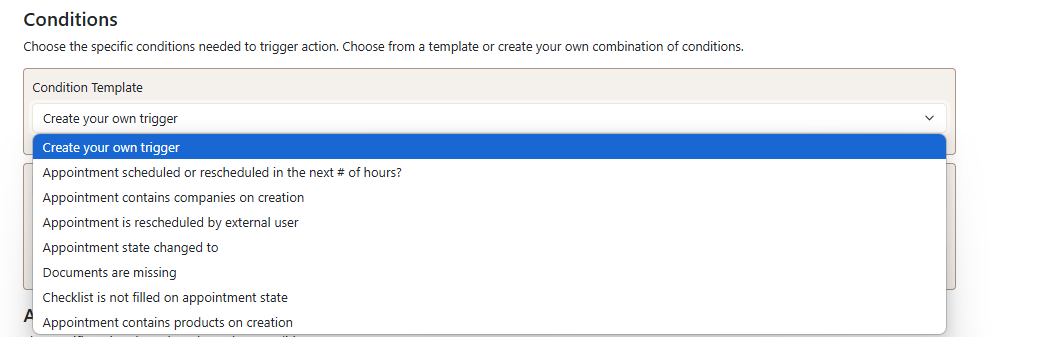
- Condition Type This is the event or condition that will trigger the action (e.g., appointment created, status updated, etc.) You can either choose a selected template or create your own.
| Condition Type | What it Does |
|---|---|
| Create your own Trigger | Choose your own set of conditions and actions to create your own custom trigger. See list of conditions and actions below. |
| Appointment Scheduled or rescheduled in the next # of hours | This trigger checks for appointments scheduled or rescheduled within a choice of hours. Additional Options: Choose the selected number of hours to apply action. |
| Appointment Contains Companies on Creation | Trigger actions based on specific companies involved in the appointment. Additional Options: Trigger only for external users (Customer or Carrier), Trigger based on the appointment’s state (e.g., created, edited, or when a company is added). |
| Appointment is rescheduled by external user | Appointment Rescheduled: This trigger fires when an appointment has been rescheduled by an external user |
| Appointment state changed to | This trigger fires when an appointment is changed to a certain state |
| Documents are missing | Checks for missing fields a set time before the scheduled appointment time (useful when document isn't needed at the time of booking but is required later). Additional Options: Set how many hours before the appointment this check occurs |
| Checklist is not filled on appointment state | Trigger an action when a checklist is empty, and the appointment is in a specific status (e.g., arrived, started, completed, or left). |
| Appointment contains products on creation | Trigger an action when there are specific products on an appointment. |
And/Or - create custom rules utilizing these two functions
| Rule Type | What it Does |
|---|---|
| And | Both conditions need to be met in order for action to run |
| Or | One of the conditions need to be met in order for the action to run |
| Add Rule | Add an additional rule to be met with either the “and” or the “or” function |
- Action Type:
Select the action you want to occur once the condition is met. This could include:
- Adding or removing a tag from the appointment
- Sending a custom notification
- Marking POs as reusable
- Changing the appointment state
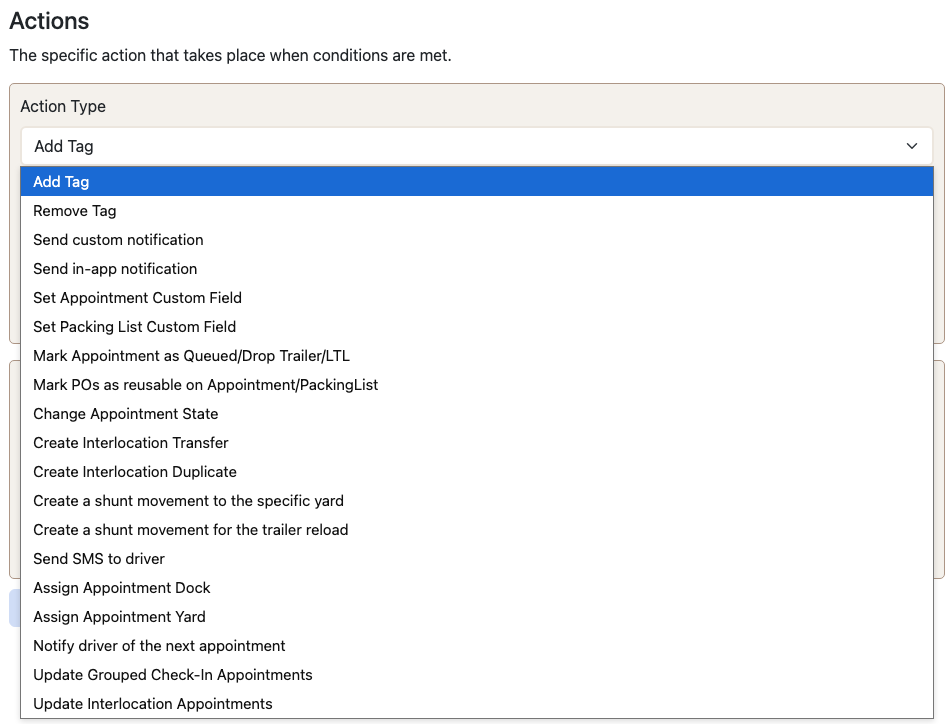
| Action Type | What it Does |
|---|---|
| Add Tag | Add a tag when specific conditions are met. |
| Remove Tag | Remove a tag when a specific condition are met. |
| Send Custom Notifications | Configure who to notify (internal team, customers, carriers, or a combination) and customize the message. Free-form type the message with variables that include relevant information about the appointment or location. |
| Send in-app Notifications | Send an in app notification to your internal teams. |
| Set Appointment Custom Field | Writes a text template or numeric formula result into an Appointment text or number custom field. |
| Set Packing List Custom Field | Writes a text template or numeric formula result into a Packing List text or number custom field. If the trigger includes packing list conditions, the action only updates the matching packing lists. |
| Mark Appointment as Queued/Drop Trailer/LTL | Will update the Appointment to be Queued, a Drop Trailer or an LTL Appointment, depending on selection. |
| Mark POs Reusable on Appointment/Packing list | This action allows POs to be reused when necessary, which is especially useful your POs are currently set to be unique. |
| Change Appointment State | Select which state (e.g., arrived, completed, left) the appointment should be updated to once the condition is met. |
| Create Interlocation Transfer | Creates an Interlocation Transfer with the ability to choose a fixed destination location and travel time for the appointment. |
| Create Interlocation Duplicate | Creates an Interlocation Duplicate with the ability to choose a fixed destination location. |
| Create a shunt movement for the specific yard | Trigger a shunter movement and select the yard. |
| Create a shunt movement for the trailer reload | Create a shunter movement and select the trailer for reload. |
| Send SMS to Driver | Send a custom text notification to drivers phone (phone number required). |
| Assign Appointment Dock. | Will assign the appointment to the chosen Dock. Please note, as this happens after the appointment, it will override any Dock Closure or Product Category Rules you have set up. |
| Assign Appointment Yard. | Will assign the appointment to the chosen Yard. |
| Notifiy Driver of Next Appointment | Send an SMS to the driver of the next appointment on that dock. |
| Updated Interlocation Appointments | Applies the same field value from the triggering appointment to any linked Interlocation appointment. If the linked Interlocation appointment doesn’t support that value, for example the status is not in use, or the custom field is disabled, no update will be made. |
| Update Grouped Check-In Appointments | Applies the same field value from the triggering appointment to any appointment within its group. Groups are created via the Driver Check In process, if enabled. If the appointments within the group do not support that value, for example the status is not in use, or the custom field is disabled, no update will be made. |
Add Action - Add an additional trigger action once the conditions are met.
-
Name Trigger - Naming the trigger allows it to be identified within the list on the main trigger page.
-
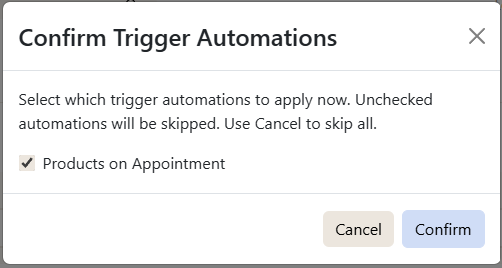
Choose to Require Confirmation - Triggers typically run automatically, but this option adds a confirmation step. When enabled, internal users will see a pop-up prompting them to confirm before a trigger executes, with the trigger name clearly displayed. If multiple triggers are set to run, users can choose which ones to confirm, providing a final opportunity to cancel in unique scenarios.
Once on the main trigger page, you can proceed to edit triggers, delete them, or disable within the edit page.
Automate key actions and streamline your operations without manual intervention, ensuring smooth workflows and enhanced communication.
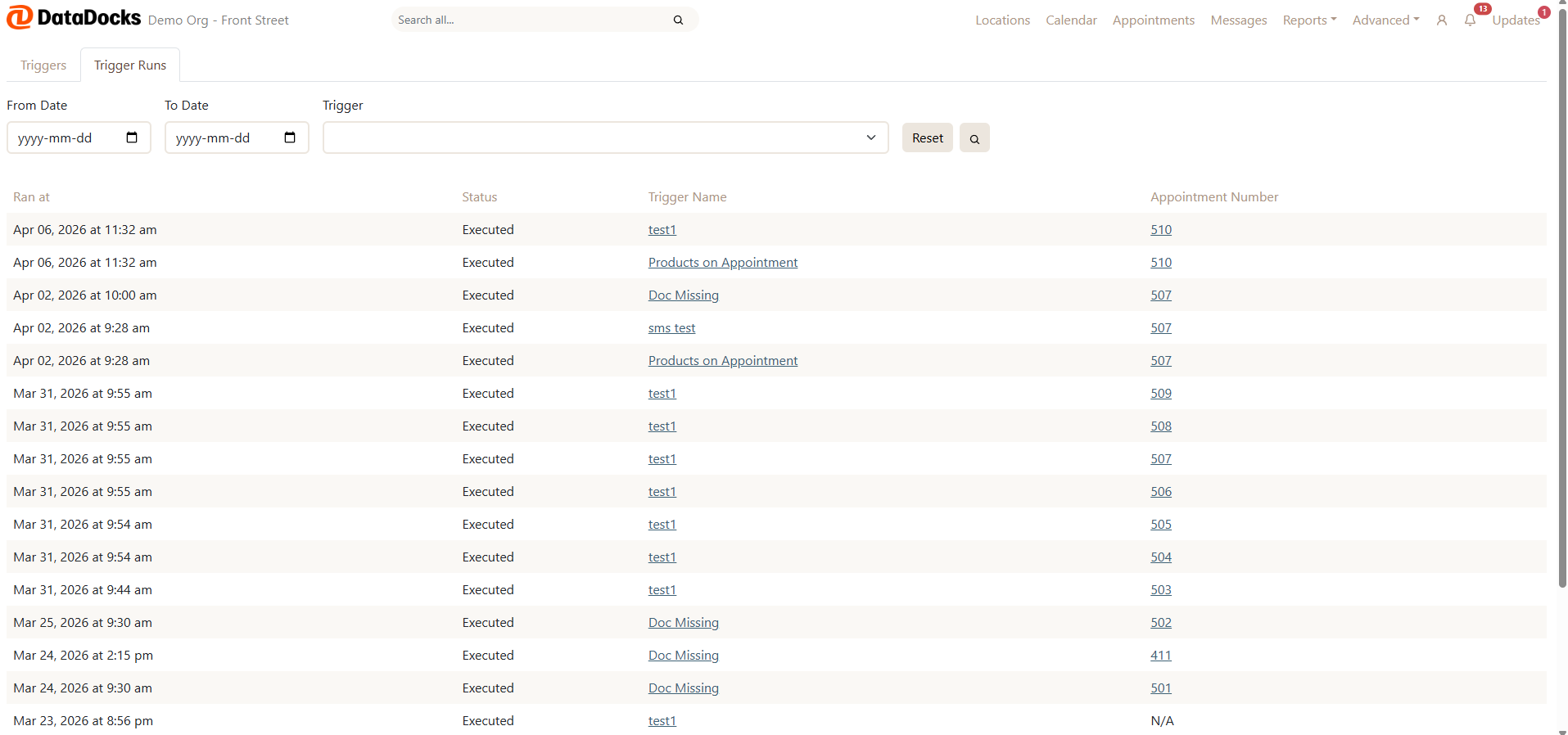
Trigger Runs
This tab provides a log of all triggers that have been executed. Users can filter results by date range or search for specific triggers, making it easy to review activity, track usage, and troubleshoot when needed.