Yard Checks
Efficiently manage your yard with the Yard Check feature, giving you real-time visibility of trailers at your docks or in your yard. Easily inspect, update, and note the status of trailers and areas, with changes saved instantly for real-time accuracy. A log tracks exactly what was checked, when, and by which team member.
Accessing Yard Checks
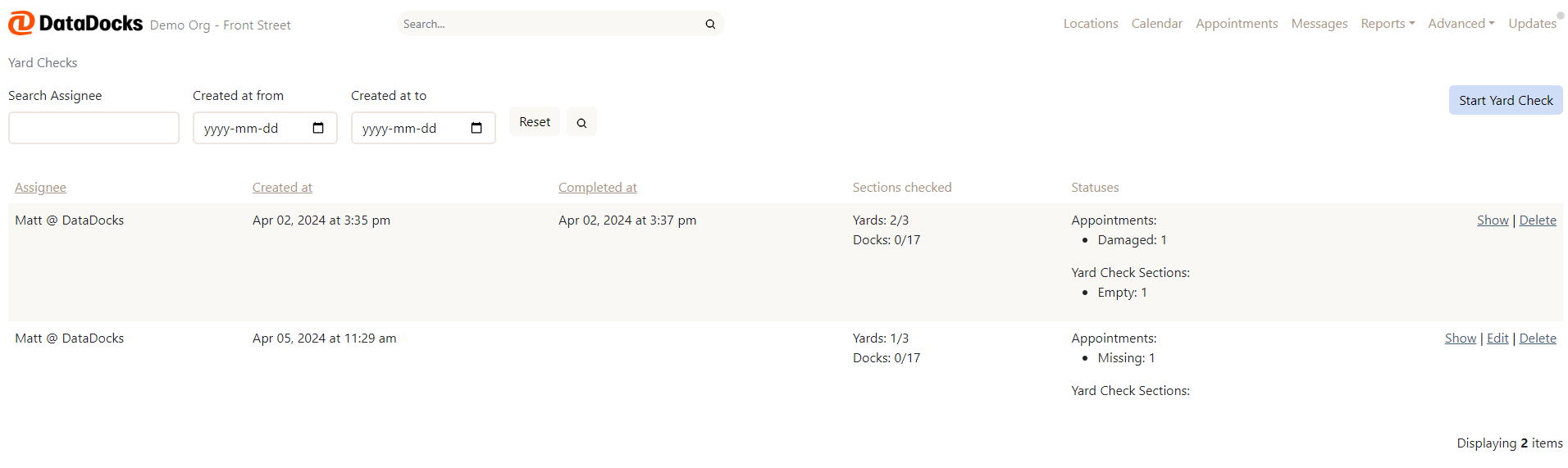
To access Yard Checks, navigate to the "Yard Check" section under the Advanced menu. Here, you’ll see any previously completed Yard Checks or any that are currently in progress.
This page shows who the Yard Check was assigned to, the start and end times, the sections checked, and a tally of the status. For a more detailed report, click on "Show."
Starting a Yard Check
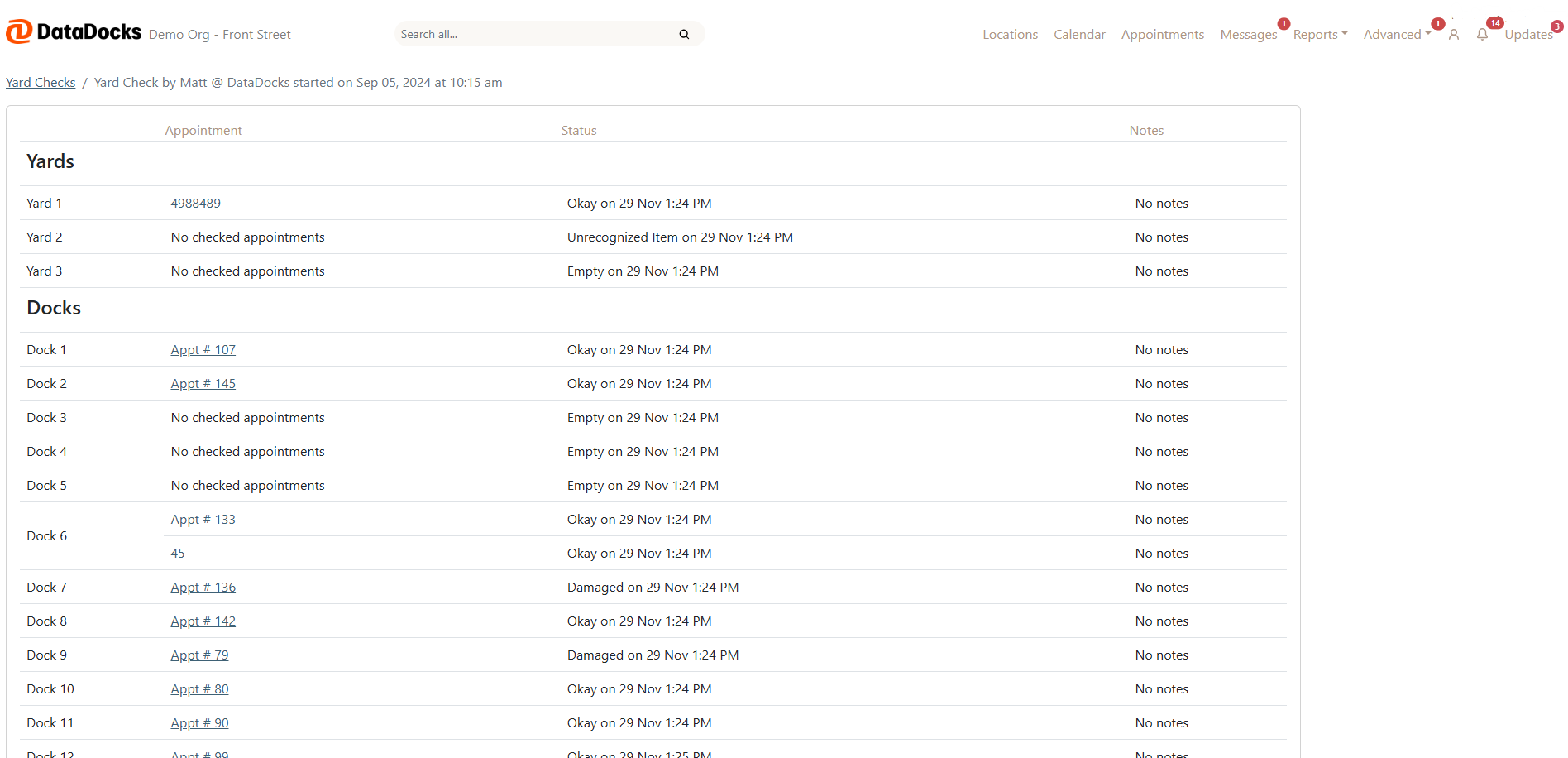
To begin a new Yard Check, click "Start Yard Check." This will generate a list of all appointments currently on your property. To appear in this report, appointments must be in an "Arrived," "Started," or "Completed" status. The report displays each yard or dock’s appointments, including the appointment number, appointment status, and trailer number (if available).
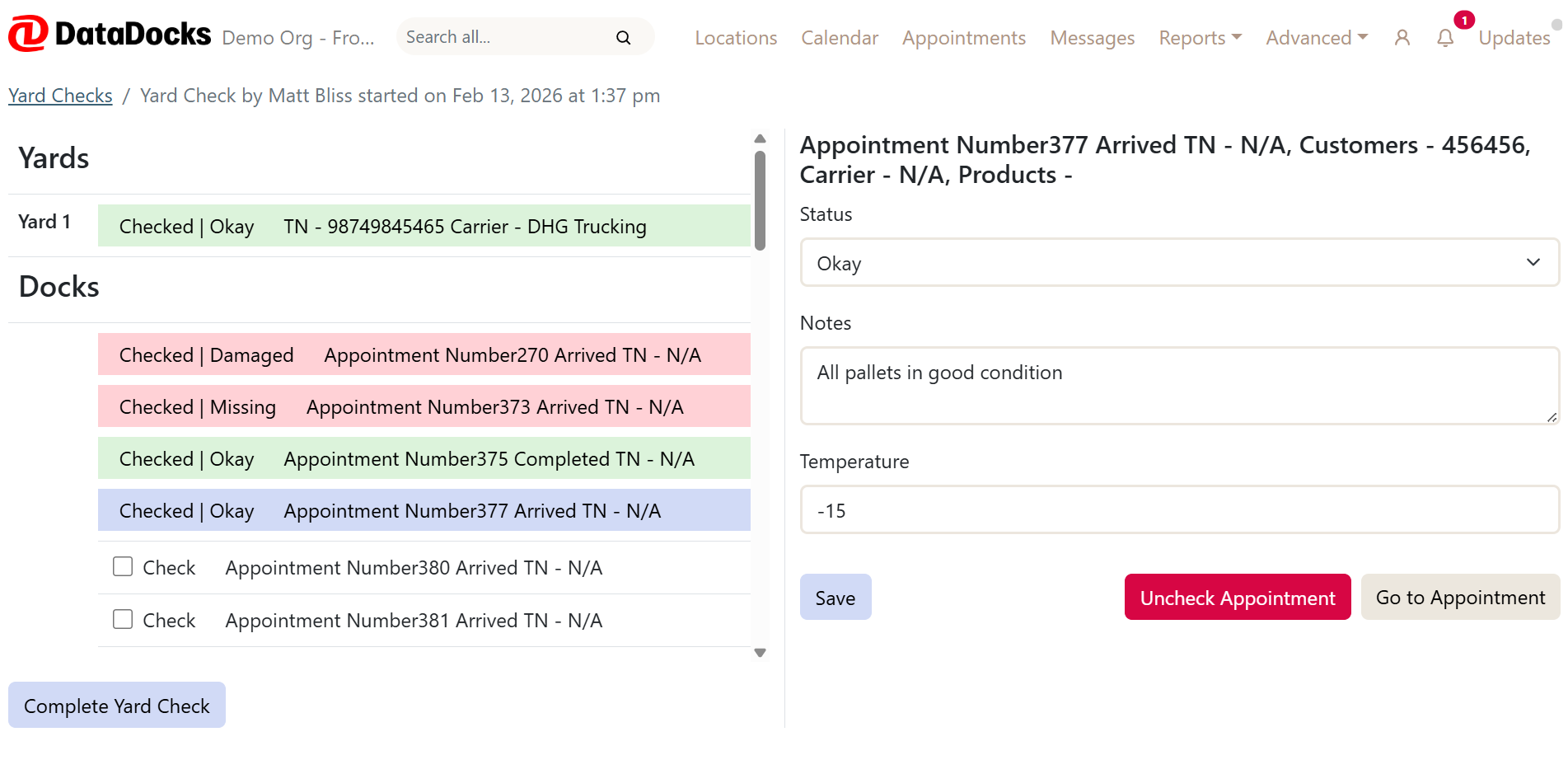
Mark appointments as "Checked" by clicking the checkbox, then update the trailer’s status to "Okay," "Damaged," or "Missing." You can also add specific notes and fill out any Custom Fields you may have added here as well for example, "Temperature" in the above image. Hit "Save" once all appropriate information has been filled out.
If you have an “empty” spot, within your drop down, you can also report an unrecognized item and add notes.
For more detailed appointment information, click "Go to Appointment" to view the full appointment screen.
Once you’ve completed all your checks, click "Complete Yard Check" at the bottom to finalize your work. Keep in mind that users can only have one active Yard Check at a time.
Tip! If you try to start a new Yard Check while another is in progress, the system will redirect you to complete the ongoing check:

Checking Yard Check History Within The Appointment
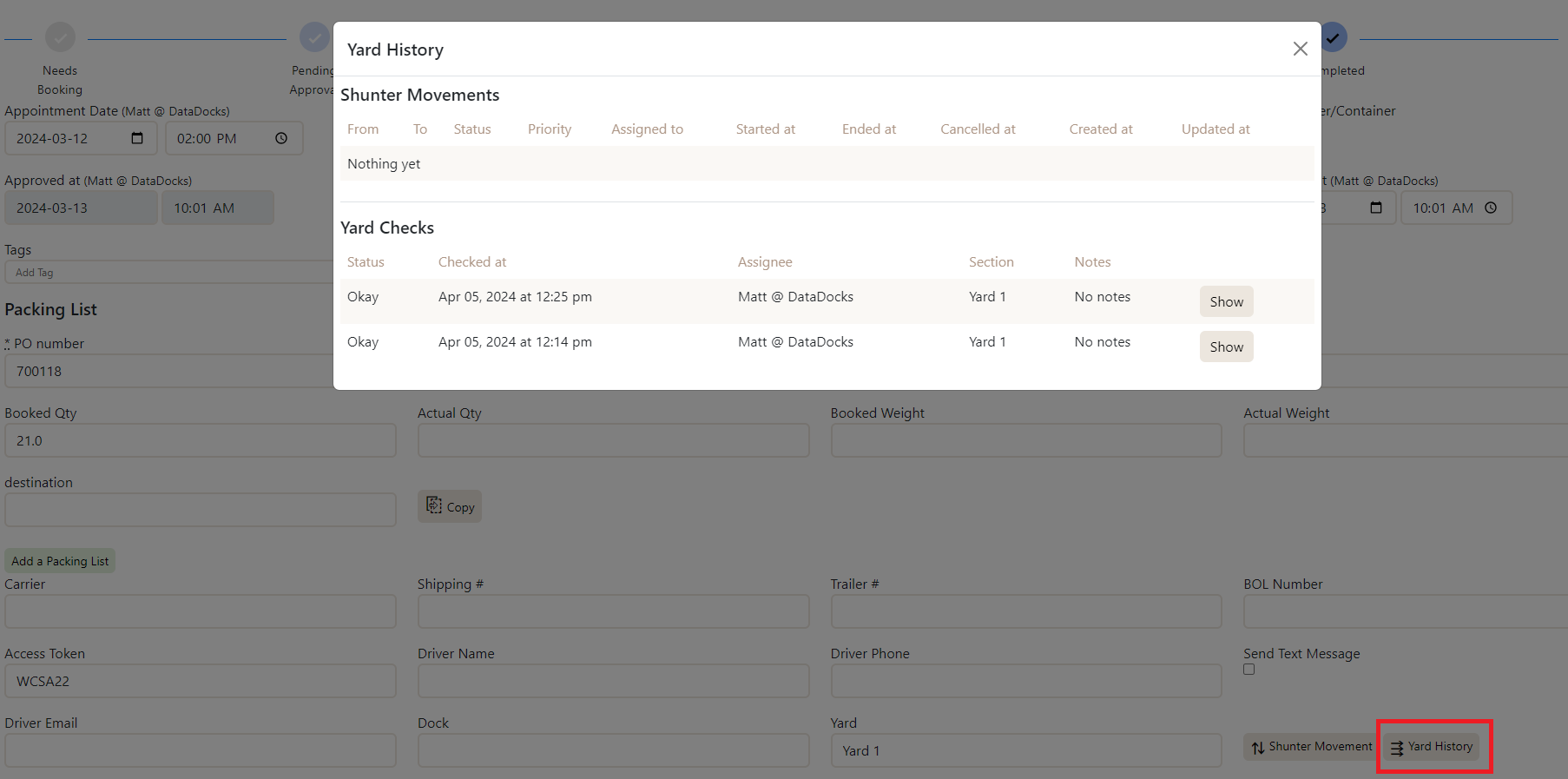
As Yard Checks are completed on an appointment, a history of checks will be captured for you. Once you are within the appointment dialogue screen, hit "Yard History" towards the bottom right and you will see a complete log of all the yard checks that have occurred for this appointment. You will also see a Shunt Movement history here as well, if applicable. Please Visit Shunter Movements for more details.