Business Hours
Business Hours let you define when your location is open for bookings. By setting clear hours of operation, you can prevent appointments outside your working times, while still allowing flexibility for special cases. You can also use overrides for specific dates and times, and combine Business Hours with capacity adjustments to further control appointment volumes.
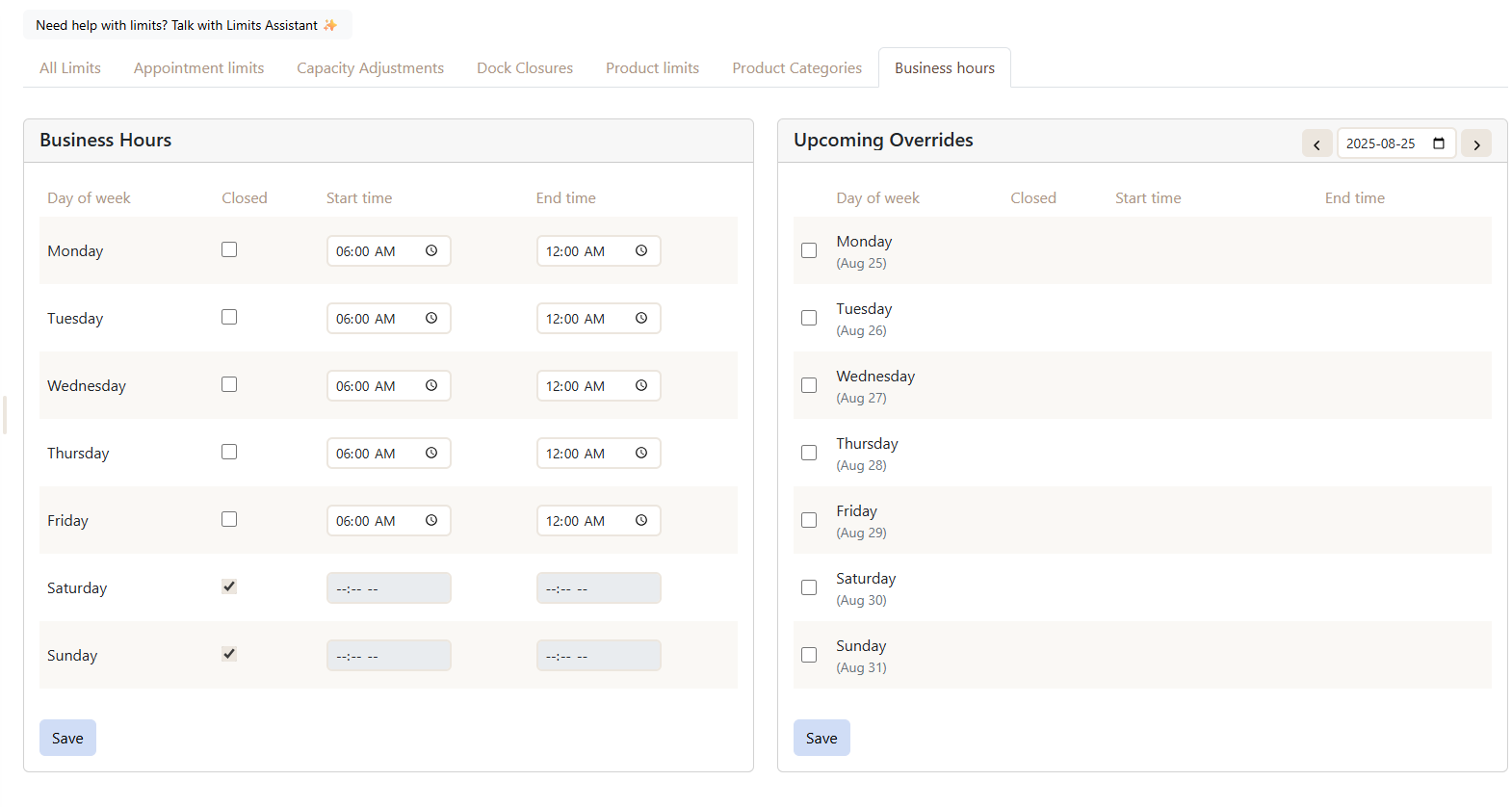
There are two main parts of Business Hours:
Business Hours – The standard days and times your location is open
Overrides – Exceptions for specific dates and times, such as holidays or one-off shutdowns.
Business Hours
Default Hours set the baseline schedule for your location. These times define when bookings can occur.
| Field | Description |
|---|---|
| Closed | Select if you are closed on a particular day of the week. |
| Start Time | The time of day when booking is allowed to begin. |
| End Time | The time of day when booking is no longer allowed. |
Overrides
Overrides let you make exceptions to the default schedule for specific dates and times.
| Field | Description |
|---|---|
| Override Date | Select the date for the exception (e.g. holiday closure). |
| Closed | Select if you are closing for the entire day. |
| Override Start and End Time | If you are only closing part of the day, enter the hours here. |
Business Hours and Other Settings
Business Hours work together with your other settings, such as Booking Rules and Capacity Adjustments.
-
Booking Rules such as lead times or same-day restrictions, will always follow your defined Business Hours.
-
Capacity Adjustments apply within your Business Hours to control how many appointments can be booked at specific times.
This ensures your scheduling reflects both your operating hours and your booking policies.
Customizing Your Calendar
Your calendar view can be adjusted to better reflect your Business Hours:
- Extend your Business Hours View
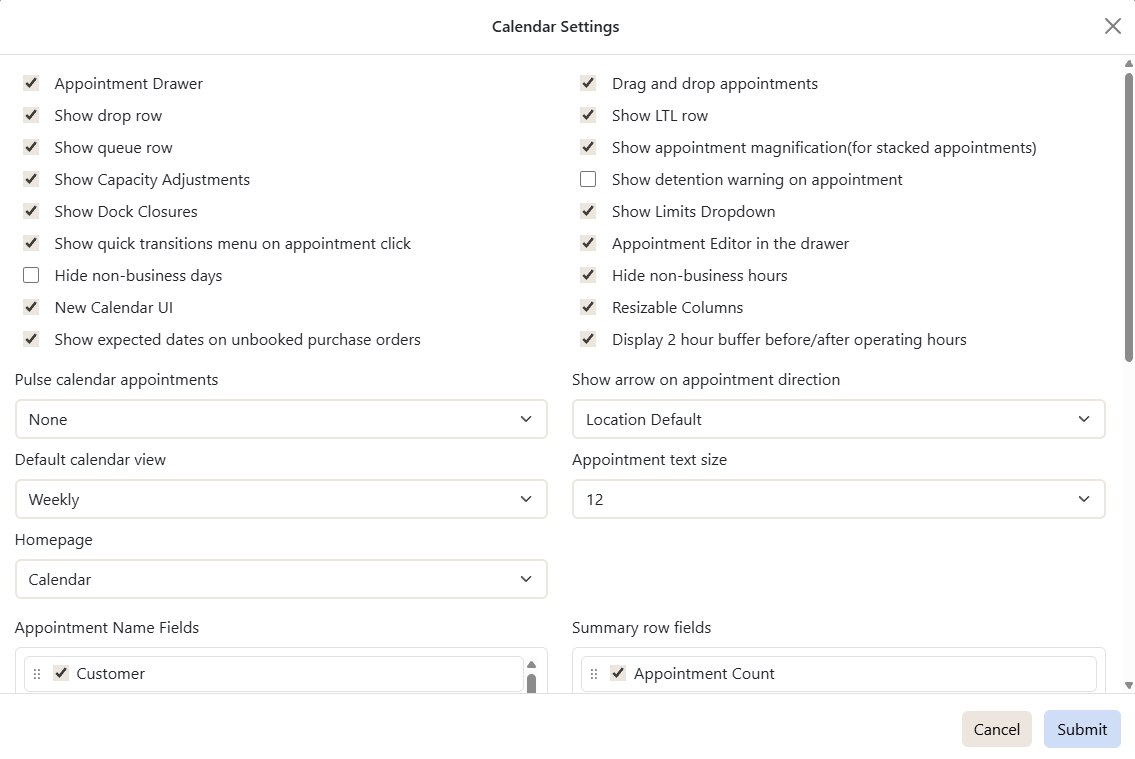
- By default, the calendar shows a 2-hour buffer before opening and after closing.
- This helps illustrate any appointments that may be created or adjusted internally outside normal hours.
- You can turn this buffer off in your Calendar Settings if you want a cleaner view.
- Hiding Non-Business Days
- Days when your location is closed (for example, weekends or holidays) can be hidden.
- This streamlines your view, showing only days open for bookings.
- Change the colour of Non-Business Hours
- Non-Business hours will be reflected with a light blue colour by default, to help you differentiate between Capacity Adjustments, Dock Closures and Non-Business Hours. This colour is customizable to your preference.
These options allow you to control how Business Hours appear and how easy it is to focus on the times that matter most.
Please Note: Business Hour Overrides can be created for any date, but they will only show as a visual indicator on the calendar when within 3 months of the current date.
Best Practices
- Review hours regularly to reflect operational changes.
- Use overrides for holidays, seasonal adjustments, or exceptions.
- Apply capacity adjustments to reduce appointments during breaks or limited staffing.
- Communicate schedule changes internally so teams remain aligned.
Business Hours give you full control over when bookings can take place. By combining standard hours, overrides, booking rules, and capacity adjustments, you can create a schedule that matches your operations while keeping your calendar organized and efficient.