Shunter Movements
"Shunter Movements" help manage the efficient assignment and tracking of trailer movements at your facility. This feature allows you to assign movements, set priority levels based on your operational needs, and provides real-time updates on when movements are started, completed, and by which teammates.
Assigning Shunter Movements
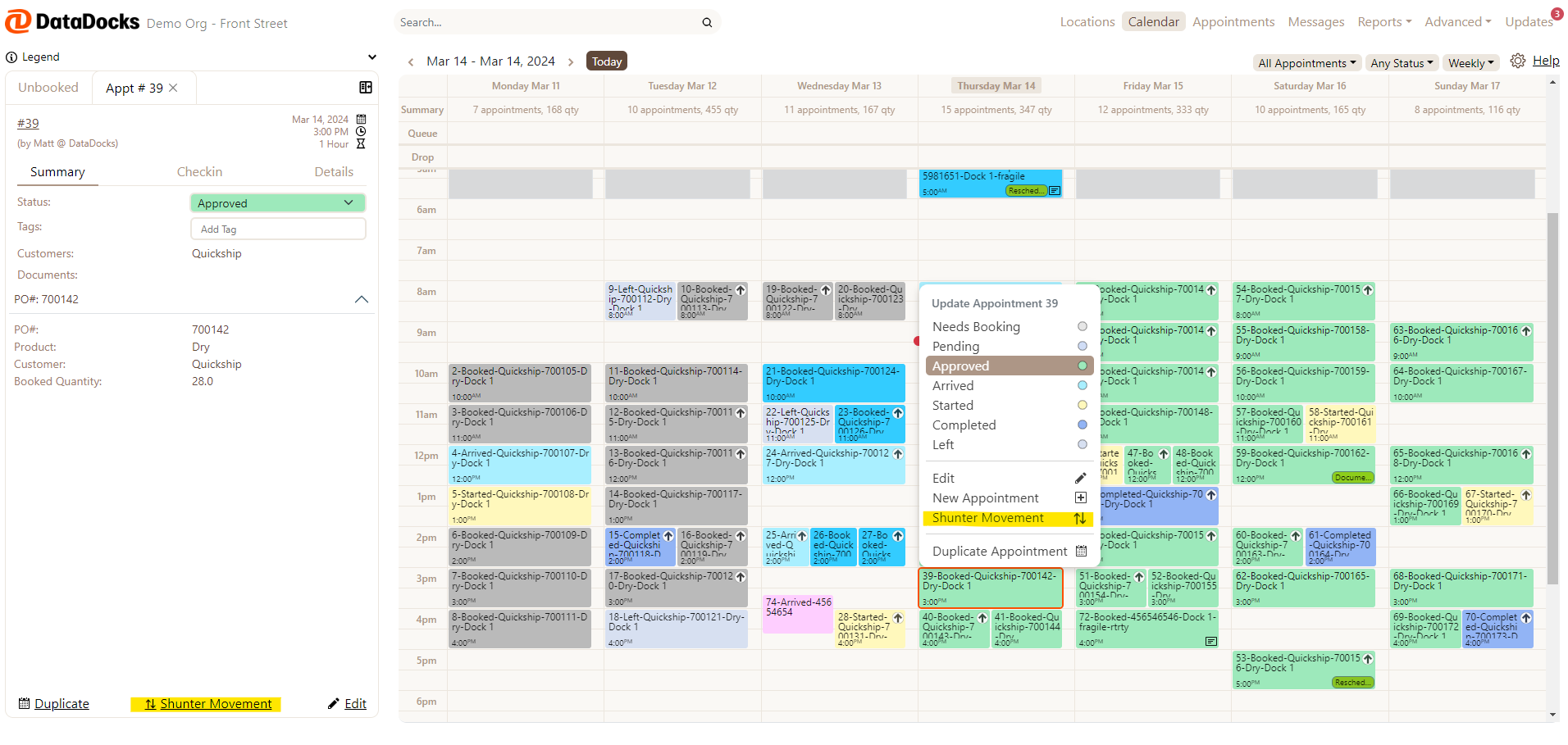
Assigning Shunter Movements is simple. You can create new movements directly from the calendar or within the appointment edit screen.
- From the Calendar: After clicking on an appointment, you’ll see both the quick transition menu and the appointment drawer open. From either, click on "Shunter Movement" to start the process.
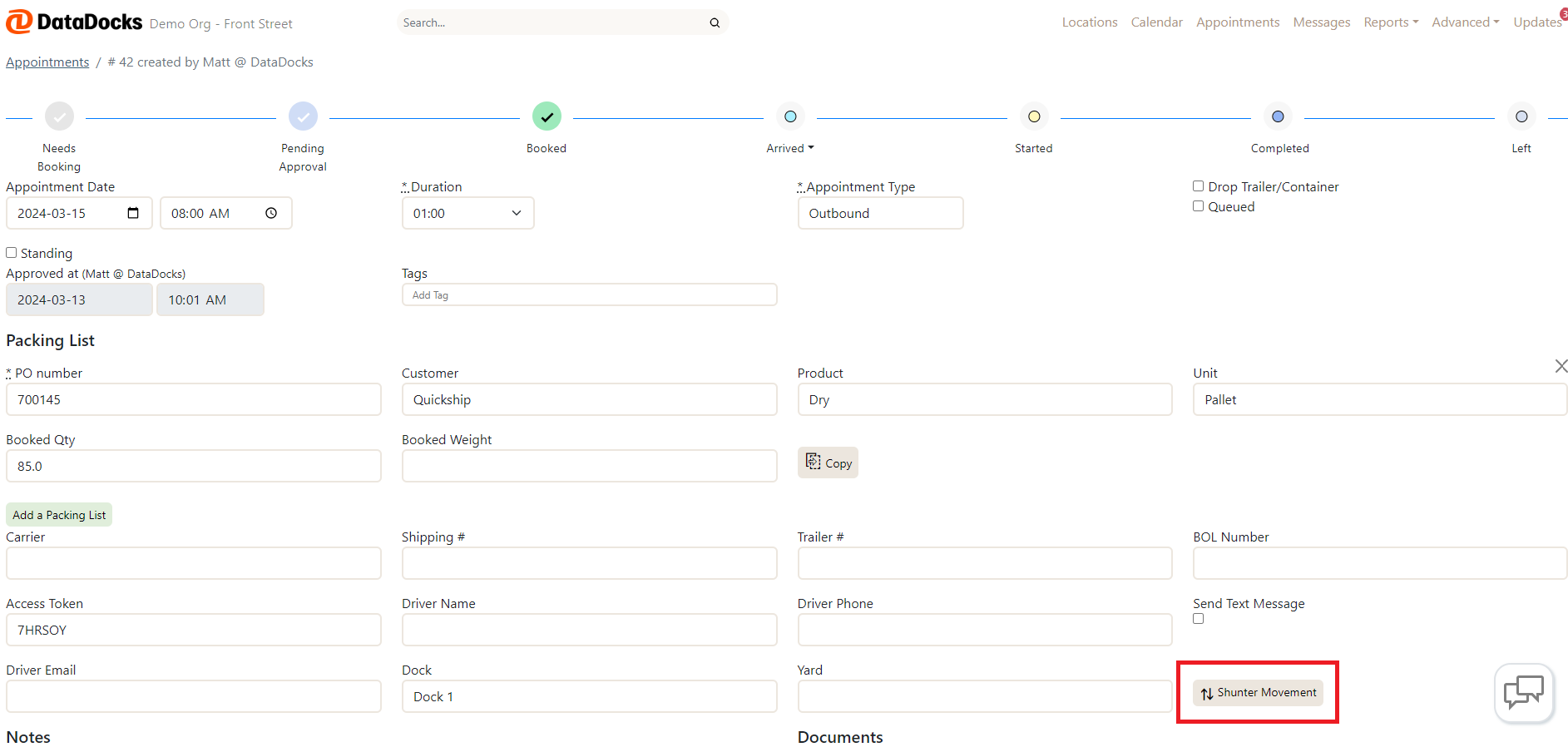
- From the Appointment Edit Screen: You can also assign Shunter Movements from here by selecting the Shunter Movement option.
After selecting Shunter Movements, a pop-up will prompt you to choose where the trailer needs to go and its priority level. The system will automatically identify the current dock door or yard location. Priority levels include: Low, Normal, High, and Urgent.
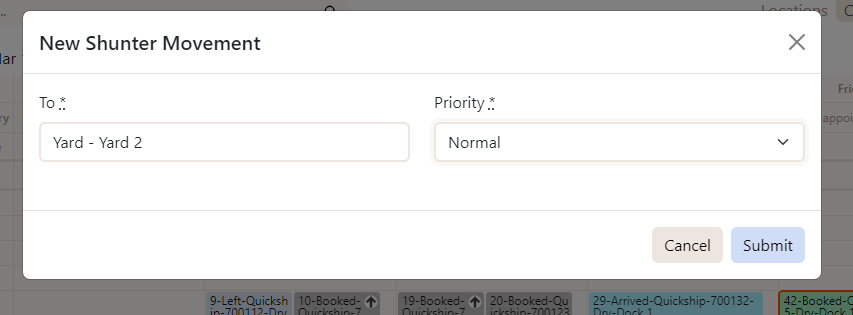
Once you click submit, the Shunter Movement enters the queue.
Managing Shunter Movements
The Shunter Movement Queue (found under the "Advanced" menu) lists all pending and in-progress movements. Movements are prioritized, with Urgent tasks appearing at the top. For each movement, you’ll see details like the trailer number, current location, destination, urgency, creation date, and last update.
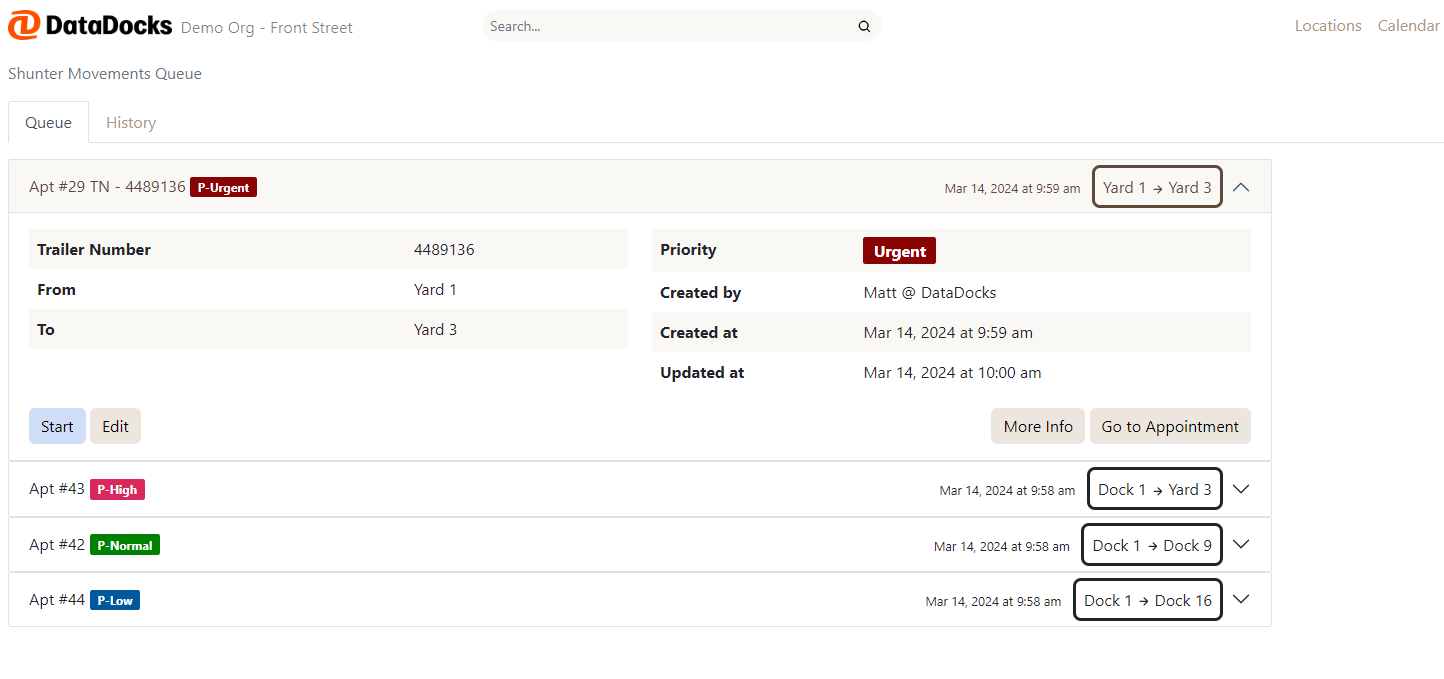
From this screen, you can:
- Start the movement
- Edit or Cancel the movement
- Access more info or go to the full appointment details.
Once a movement is started, it will show which user initiated it. After completion, users can mark the movement as finished. If needed, you can cancel the start, which returns the movement to the queue. Clicking "More Info" will display detailed movement information, including an audit log showing all updates.
Shunter Movement History
The "History" tab provides an overview of all completed and pending Shunter Movements. You can filter these by date range, status, and priority. The audit log tracks the complete history of each movement, including when it was created, updated, and by whom. Clicking "Show" will display these details. If necessary, movements can be deleted from here.
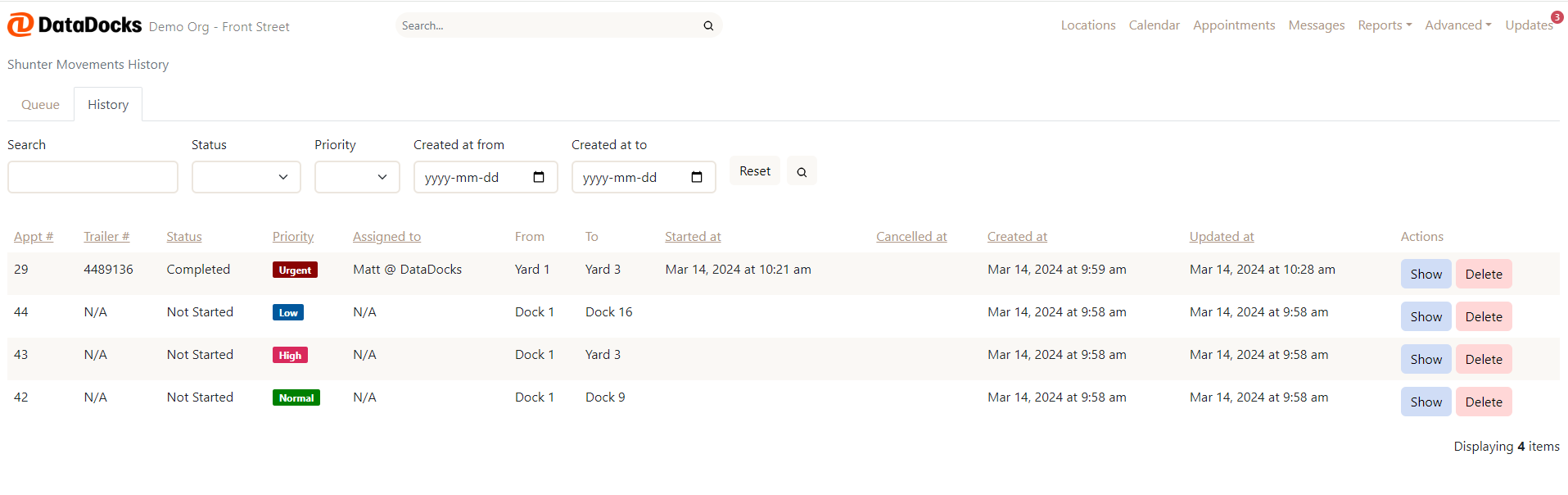
Using Shunter Movements allows overview of your location, and allows your team to move loads seamlessly, with a visual log of completed work - keeping your team on track and transparent of information.