Docks
When setting up your physical docks in DataDocks, you can match them to how they function in your facility. Do you have dedicated spots for inbound or outbound shipments? You can specify that easily while creating a dock.
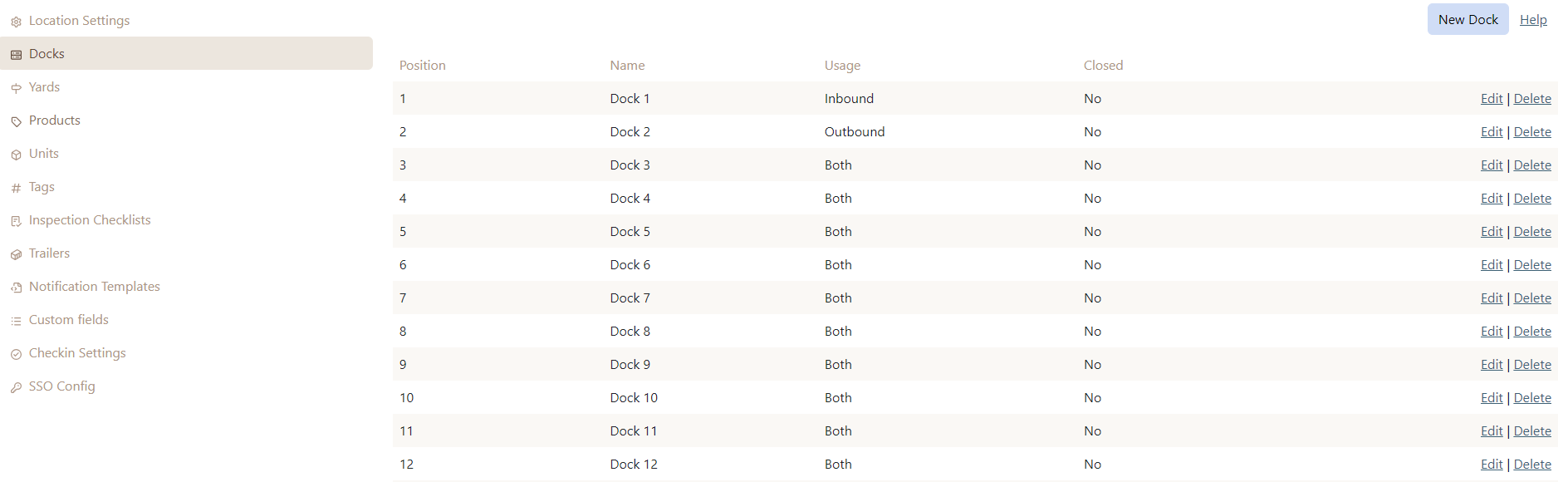
Creating a New Dock
Click the Create Dock button, and the new dock dialog screen will appear.
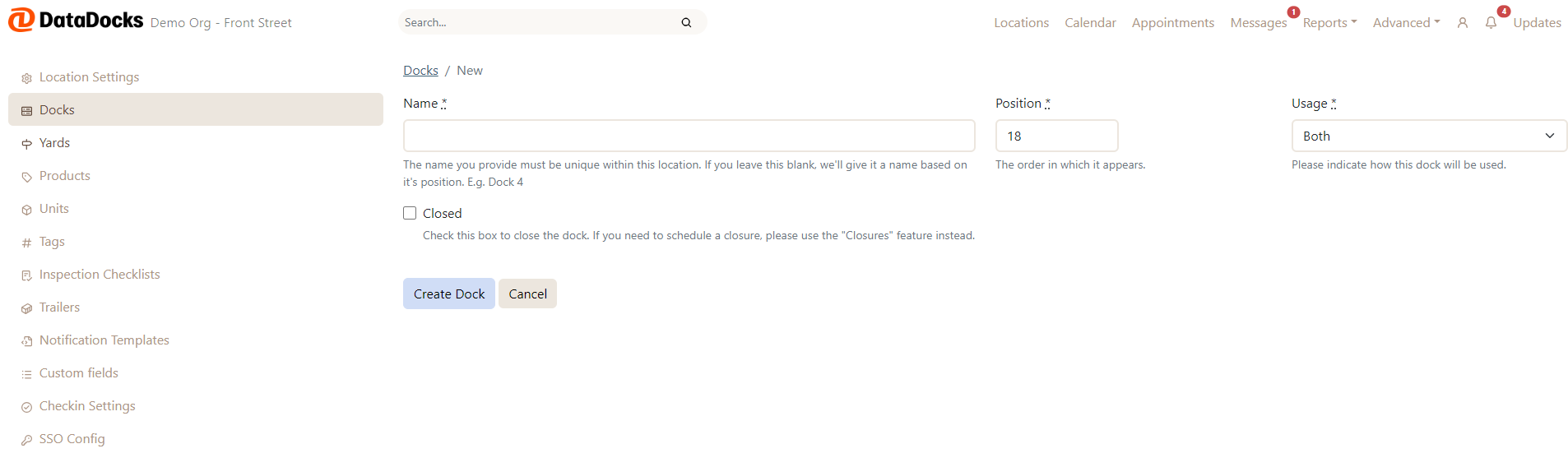
| Field Name | What It Does |
|---|---|
| Name | Gives the dock a unique name at this location. If left blank, a number is assigned automatically (e.g., Dock 1). |
| Position | Sets the dock’s order in DataDocks, matching the physical arrangement of your docks. If left blank, DataDocks will add to the end of the list. |
| Usage | Specifies if the dock is used for inbound, outbound, or both. Helps organize docks with specific functions. |
| Closed | Mark the dock as closed. You can reopen it later if needed. Tip! Using the Dock Closure feature is best when scheduling a temporary closure or a recurring closure. |
Managing Docks
You can add as many docks as you need and easily update or remove them later if needed.
Docks are important to create during your account setup if you’re looking to allocate specific products to certain docks, or even ensure that you’re receiving the correct amount of appointments per time slot.