Products
Products in DataDocks are items you want to track for purchase order matching, fulfillment, and reporting. These products are specific to your organization, and organizing them within DataDocks allows you to create specific and special parameters for allocation to docks and shipments.
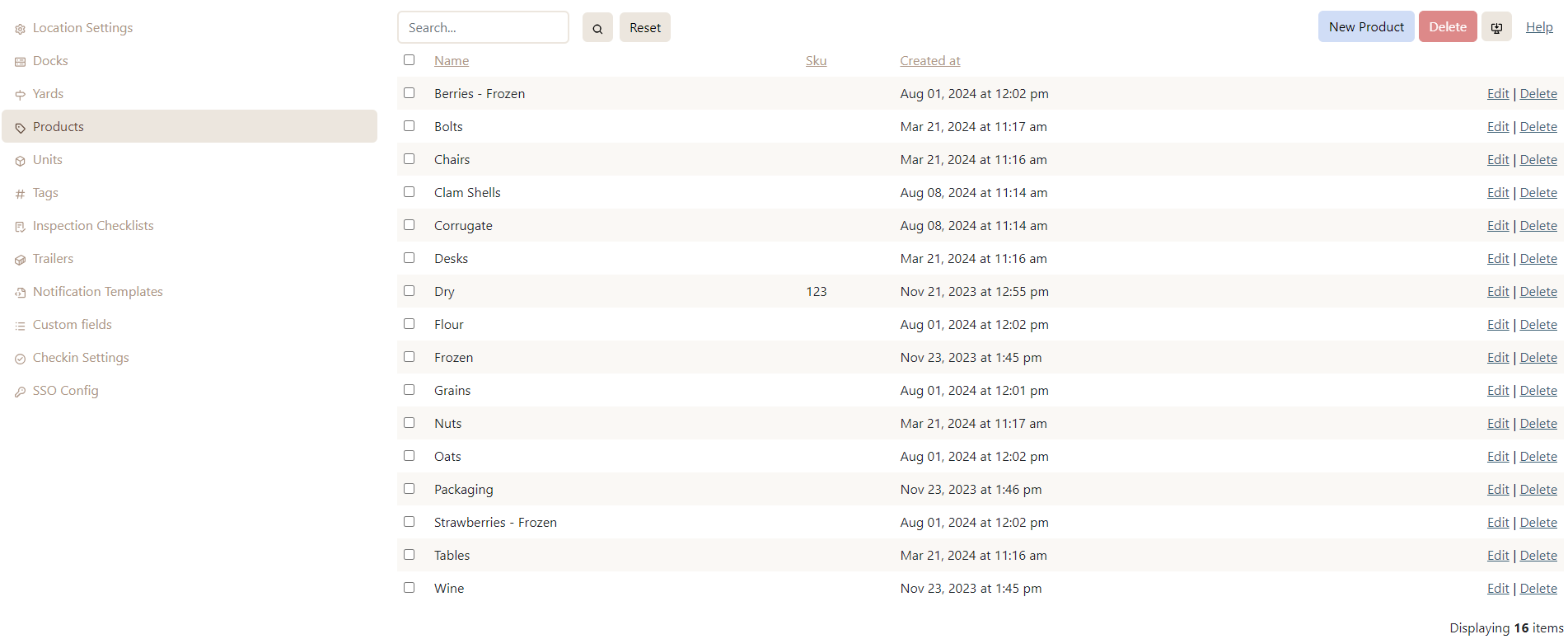
Creating a New Product
Click the New Product button to start adding products one by one.
Tip! You can also utilize a Bulk Upload to upload these Product lists as well!
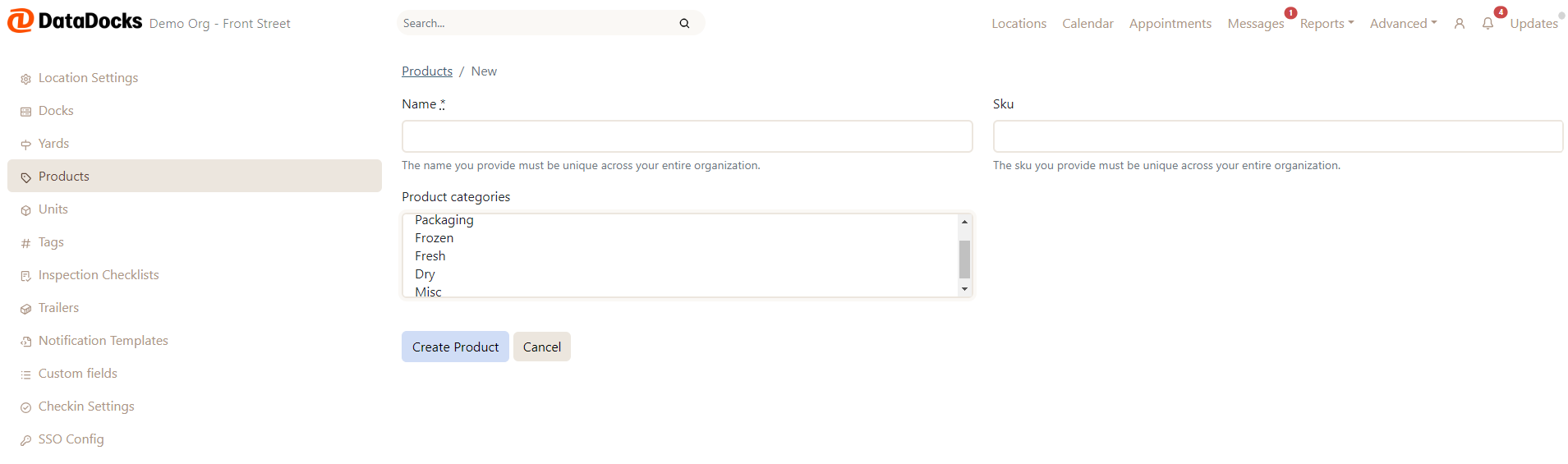
Fields to Complete
| Field | What It Does |
|---|---|
| Name | This is the name of the product, and it needs to be unique across your entire organization. |
| Sku | The SKU associated with the product. This also needs to be unique across your organization to avoid confusion. |
Once you’ve entered all the details, click Create Product to save it.
Categories
If you want to add your product to Product Categories that already exist, you can find them in a list here, you can add new items to these categories. To create new categories, please see Product Categories under All Limits.
Companies
By default, products created in the software are available for all customers and carriers to book.
To restrict a product to specific companies:
- Uncheck All Companies
- Select the companies that should have access
This ensures that only the selected companies can view and book the product on appointments.
Units of Measure
Products can include multiple units of measure, with defined conversions between smaller and larger units.
For example:
- 1 Case = 200 Pieces
- 1 Pallet = 25 Cases
This allows DataDocks to understand that the same product may be booked in different unit types, while still applying limits and durations consistently.
Why this is important
Different customers or carriers may refer to the same product using different units. One booking may be entered in pieces, another in cases, and another in pallets. By setting up unit conversions, DataDocks can convert those larger units back to the smallest unit and apply your rules accurately.
This helps ensure that:
- Product limits are calculated correctly, regardless of which unit is used on the booking
- Product Category Tiered Durations are applied consistently
- Reporting and fulfillment data remain aligned across all unit types
How to set it up
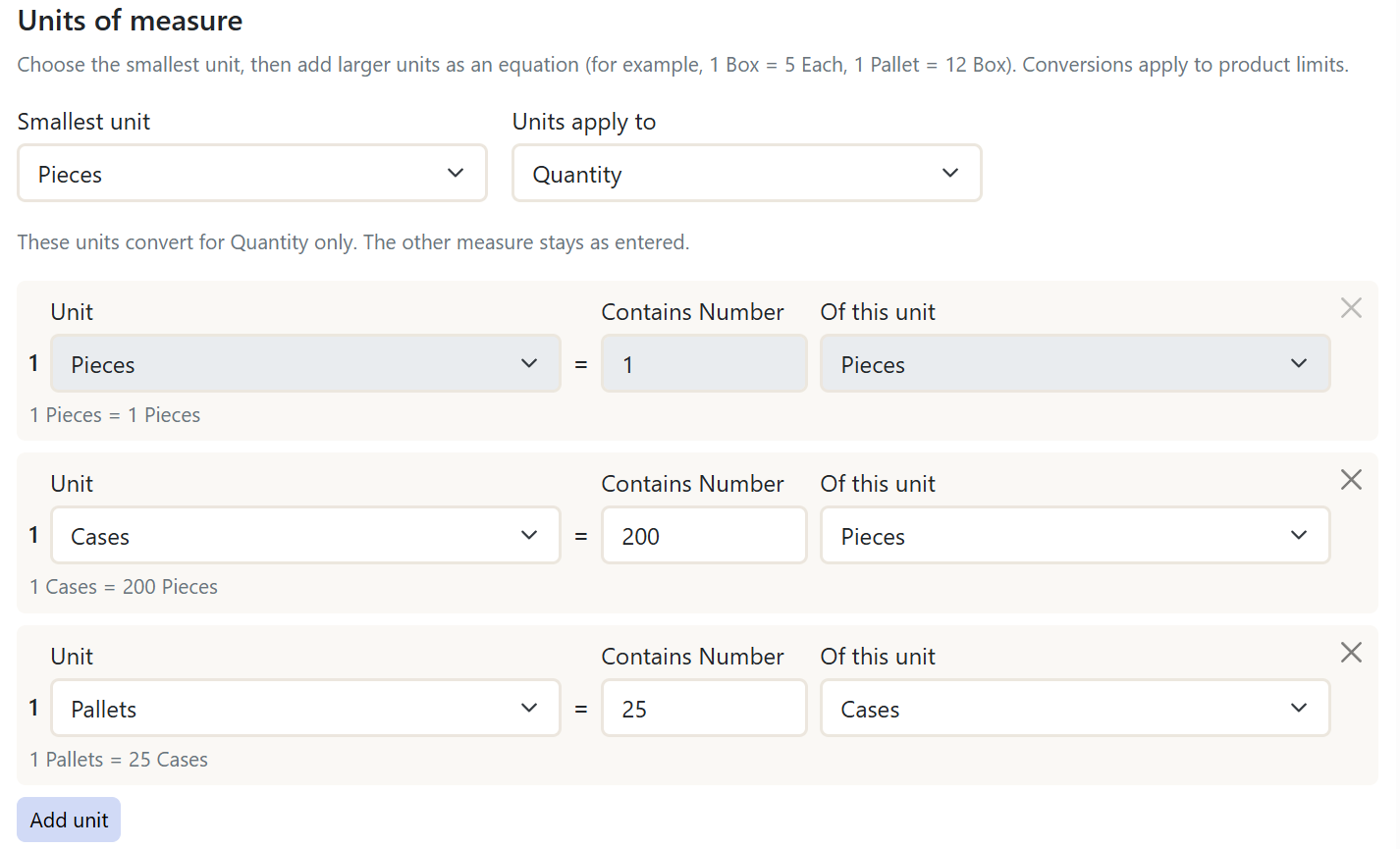
When configuring units of measure:
- Choose the smallest unit for the product, and if the units apply to Quantity or Weight
- Add larger units with their conversion values
Tip! This can also be done via Bulk Upload
For example:
- Smallest unit: Pieces
- 1 Case = 200 Pieces
- 1 Pallet = 25 Cases
This allows DataDocks to calculate that:
1 Pallet = 5,000 Pieces
How limits and durations are applied
Unit conversions affect how DataDocks evaluates:
- Product Limits pages here.
- Product Categories Tiered Durations
When setting up these rules, you should always use the smallest unit.
DataDocks converts any larger booked units back to the smallest unit before applying limits or durations.
Example Using the example above:
- 1 Case = 200 Pieces
- 1 Pallet = 25 Cases
- 1 Pallet = 5,000 Pieces
If you set a daily product limit of 50,000 Pieces, that limit could be reached by booking any of the following:
- 50,000 Pieces
- 250 Cases
- 10 Pallets
- Or a combination, such as 9 Pallets + 200 Pieces
Because all bookings are converted to the smallest unit, DataDocks can apply the limit correctly no matter which unit is used.
Downloading Product Lists
If you want to download a list of your products, including when they were created or updated, just click the download button on the right-hand side. This will generate a .CSV file that you can save for your records.

To see what you can do with Products, visit the Product Categories and Product Limits pages here.