Tags
Tags help you quickly visually identify information from your calendar or search for specific appointments. For example, you can tag appointments with "Rejected Load" and easily track how many rejected loads you had this week. You can assign multiple tags to an appointment. If you’re interested in automating this with conditions, check out the Triggers page.
Creating Tags
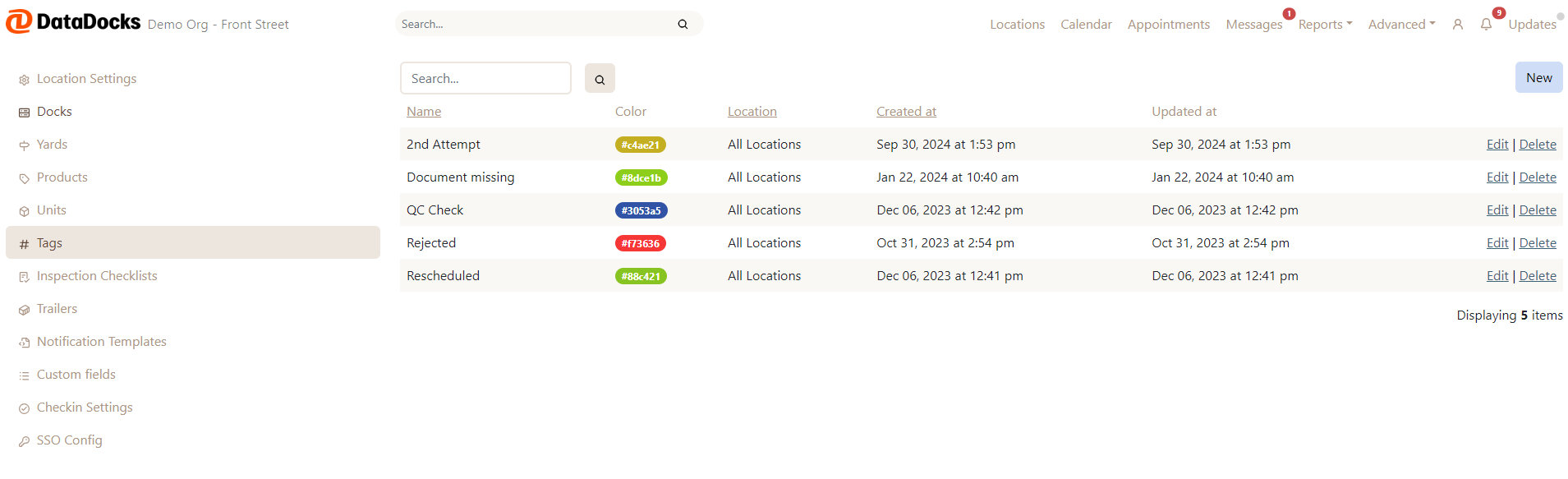
In the Tags section, you’ll see any existing tags you’ve set up. To create a new tag, just click the New Tag button and then fill out the fields:
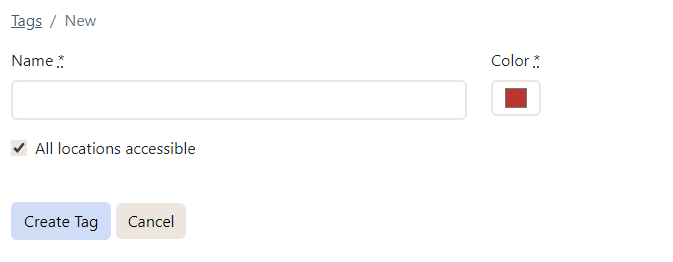
| Field | What It Does |
|---|---|
| Name | Name your tag - maximum 40 characters |
| Colour | Select the colour you would like your tag to have |
| All Locations Accessible | Check if this tag is to appear on all of your organization’s calendars if you have more than one location. |
When you’re done, click Create Tag to save it and start tagging your appointments.
Tagging Appointments
You can add tags to appointments either from the Appointment Drawer in the calendar or by editing an appointment. Here’s how:
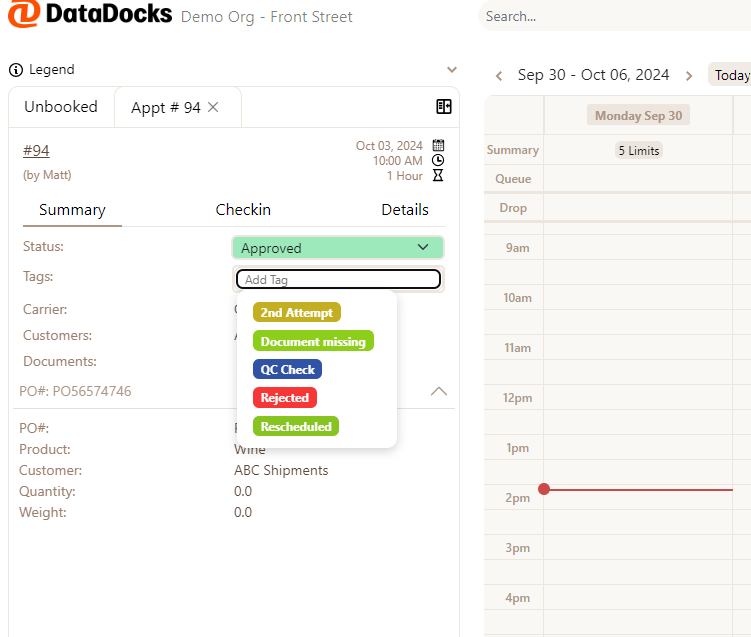
- From the Appointment Drawer: Click on an appointment in the calendar to open the drawer. On the left, you’ll see the Add Tag box. Click inside the box to select from existing tags or type to search for a specific tag. Once you find the one you want, just click to apply it.
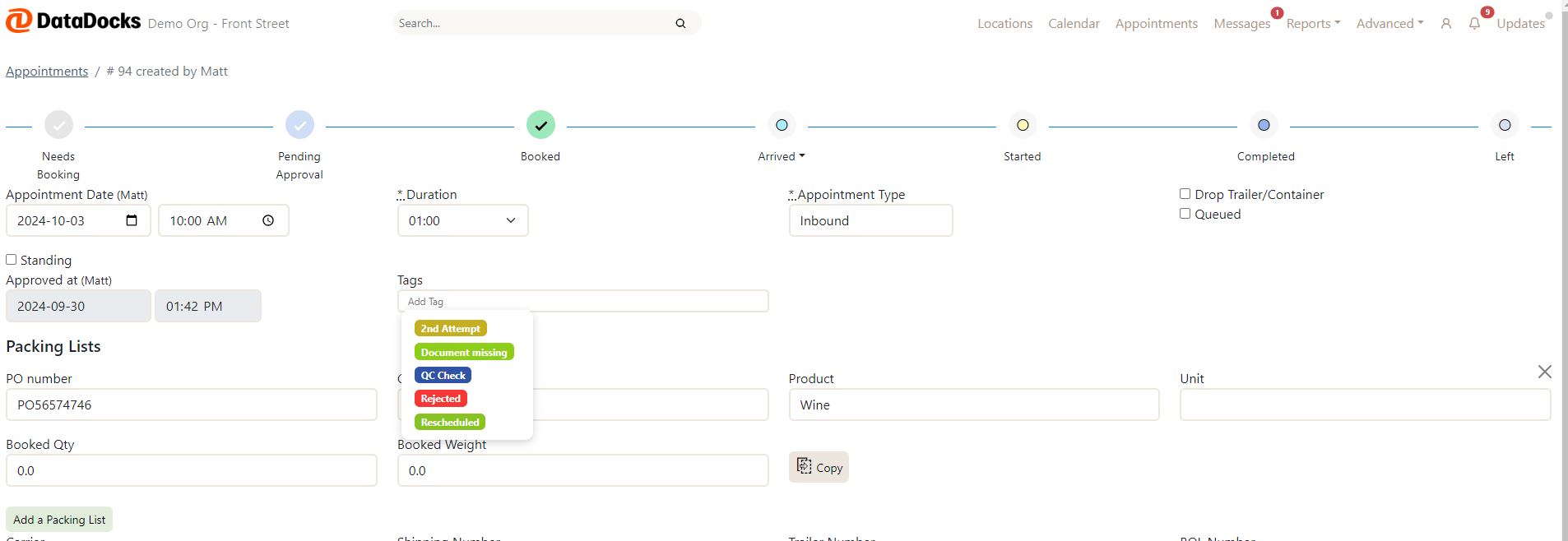
- From the Appointment Edit Screen: You can also add tags while editing an appointment. The process is the same—use the Add Tag box to find and apply tags.
Quick Create Tags
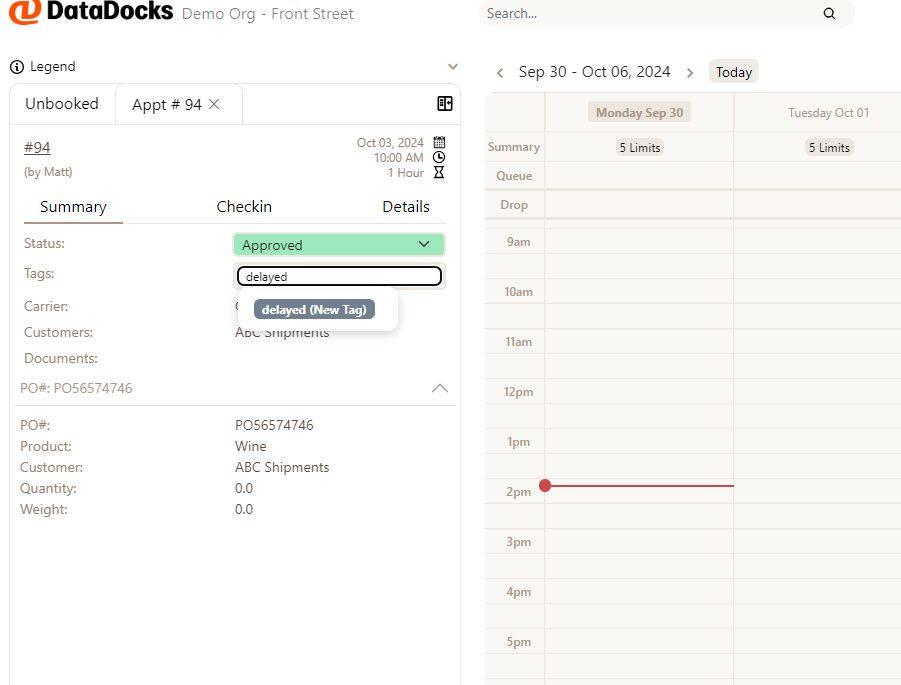
Need a new tag while working on an appointment? You can create one directly from the Add Tag field in the Appointment Drawer or Edit page. Just type the name of the tag, and if no matches are found, you’ll see an option to create a new tag right there.
Tag Reporting and Searching
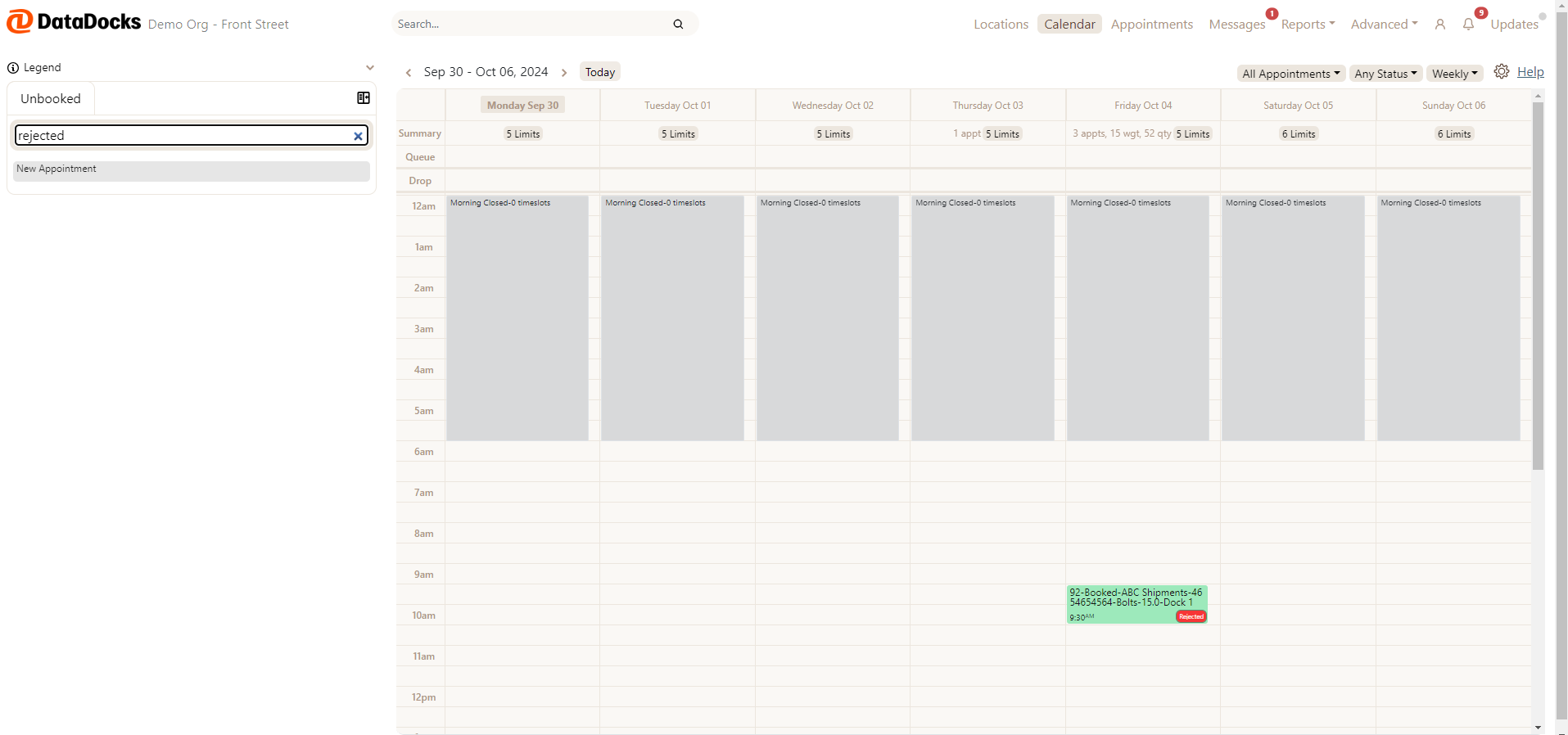
Once your tags are added, they’ll appear on your calendar. You can filter appointments by tag using the Appointment Drawer Search Bar or by searching through the Appointments tab in the navigation bar to get a list view.
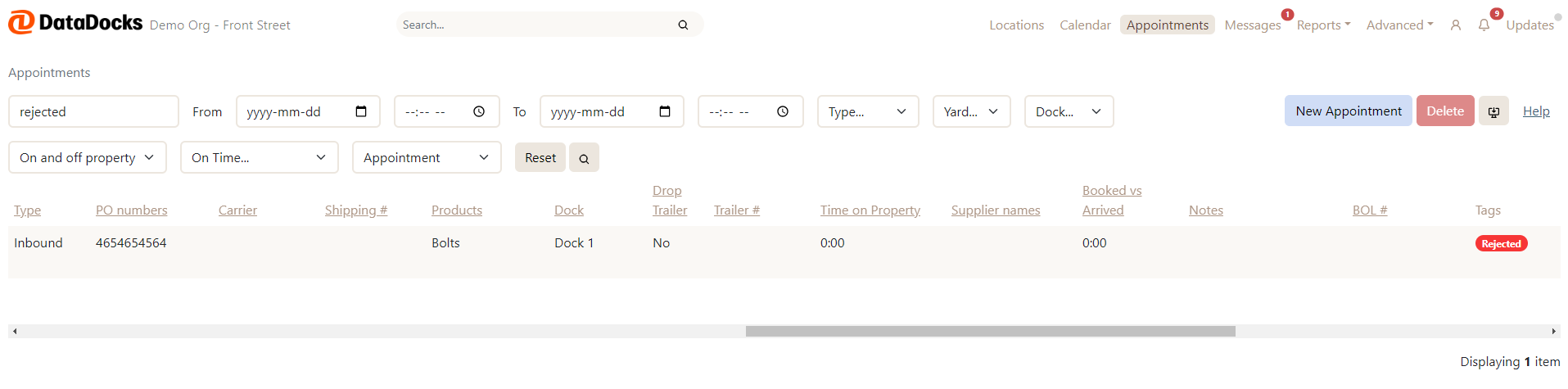
Using tags can be effective when tracking specifically labelled loads - for instance, booked within 24-hour notice, or cancelled shipments. You can easily download an appointment report with these tagged appointments, and send it to your customers and carriers when necessary to keep them on track and hold them accountable