Appointment Validations
Appointment Validations let you build custom rules to make sure data is entered correctly before an appointment can be saved. You can combine any field and condition to create validations that check for missing information, incorrect values, or mismatched data across appointments, packing lists, and purchase orders.
How Do Validations Work
Appointment Validations automatically verify data whenever a user saves an appointment. If the entered data doesn’t meet your rule, a custom error message appears — guiding the user to fix the issue before continuing.
This helps you:
- Maintain consistent and accurate data entry
- Prevent incomplete or invalid information from being saved
- Keep reports and KPIs reliable and up to date
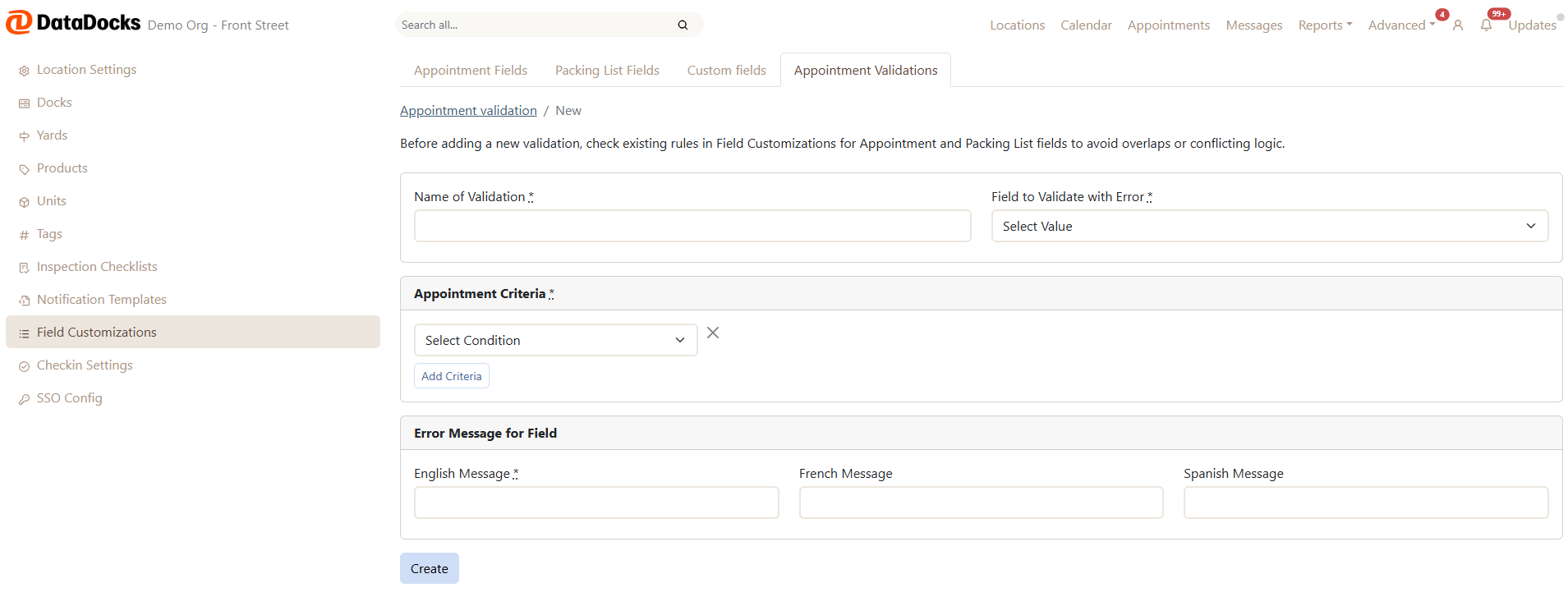
Each validation includes the following parts:
| Field Name | Description |
|---|---|
| Name of Validation | The name or label of your validation rule. |
| Field to Validate with Error | The field that will display the error message if the conditions fail. |
| Appointment Criteria | The conditions that must be met for the validation to trigger. You can combine multiple criteria, for instance *If criteria A = X and criteria B = Y, show error on C. |
| Error Message for Field | The message that appears when the validation fails. |
| English / French / Spanish Message | Localized versions of the error message. If no other language is entered, English will be used across all fields. |
Tip! When selecting a field to validate, you will see additional information related to this field from your Appointment Fields or Packing List Fields rules. For example, it may be a hidden field, or a field that has special overrides. Be sure to pay attention to these rules to avoid conflicting requirements and validations.

Field Types You Can Use
Appointment Validations can use data from appointment fields, packing list fields or custom fields that you’ve created.
Appointment Fields
| Field Name | Description |
|---|---|
| Appointment State | Status of the Appointment (Booked, Arrived etc.) |
| Appointment Type | Live Load, Drop Trailer or LTL. |
| BOL Number | Bill of Lading number. |
| Carrier | Specific carrier linked to the appointment. |
| Customer | Specific customer linked to the appointment. |
| Customer or Carrier | Specific Company appearing in either Customer or Carrier Field. |
| Direction | Inbound or Outbound Appointment. |
| Driver Phone Number | Phone number entered for the Driver. |
| Packing List Count | The total number of packing lists linked to the appointment. Packing lists consist of a Purchase Order Number, Product, Unit, Quantity etc. |
| Purchase Order Count | Counts the different Purchase Order Numbers through your packing lists. If 2 Packing Lists have the same Purchase Order number, that is 1 Purchase Order Count. |
| Scheduled At | Scheduled date and time. |
| Trailer Number | Trailer assigned to the appointment. |
| User Type | Internal or External User. |
Packing List Fields
| Field Name | Description |
|---|---|
| Booked Quantity | Quantity of items booked. |
| Booked Weight | Weight of items booked. |
| PO Number | Associated purchase order number. |
| Product Name | Product or item name. |
Custom Fields
You can include any custom fields you’ve created. These will behave according to the field type (text, numeric, or dropdown) and can be used with matching condition types.
Condition Types
Different field types support different kinds of conditions:
| Condition | Description |
|---|---|
| Equals | Matches an exact value. |
| Does not Equal | Value must not match. |
| Contains | Includes specific text. |
| Does Not Contain | Excludes specific text. |
| Starts With | Begins with specific text. |
| Ends With | Ends with specific text. |
| Is Empty | Field is blank. |
| Is Not Empty | Field has any value. |
Numeric and Sum-Based Fields
Used for numeric data such as Booked Quantity, Booked Weight, Packing List Count, or PO Count, as well as totals across multiple packing lists or purchase orders.
| Condition | Description |
|---|---|
| Equals | Matches a specific number. |
| Does not Equal | Does not match the number. |
| Greater Than | Must be greater than the given number. |
| Greater Than or Equal To | Must be greater than or equal to the number. |
| Less Than | Must be less than the given number. |
| Less Than or Equal To | Must be less than or equal to the number. |
| Sum Equals | Total equals the specified number. |
| Sum Does Not Equal | Total differs from the specified number. |
| Sum Greater Than | Total is higher than the number. |
| Sum Greater Than or Equal To | Total meets or exceeds the number. |
| Sum Less Than | Total is lower than the number. |
| Sum Less Than or Equal To | Total meets or falls below the number. |
Date-Based Fields
Used for date or time fields such as Scheduled At.
| Condition | Description | Example |
|---|---|---|
| Relative Date | Matches a relative time period. Options include Today, Tomorrow, and This Week. | Scheduled At = Today. |
| Day of the Week | Matches appointments scheduled on a specific weekday. | Scheduled At = Monday. |
| Is Empty | No date or time has been entered. | Scheduled At is empty. |
| Is Not Empty | A date or time has been entered. | Scheduled At is not empty. |
Combining Multiple Criteria
You can add multiple criteria to create complex rules.
For example:
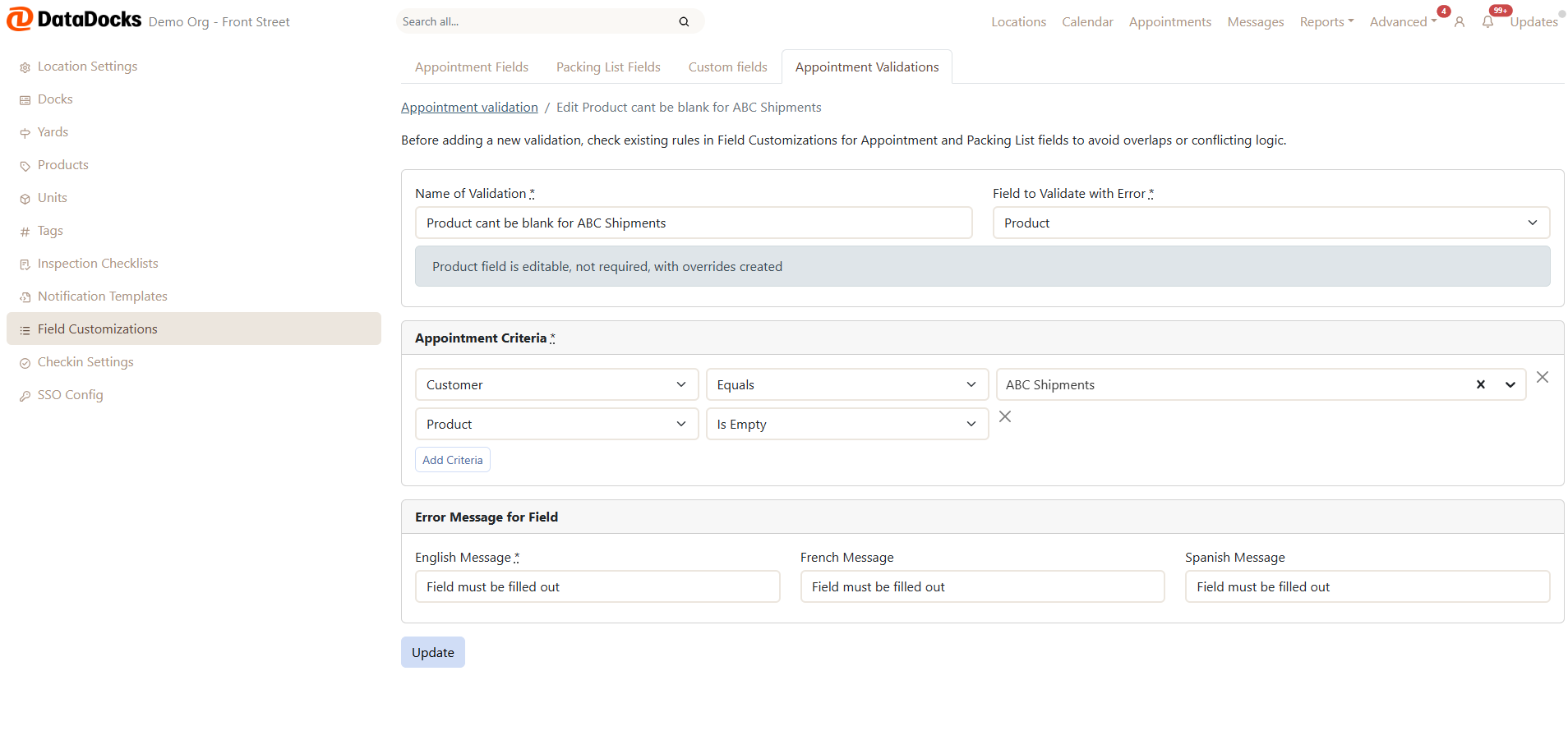
If the "Customer" equals "ABC Shipments" and "Product" is empty, produce an error message to let them know the "Field must be filled out". This would mean that any other customer could create an appointment without needing to populate the "Product" Field but, for "ABC Shipments", they have to fill it out.